
Display barcodes on screen: grid, full screen and anti-glare controls
Use the viewer when you want a scanner to read codes from the screen or need to review a batch visually. Its format, zoom and anti-glare controls are separate from the label designer. Check the target scope before copying, hiding or exporting several codes.
Browse one barcode at a time
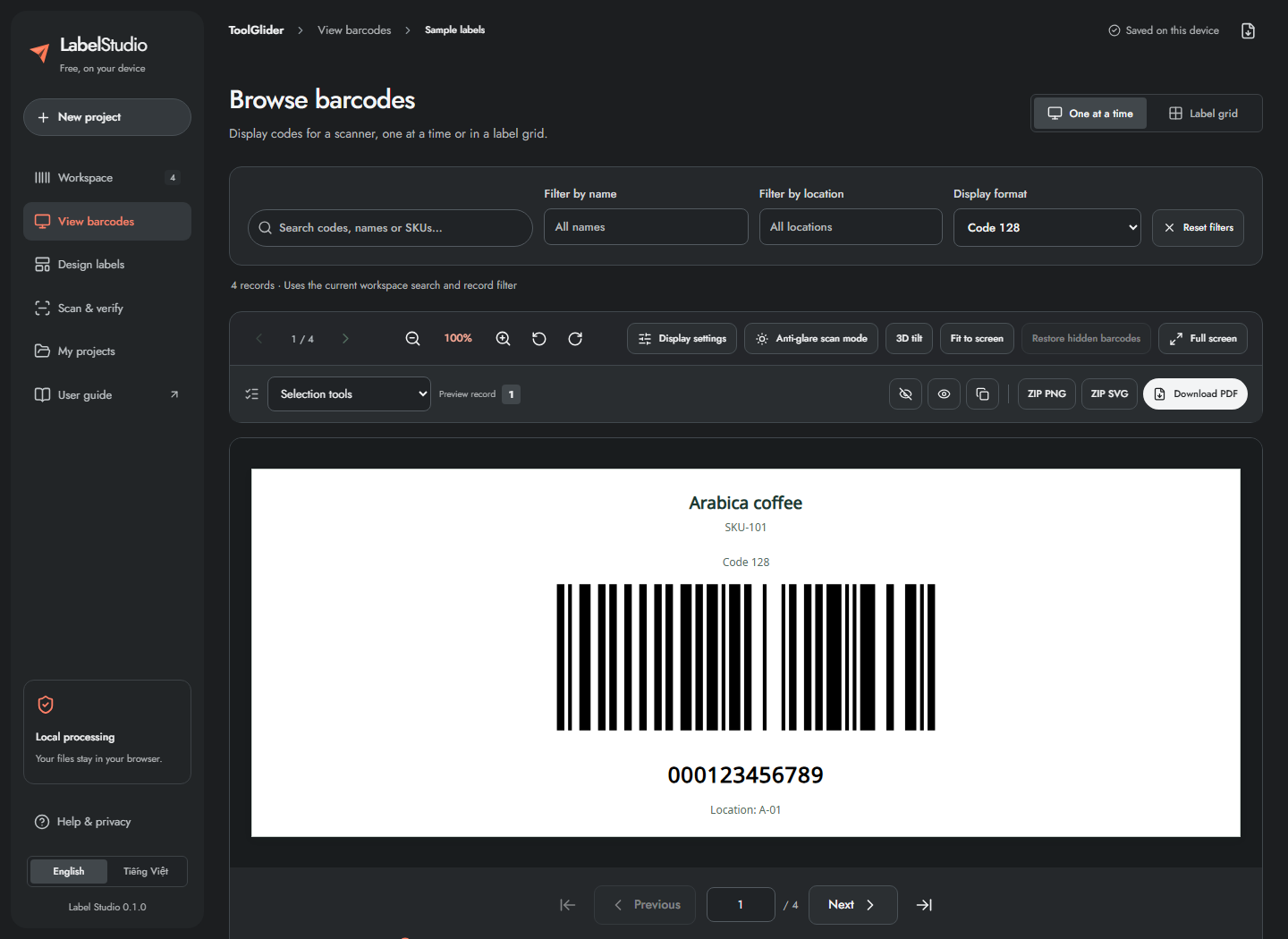
- Open View barcodes, or use a row's View this barcode eye icon.
- Choose One at a time.
- Use first/previous/next/last buttons, the position slider, or Go to barcode number and Enter.
- Use Left/Right and Home/End when navigating the viewer. Swipe horizontally on a touch device; mouse dragging also moves between records at the default zoom.
- Search codes or names, filter by name or location, and select Display format. It can show Code 128, Code 39, both together or the other supported formats without changing the print template.
- Use Reset filters if expected records are missing. Workspace search and the workspace record filter also constrain this viewer.
The viewer is for presenting existing values to a scanner. Changing the displayed symbology does not modify the stored value or make an invalid payload valid.
Adjust display, anti-glare, tilt, zoom and rotation
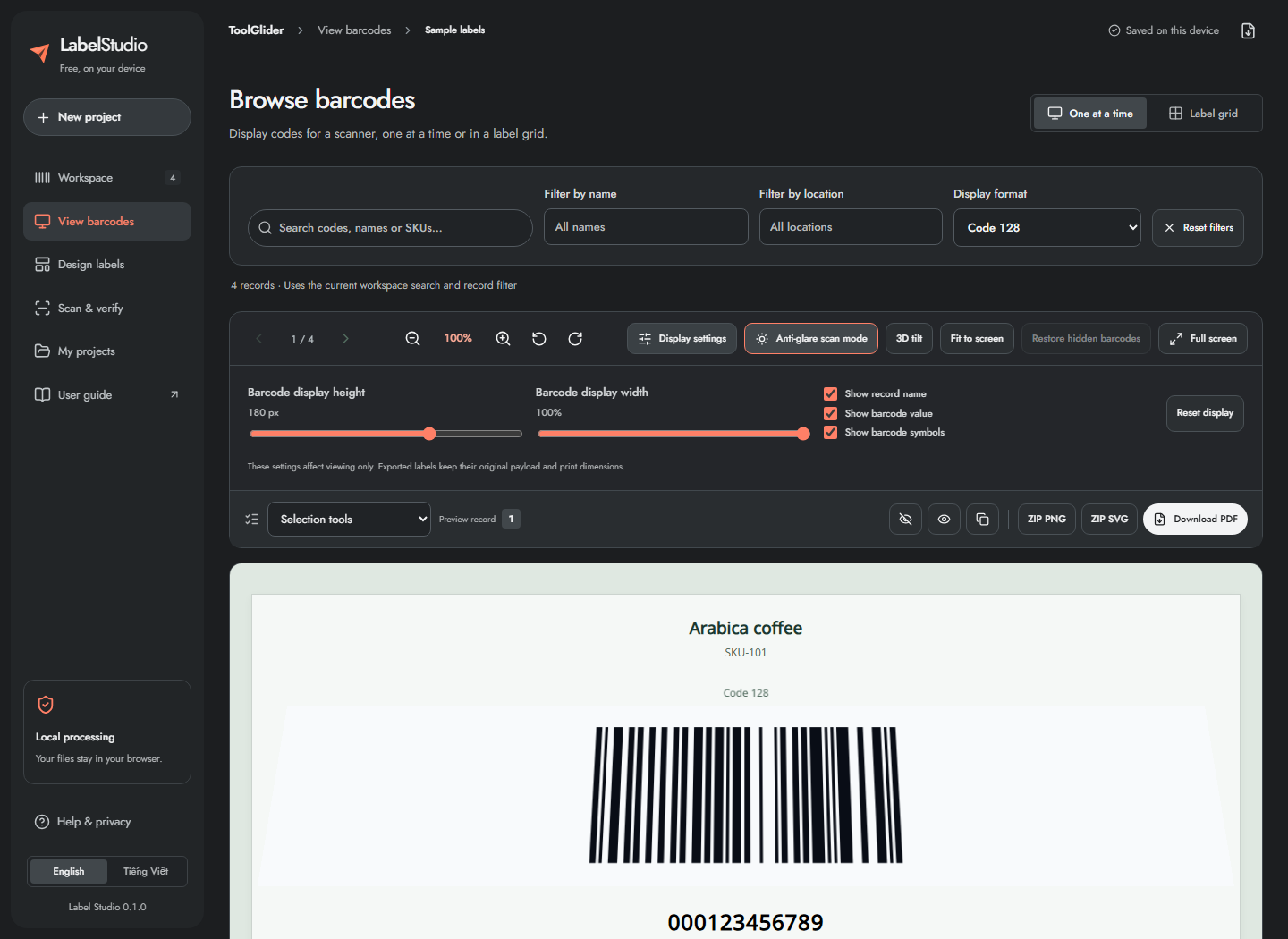
- Open Display settings.
- Adjust Barcode display height (60–240 px) and Barcode display width (50–100%).
- Toggle record name, barcode value or barcode symbols as needed.
- Enable Anti-glare scan mode for a softer background, dark ink, larger quiet zones and a taller/wider presentation suitable for screen scanning.
- Try 3D tilt if a slight presentation angle helps your scanner. It applies a 14° perspective tilt; it cannot remove physical reflections from a screen.
- Use zoom out/in, left/right 90° rotation, Fit to screen, or Reset display to return to an ordinary view.
Long linear codes may scroll horizontally so their bars are not squeezed too small. Display preferences are saved per project. These settings affect the screen, not the original payload or the dimensions of designed print exports. Test scan distance and ambient light with your actual device.
Full-screen viewing and label grids
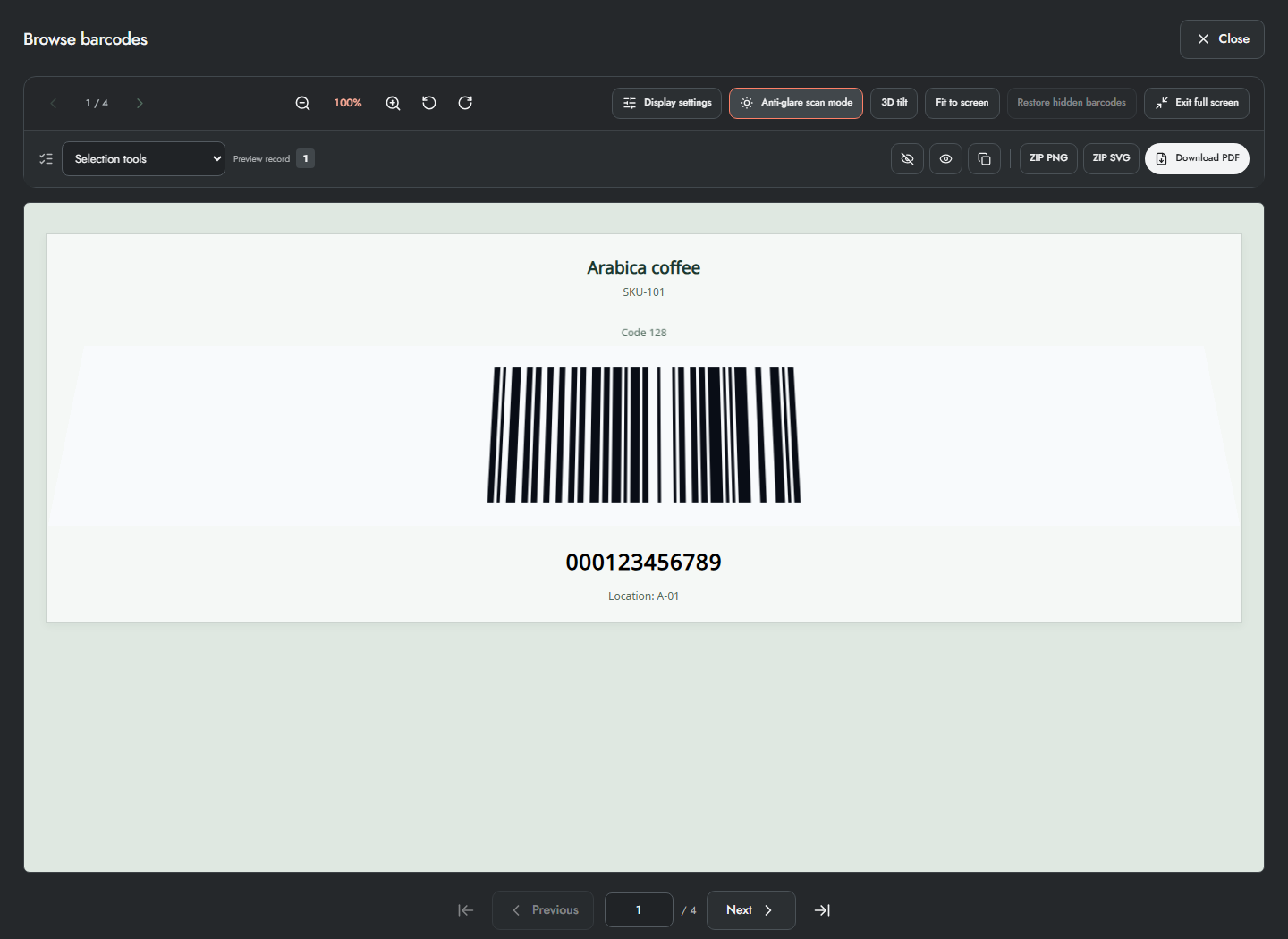
- Click Full screen to open the expanded viewer dialog. It is an in-app expanded view, not a promise to hide browser chrome.
- Use the pinned navigation/display/export tools inside it.
- Press Esc or its close/exit button to return.
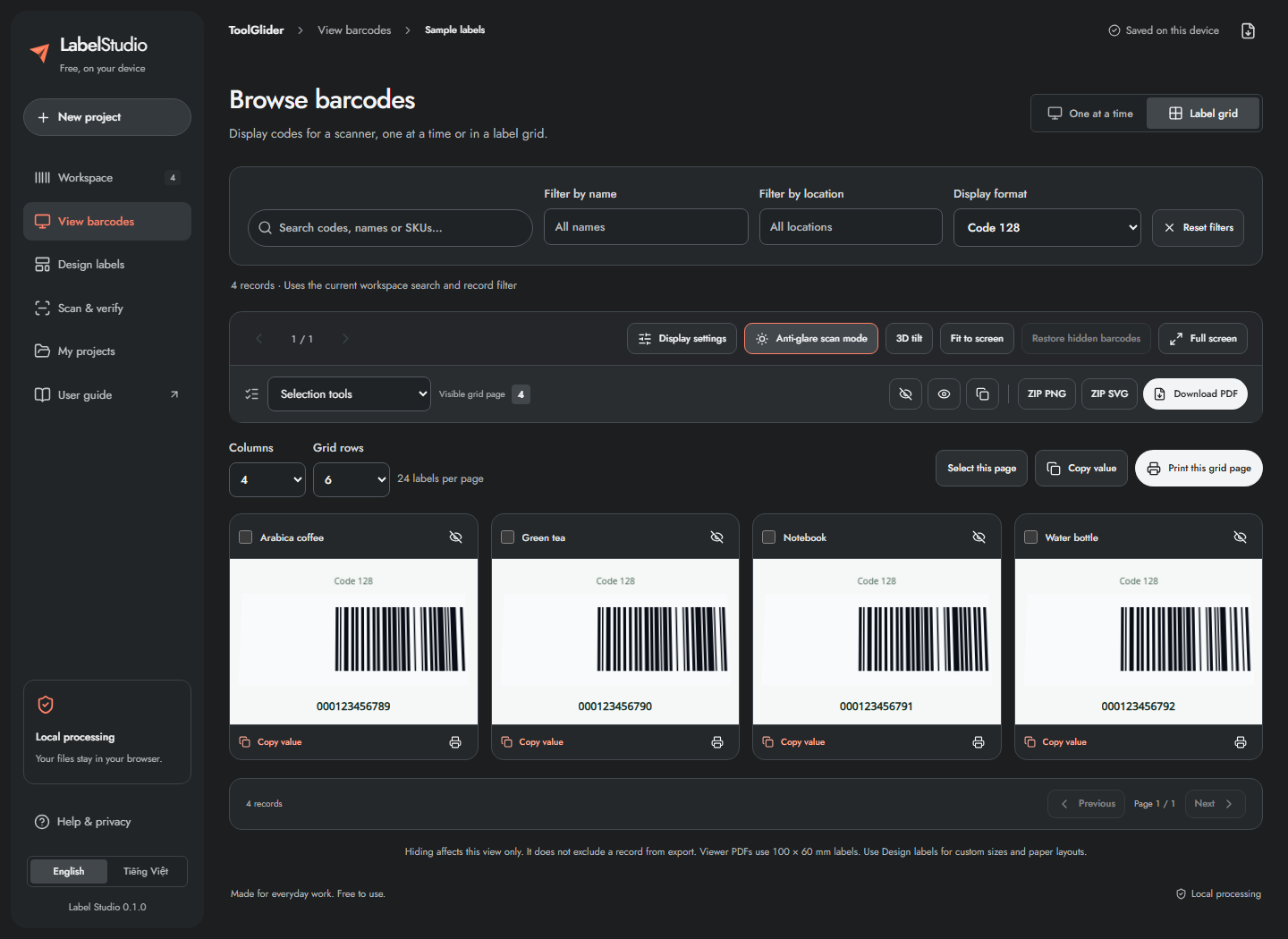
- Choose Label grid.
- Set Columns from 1–6 and Grid rows from 1–8.
- Move between grid pages. On narrow screens, extra columns scroll inside the grid.
- Select cards, expand one card, copy its value, hide/show it or print that code.
- Use the selection menu to select current/page/all filtered, invert the filtered selection or clear it.
Hide/show actions affect presentation only. Restore hidden barcodes brings them back. A hidden record is not automatically excluded from export.
The toolbar automatically shrinks to a single row when you scroll down. The compact pager shows the current grid page or barcode position. Use Tools to open display and selection/export controls in a separate panel; close the panel or press Escape to return to your codes. Returning to the top restores the full toolbar.
Printing now opens Print preview first: check the 100 × 60 mm label, record count and total labels including copies. Use Previous/Next to inspect each label. Cancel returns without opening a PDF; Continue to print PDF opens the captured selection for printing at actual size (100%).
Export directly from the barcode viewer
Use the viewer's selection/export toolbar to copy target values, hide/show target codes, download PNG or SVG, produce PNG ZIP/SVG ZIP, download PDF, or print the current/selected/visible grid codes.
- Inspect the target description before clicking: selected records take priority; otherwise the action uses the current code or visible grid page as indicated.
- Check copies and excluded records; image archives honor both.
- Use single PNG/SVG for one output label. For multiple outputs, choose a ZIP/PDF action.
- Cancel a long export with Cancel and wait for it to stop before starting another action.
Viewer exports use the displayed symbology; both Code 128 and Code 39 can appear together. Viewer PDF labels are 100 × 60 mm. For custom label dimensions, paper layouts and calibration, use Design labels and Print & export instead. Screen rotation and zoom do not change output geometry.
Frequently asked questions
Does anti-glare change the exported label?
No. Anti-glare and tilt change screen presentation. Designed print output keeps its physical layout and original payload.
Why is a record missing in the viewer?
Workspace search/filter settings also affect the viewer. Reset filters, check the location/name filters and restore hidden codes before assuming the record was deleted.