
Scan barcodes and QR codes with a camera, image or USB scanner
Load the expected catalogue before scanning if you want matched, missing and surplus results. A camera, an uploaded image and manual/keyboard input all feed the same session. Camera access requires HTTPS or localhost; supported controls vary by device.
Start a scan session and record codes
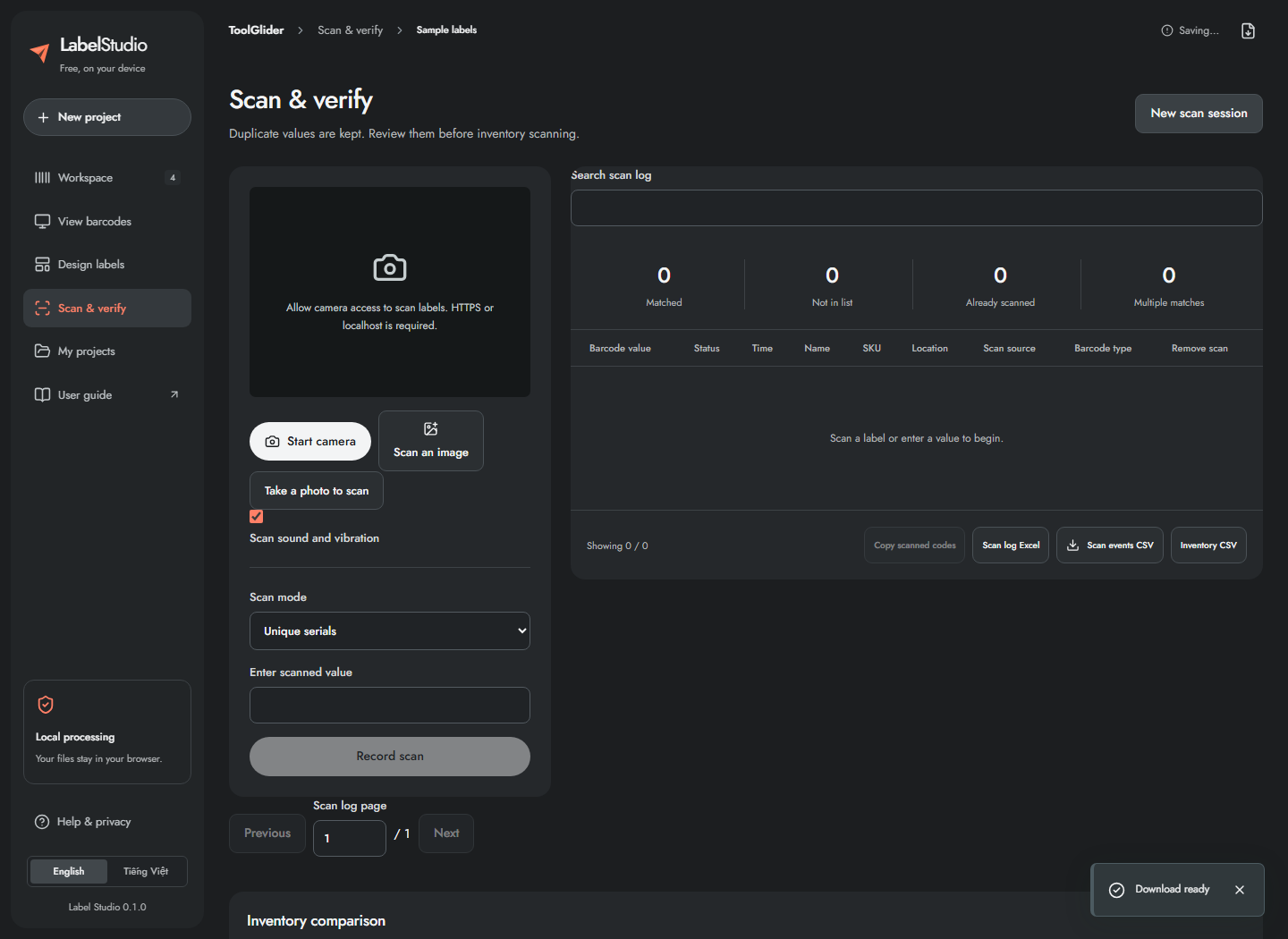
- Import the expected catalogue, review duplicate values, then open Scan & verify.
- Click New scan session. Export an existing report before confirming a reset.
- Choose Scan mode before recording events. The mode becomes fixed once events exist; start a new session to change it.
- For manual entry, type the exact payload in Enter scanned value and click Record scan or press Enter.
- For a USB/Bluetooth keyboard scanner, focus that field and scan. Configure the scanner to send Enter after the value, or click Record scan manually.
Unique serials mode counts a catalogue record once; a repeated read becomes Already scanned. Count each scan mode counts repeated reads against Copies. Both modes match the scanned payload to Barcode value; count mode does not automatically switch matching to the separate SKU column. To count SKU codes, make those codes the value column in your input.
Scan with a camera or an image
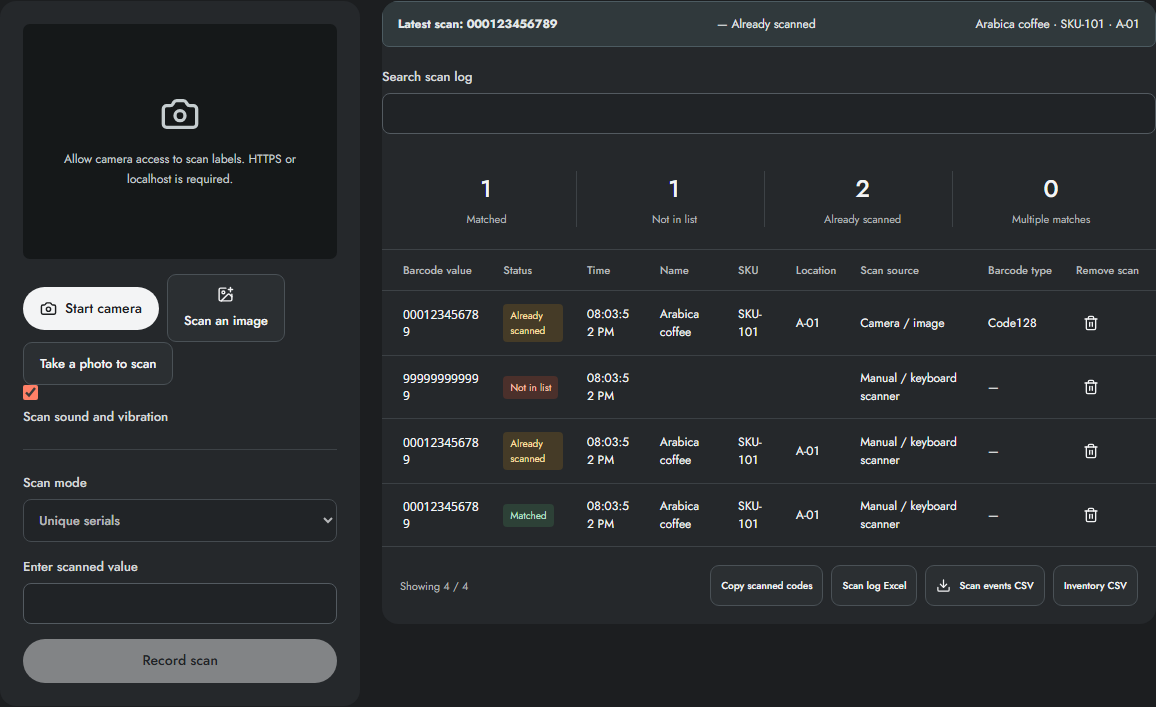
Camera: use HTTPS or localhost, click Start camera, grant permission, place a clear code in the guide and wait for a result. Select another Camera if several are available. Use Camera light only when the device exposes a torch; zoom uses hardware where available and a digital fallback otherwise. Continuous focus is requested when supported. Stop camera when finished; switching away or hiding the page also stops its tracks.
Saved image: click Scan an image and choose PNG/JPEG/WebP. Take a photo to scan asks a supporting phone/browser to capture an image; the browser may instead show a file chooser. Images are decoded locally, resized when needed and tried with rotation/inversion assistance. Use a sharp crop with a complete code and quiet zones. The current flow records a decoded result; it is not a batch multi-code image extraction tool.
Image limits are 20 MiB and 100 million input pixels; large images are reduced to at most 2560 px on the long edge before decoding. If no code is found, improve focus/light or enter it manually. Sound/vibration can be toggled and depends on browser support and user interaction. The app cannot create camera permission or hardware features that your device does not supply.
Frequently asked questions
Does count mode match the separate SKU field?
No. Both modes match the scanned payload against Barcode value. Map SKU codes into that value field if those are the codes you will scan.
What if camera access is unavailable?
Check HTTPS, site permission and whether another application is using the camera. You can scan an image or enter the exact payload manually instead.