
Use Label Studio on mobile and offline after the first load
On a phone, use Menu for the workspace tools and the Guide link in the top bar for instructions. Offline mode starts only after an online visit has cached the app. It does not move projects between devices or replace downloaded backups.
Mobile use, offline mode and updates
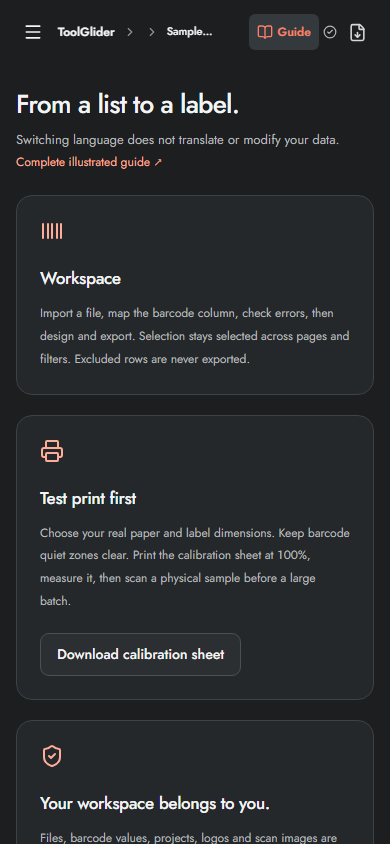
- On a phone, use Menu to navigate and swipe the single-code viewer. Scroll inside wide tables/grids as needed.
- On HTTPS, load the app while online and wait for Ready for offline use. Only then test offline operation.
- If the browser offers Install app/Add to Home Screen, follow its own install flow. Availability differs by browser and platform.
- Keep project backups separately; cached application files are not a backup of your data.
- When Update available appears, finish active work and click Save & update. The app attempts to save the project before refreshing.
Camera permission, clipboard, full-screen presentation and downloads depend on browser policy. Offline use is after a successful first cache, not an offline first visit. This illustrated guide and its images are separate reference assets; their offline availability is not guaranteed by the application's ready indicator.
Frequently asked questions
Can I open the app offline for the first time?
No. Load it online first and wait for Ready for offline use. Then test the functions you need before relying on an offline session.
How do I apply a new version safely?
Finish active operations and choose Save & update when prompted. Keep a downloaded backup in case browser storage is unavailable.