
Print barcode labels on A4 or rolls and export PDF, PNG or SVG
Accurate label printing starts with the right physical label size and printer resolution. Choose the record scope first, check the number of output labels, and calibrate at 100% scale before adjusting offsets. This article covers both sheet and roll workflows.
Export designed labels and source data
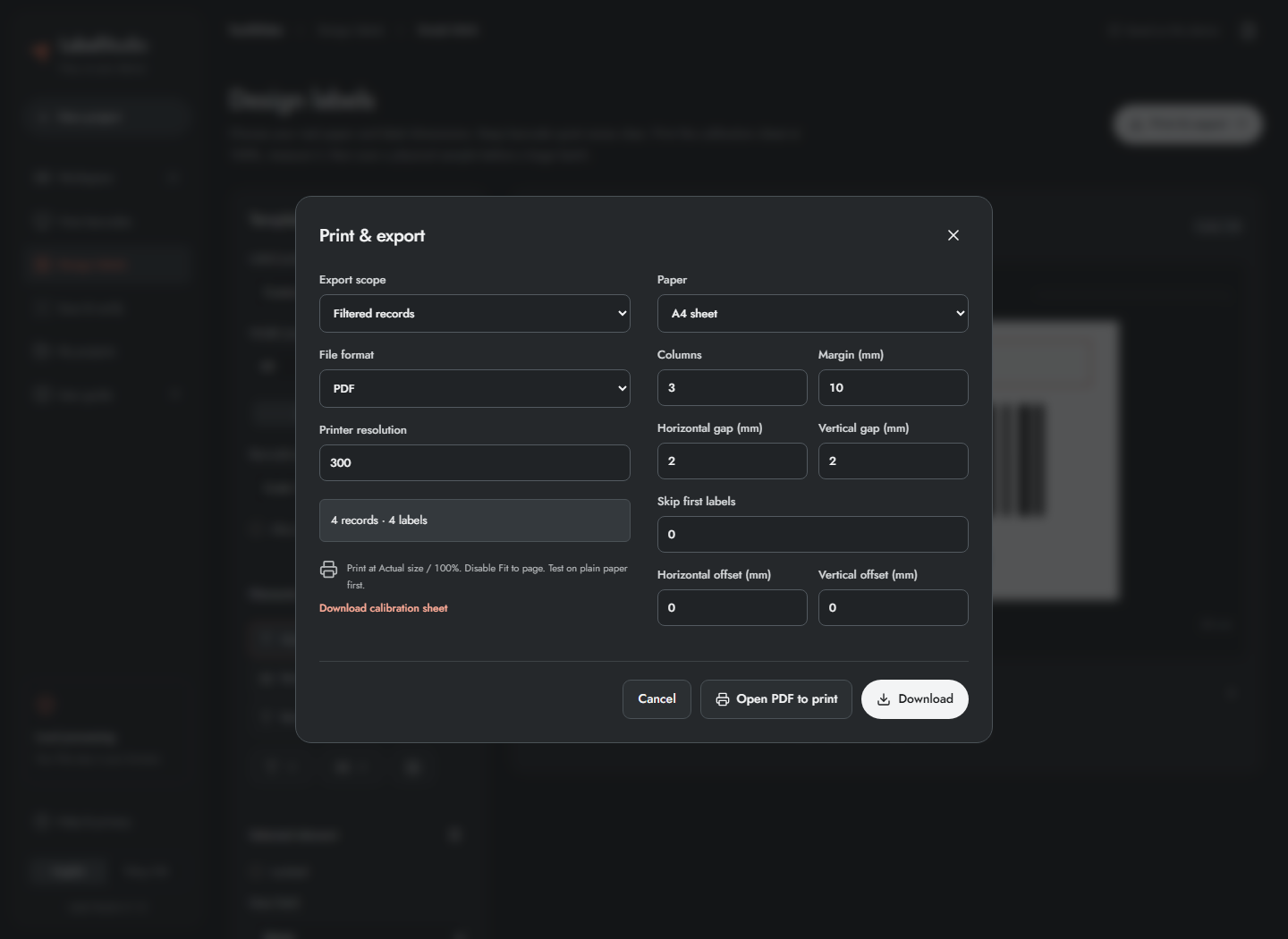
- Click Print & export.
- Choose Export scope: Filtered records, Selected records or Preview record. Selection may include records outside the visible page/filter.
- Choose PDF, SVG, PNG, CSV / Data, ZIP / SVG or ZIP / PNG.
- Read the record and label counts. Labels include Copies; CSV stores one row and its copy count.
- Set printer resolution to match your device: 203, 300 or 600 DPI.
- Click Download. Use Open PDF to print to open a printable PDF; allow pop-ups or download it if the browser blocks the window.
SVG/PDF labels retain vector barcode geometry. SVG text is outlined; PDF embeds a subset of Noto Sans, including Vietnamese. PNG is raster output at the chosen DPI. CSV exports the record data, not a rendered label. Spreadsheet-looking formula text is prefixed with an apostrophe for safer CSV opening. Excluded records are not exported.
PDF and SVG ZIP are limited to 2,000 labels per job including copies; PNG ZIP to 200 labels and 100 MiB accumulated image data. Single SVG/PNG requires exactly one label including copies. Split larger batches; an invalid value or layout blocks export rather than silently producing an unreliable label.
Print A4/Letter sheets, rolls and calibration pages
For A4 sheet or US Letter, set Columns, Margin, Horizontal gap, Vertical gap and Skip first labels to match the physical sheet. Skip first labels is useful for a partially used sheet. Adjust Horizontal/Vertical offset in millimetres for consistent printer displacement. Positive offsets move output right/down; negative values move left/up, subject to page-fit checks.
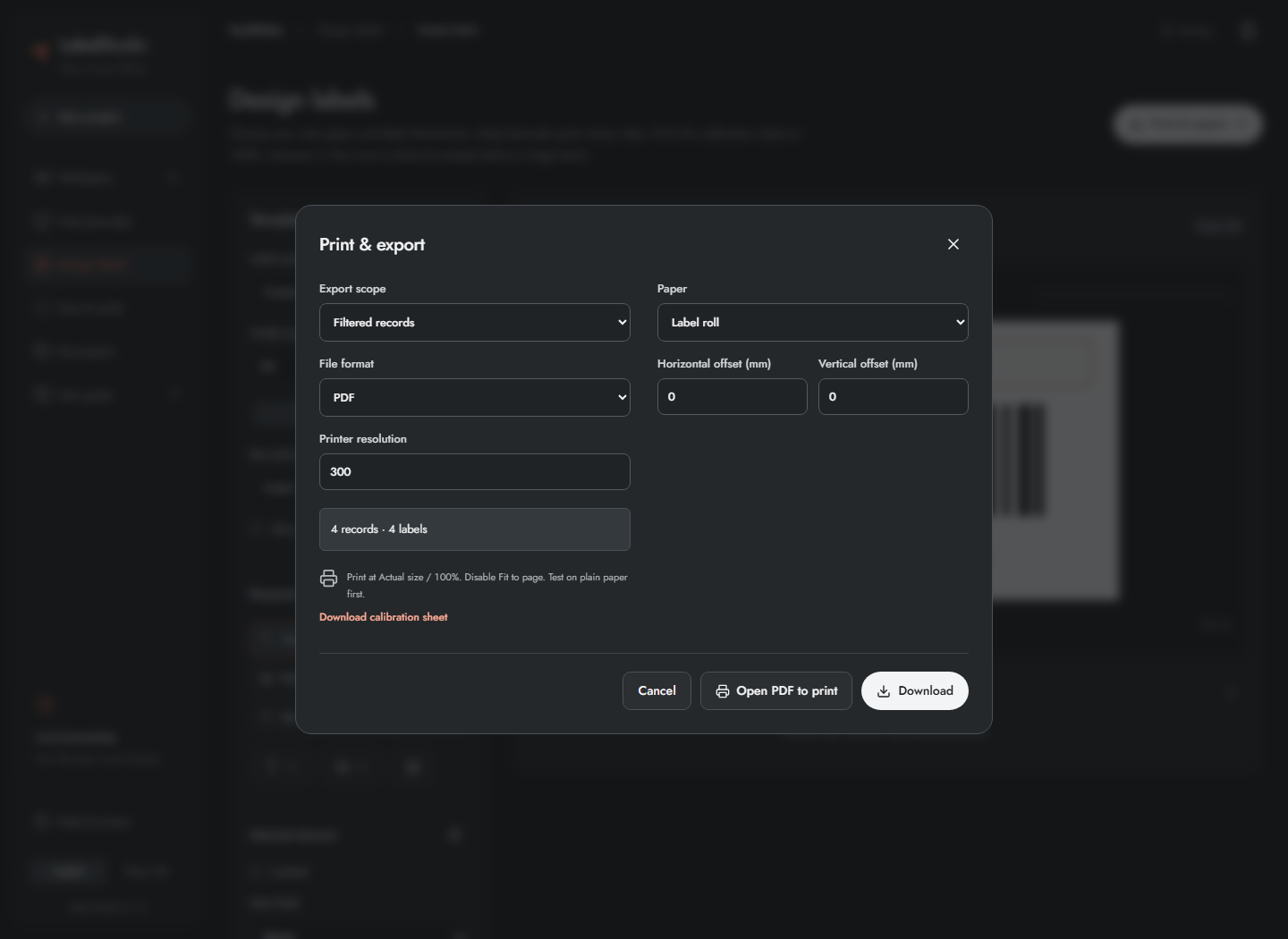
- For a thermal roll, choose Label roll. Each PDF page uses one label's dimensions; sheet columns/gaps are not used.
- Download the calibration sheet and print at Actual size / 100%, with Fit to page disabled.
- Measure the square: it must be 50 × 50 mm. Correct printer scaling before using position offsets.
- Print a few labels on plain paper, align against the stock, then test a real printed barcode.
- Print the full batch only after size, alignment and scan results are satisfactory.
If modules would be less than two printer dots, enlarge the barcode box, choose an appropriate DPI or shorten the payload. If labels do not fit, reduce columns, gaps/margins or label size as appropriate. Print settings do not provide direct USB/network printer control, ZPL export, PDF crop/merge or an existing-PDF converter.
Frequently asked questions
Why do four records produce more than four labels?
The output count includes each record's Copies value. Inspect copies, selection scope and excluded records before exporting.
Should I use Fit to page?
No for exact-size labels. Print at Actual size / 100%, measure the calibration square and then correct consistent position offsets.