
Reconcile inventory scans: matched, duplicate, missing and surplus items
Reconciliation compares recorded scans with the catalogue version used for that session. Review unexpected codes and ambiguous matches before relying on the counts, then export the complete report rather than copying only the visible table.
Interpret scan results and manage the log
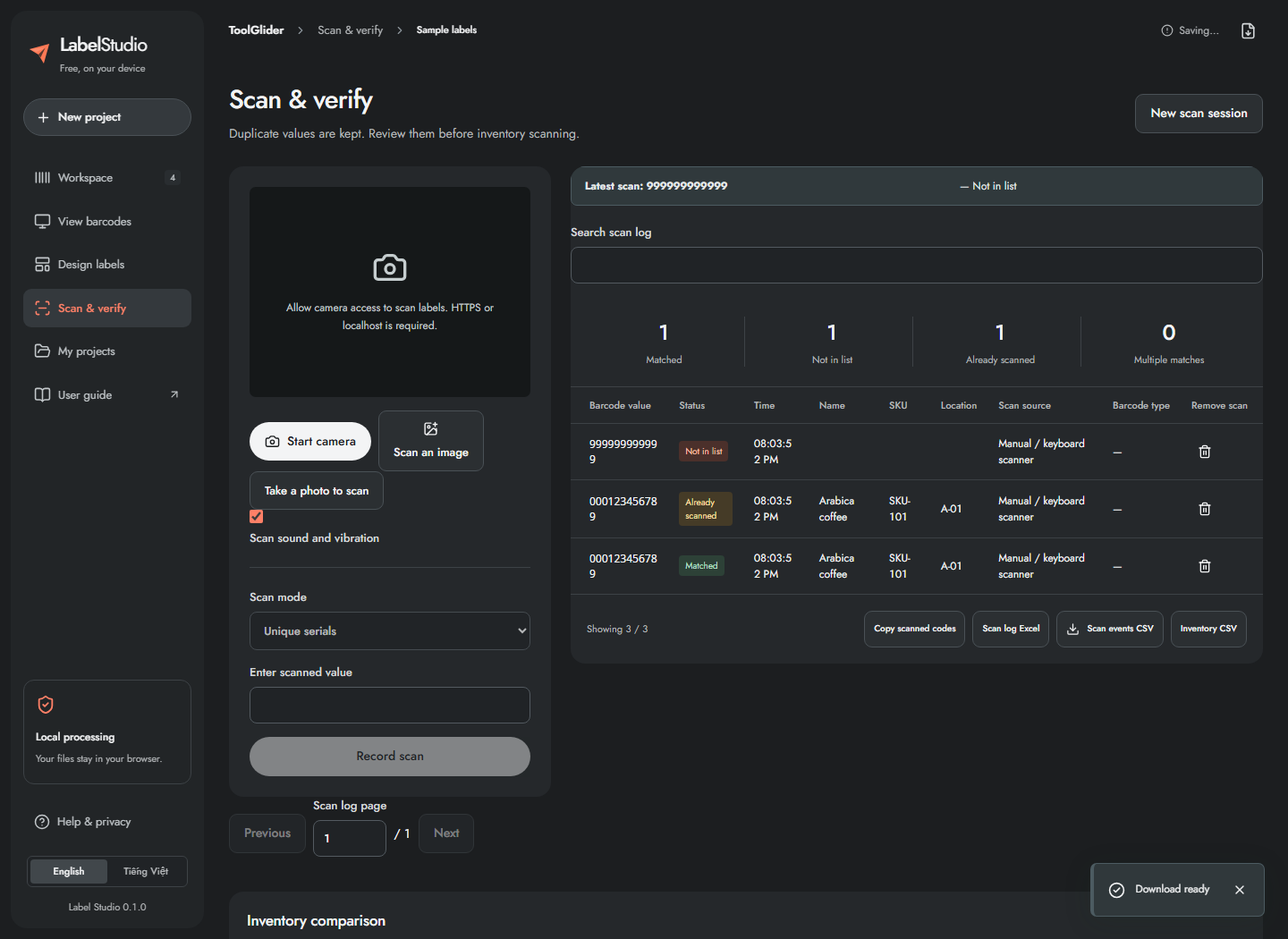
| Result | Meaning and next step |
|---|---|
| Matched | One catalogue record matches; inspect the name/SKU/location in Latest scan. |
| Already scanned | A serial has already been counted in Unique serials mode. Check whether it was scanned twice. |
| Not in list | No catalogue value matches. Verify the raw payload and expected list. |
| Multiple matches | Duplicate catalogue values prevent an unambiguous record match; fix the source and begin a fresh session. |
Use Search scan log and its page controls to find events. Latest scan shows details; the log retains raw scan, format when available, source and time. Manual/keyboard input has no detected optical format. Copy scanned codes or export Scan log Excel / Scan events CSV to keep the full history. Reports include all events, not just the displayed page.
Remove an accidental event with its remove button. Removing an initial matched serial promotes its oldest remaining duplicate so the comparison stays consistent. Values are not generally uppercased or stripped of leading zeros. UPC-A normalization is applied only for an explicitly UPC-A dataset. Sessions hold at most 50,000 events; export and start a new one at the limit.
Read inventory differences and handle changed data
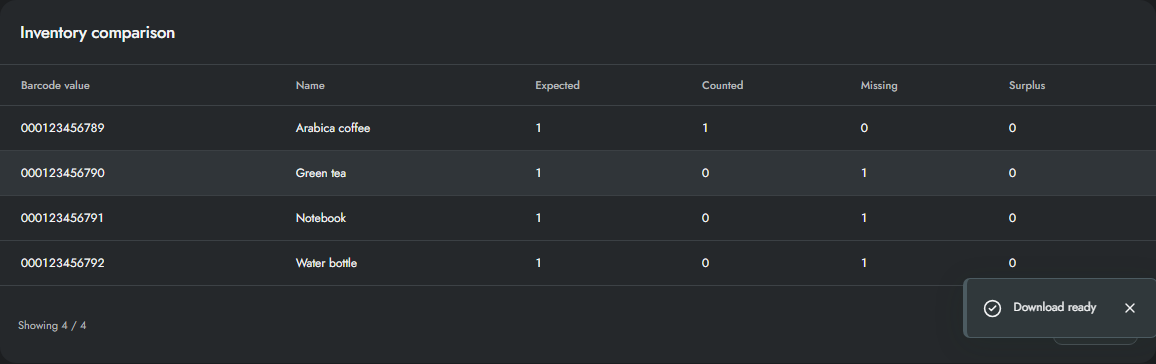
- Scroll to Inventory comparison.
- Read Expected, Counted, Missing and Surplus for each record.
- In Unique serials mode, Expected is one per record. In Count each scan mode, Expected comes from Copies.
- Investigate missing/extra items, then download Inventory CSV for the complete dataset. The on-screen inventory table shows the first 100 records only.
- If you edit, import, append, replace or delete dataset records, the app keeps the previous history but marks the session stale. Export that history, then click New scan session to compare with the changed dataset.
This is a local comparison session, not a shared multi-user stock database. Reports do not update an ERP or synchronize inventory to other devices.
Frequently asked questions
Why is the inventory table limited to 100 rows?
The on-screen table is a preview. Inventory CSV includes the full dataset; log exports likewise include all recorded events, not just the displayed page.
Can I keep scanning after editing the catalogue?
The old session becomes stale. Export its history, then start a new session against the updated dataset.