
How to create your first barcode label with Label Studio
Start with the four sample products, preview one label and export a PDF before importing your own catalogue. This walkthrough explains which fields become the barcode payload, which appear as text and how copies affect your batch.
Start here: make your first label
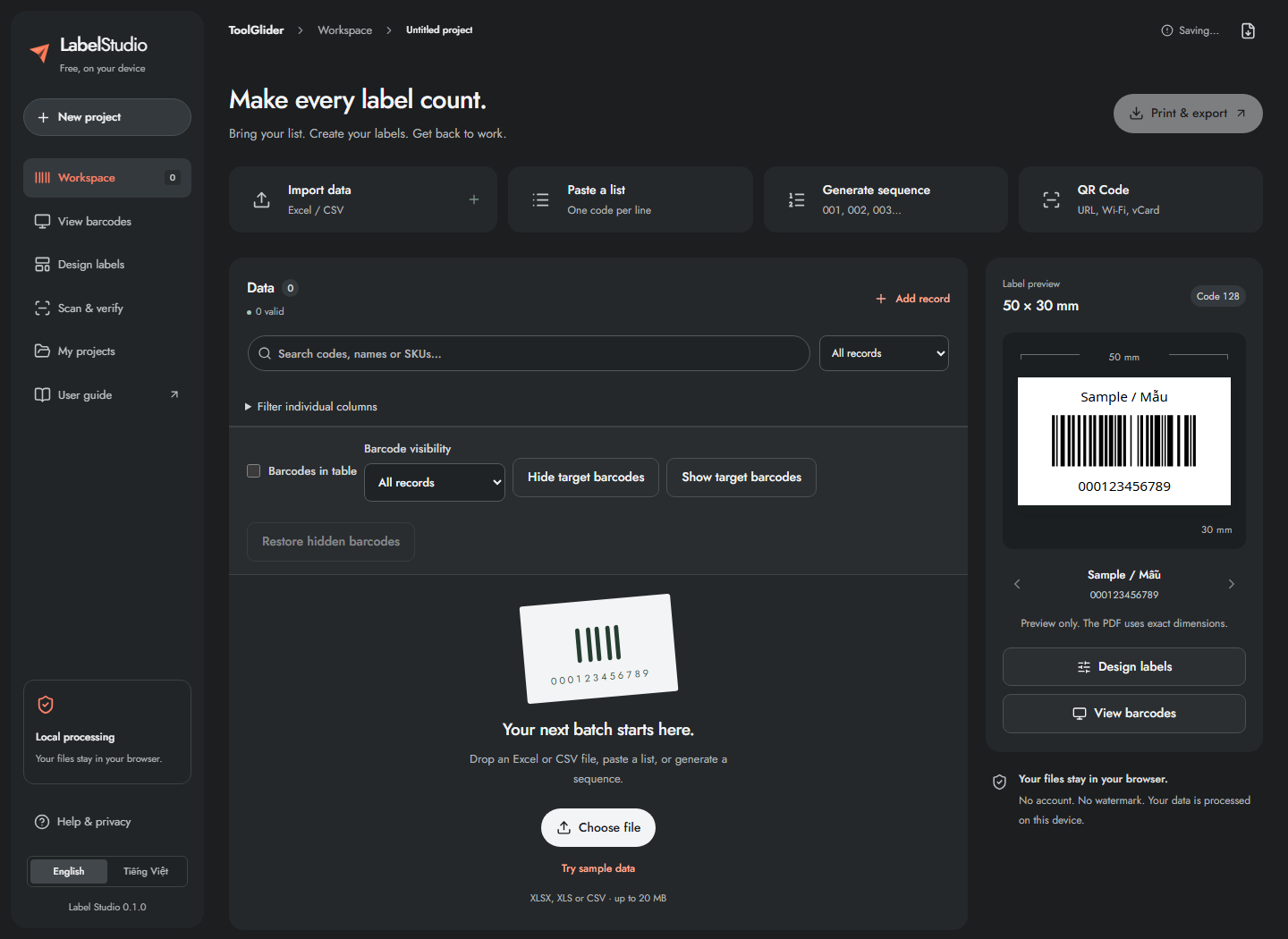
- Open Label Studio in a current browser. Select English if needed.
- Click Try sample data to learn without using your own files. Four example products appear.
- Click a product's barcode value to inspect or edit it. Use the preview arrows to see another label.
- Open Design labels to choose the label size and barcode type.
- Open Print & export, choose Preview record and PDF, then click Download.
- Print the PDF at Actual size / 100%. Test one physical label before printing a batch.
The left navigation contains Workspace, View barcodes, Design labels, Scan & verify, My projects and Help & privacy. The project name and backup action are in the application header. A phone uses the Menu button to reveal navigation. Switching interface language does not translate or change your product data.
Understand the workspace and record fields
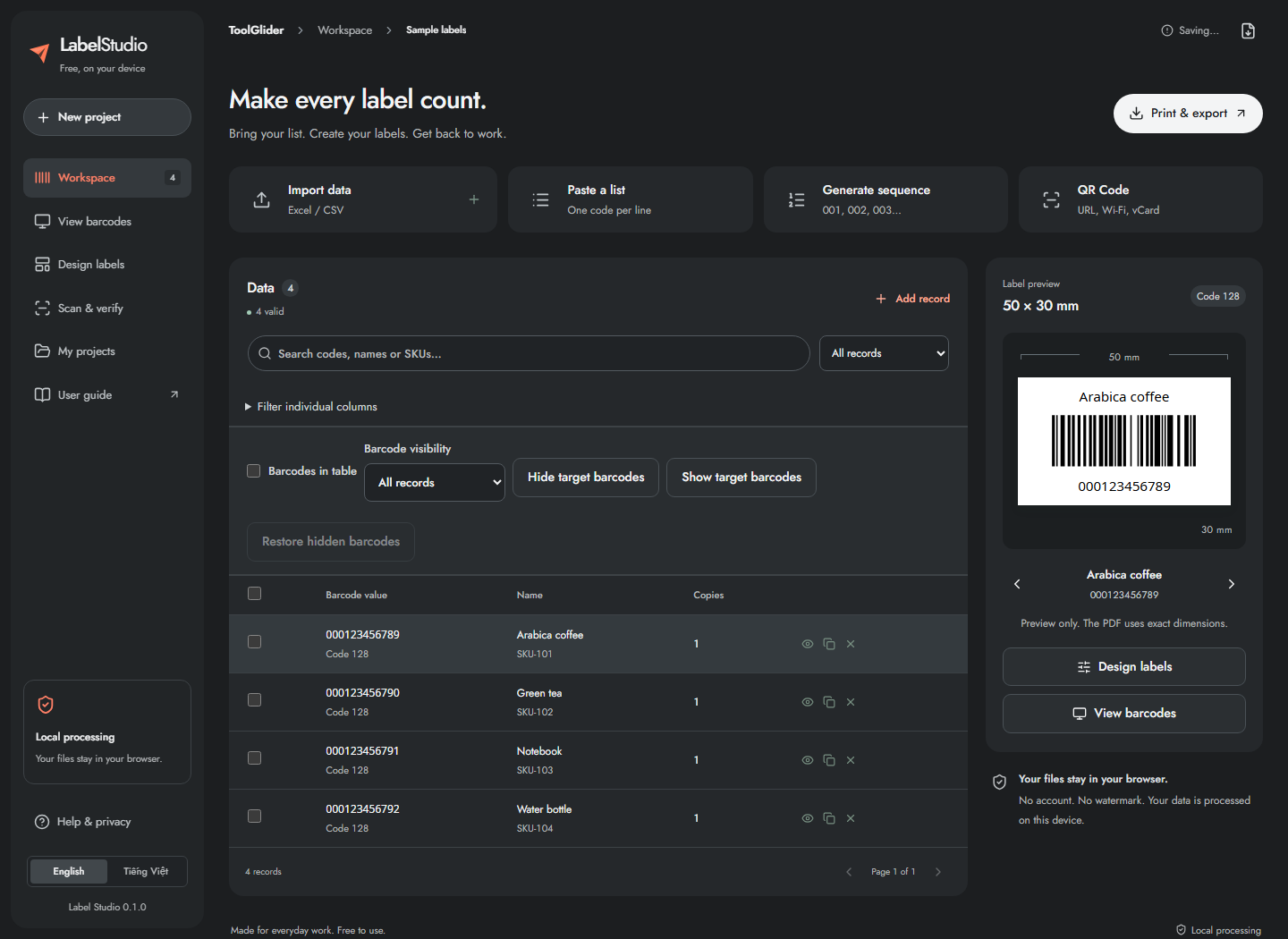
Each record holds Barcode value, Name, SKU, Price, Location, Note and Copies. Barcode value is the encoded payload; the product name is separate display text. Location can identify a shelf, station or warehouse zone. Copies controls how many labels are exported for that record; in count-each-scan mode it also supplies the expected quantity.
- Read the total and valid/error counts above the table.
- Use the label preview to inspect the current record and its template.
- Move between preview records using its arrows.
- Use Add record for one new item, or one of the input methods below for a batch.
Keep identifiers as text: 000123456789 and 123456789 are different values. The app preserves letter case and spaces rather than silently repairing them.
Frequently asked questions
Do I need an account?
No. The current application works in your browser without an account. Projects are saved on the device, so download a backup before moving to another browser.
Will changing language change my product names?
No. English and Vietnamese change interface labels only; imported values and product names stay as entered.