
Edit, filter and select barcode records without changing your source file
Prepare the dataset before designing labels: correct individual fields, find duplicate or invalid codes and select the exact records you need. Changes are made to the local project; the original spreadsheet is not overwritten.
Add, edit, copy or exclude a record
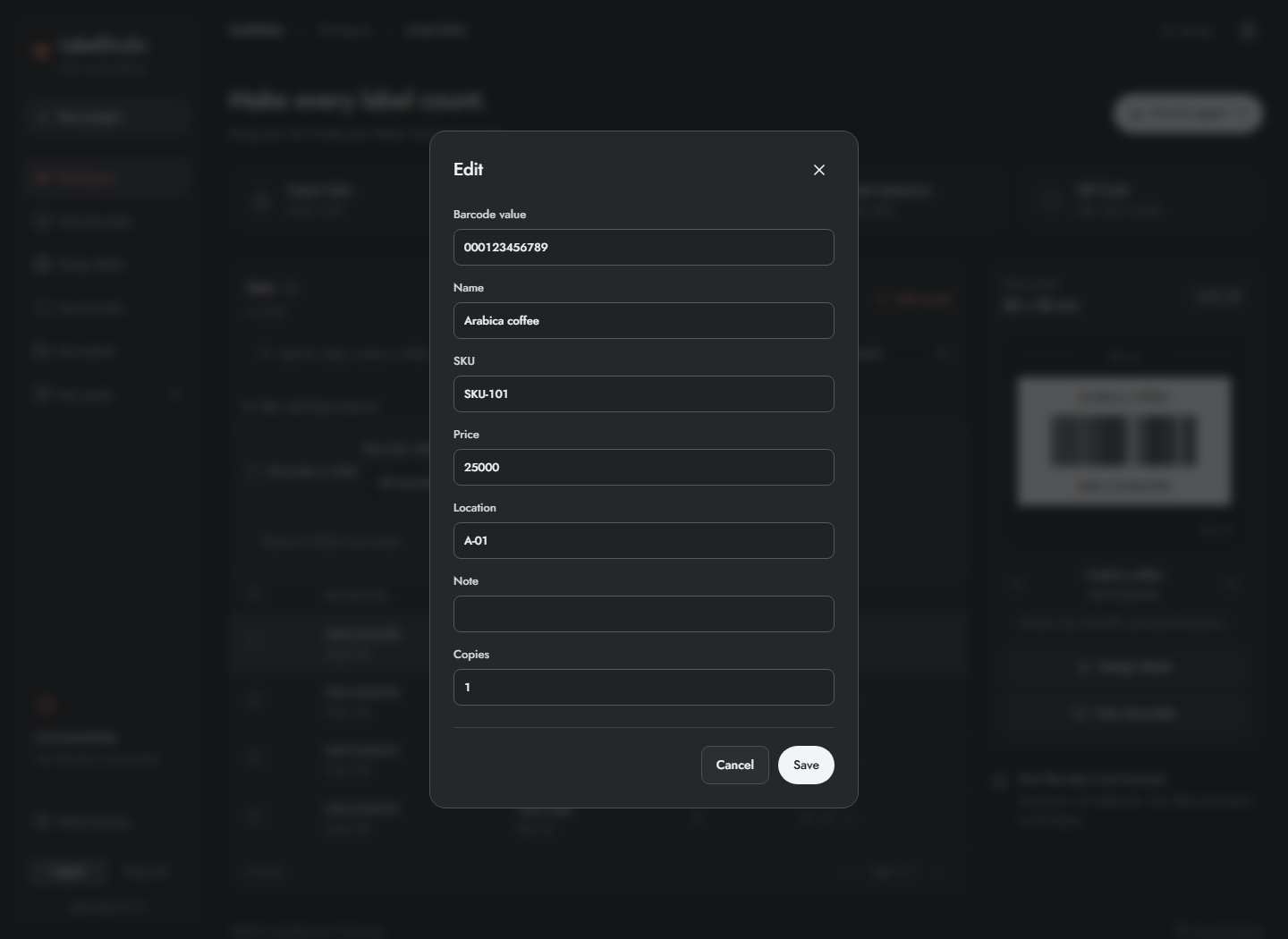
- Click Add record, or click an existing barcode value to open Edit.
- Enter the value and any optional fields. Check Copies before exporting a large batch.
- Click Save to keep the change, or Cancel to leave it unchanged.
- Use the row's copy icon to copy its value. Clipboard permission may be required by the browser.
- Use Exclude from export to keep the record in the project while omitting it from print/image/data export. Use Include in export to restore it.
- To delete records, select them and use Delete; read the confirmation first.
Excluding, hiding and selecting are different actions: exclusion affects export, hiding affects viewing, and selection defines a set of records for operations. Editing data invalidates the current scan comparison; see the scan-session chapter.
Select records and edit a batch
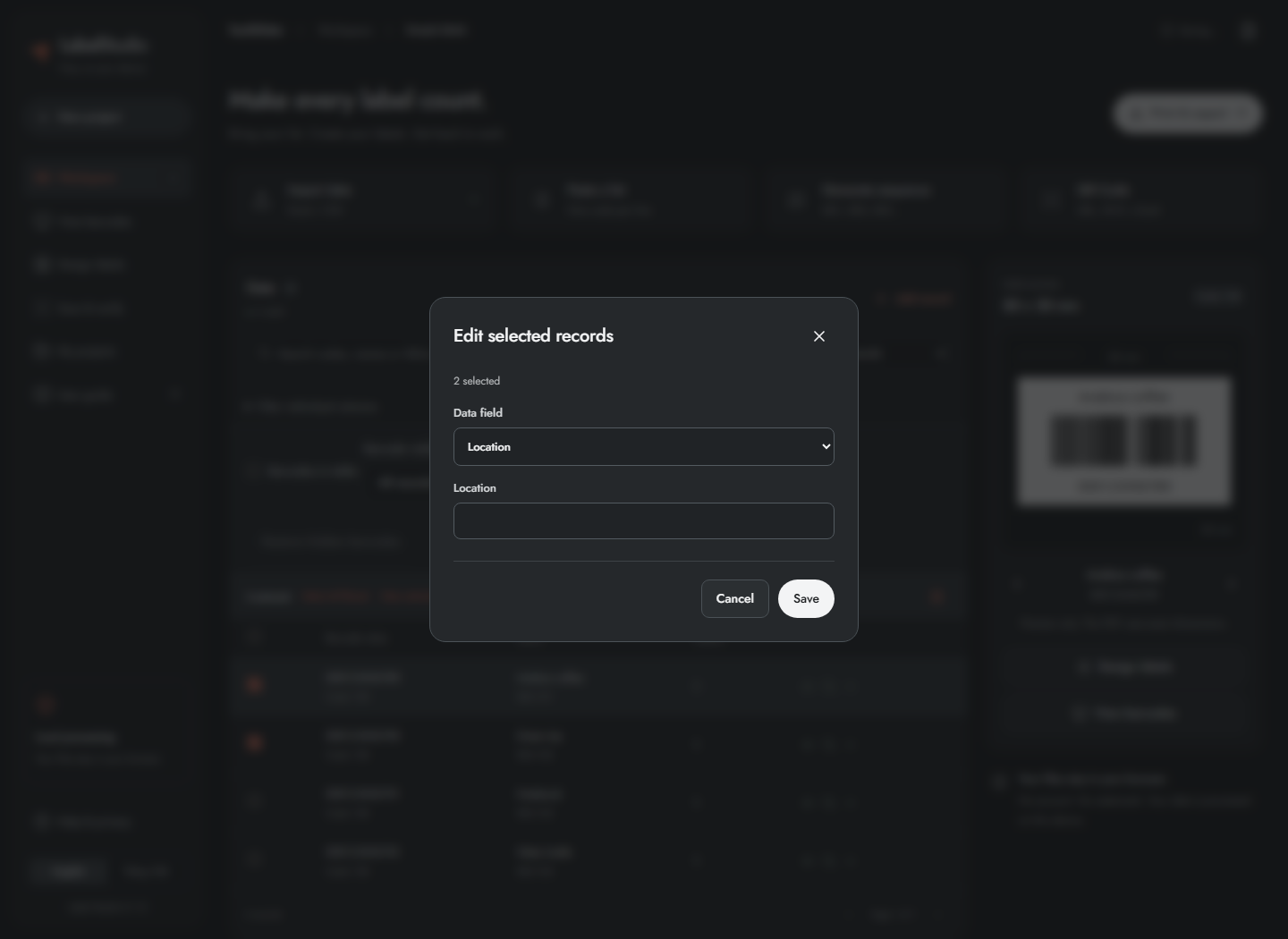
- Tick the checkbox beside each desired record. The header checkbox selects the current page.
- Use Select all filtered when you want every matching record, including other pages.
- Open Edit selected records, choose an optional data field or Copies, enter the replacement value and apply it. Barcode value is not offered for bulk replacement. This writes the same value to that field across the selection, not a different value per row.
- Clear the selection when finished, particularly before the next export.
Selections persist while you change pages and filters. A selected record outside the current filter can still belong to the selection. Always check the selected count and export scope. Deleting selected records changes the dataset and requires a fresh scan session.
Search, filter and show codes inside the table
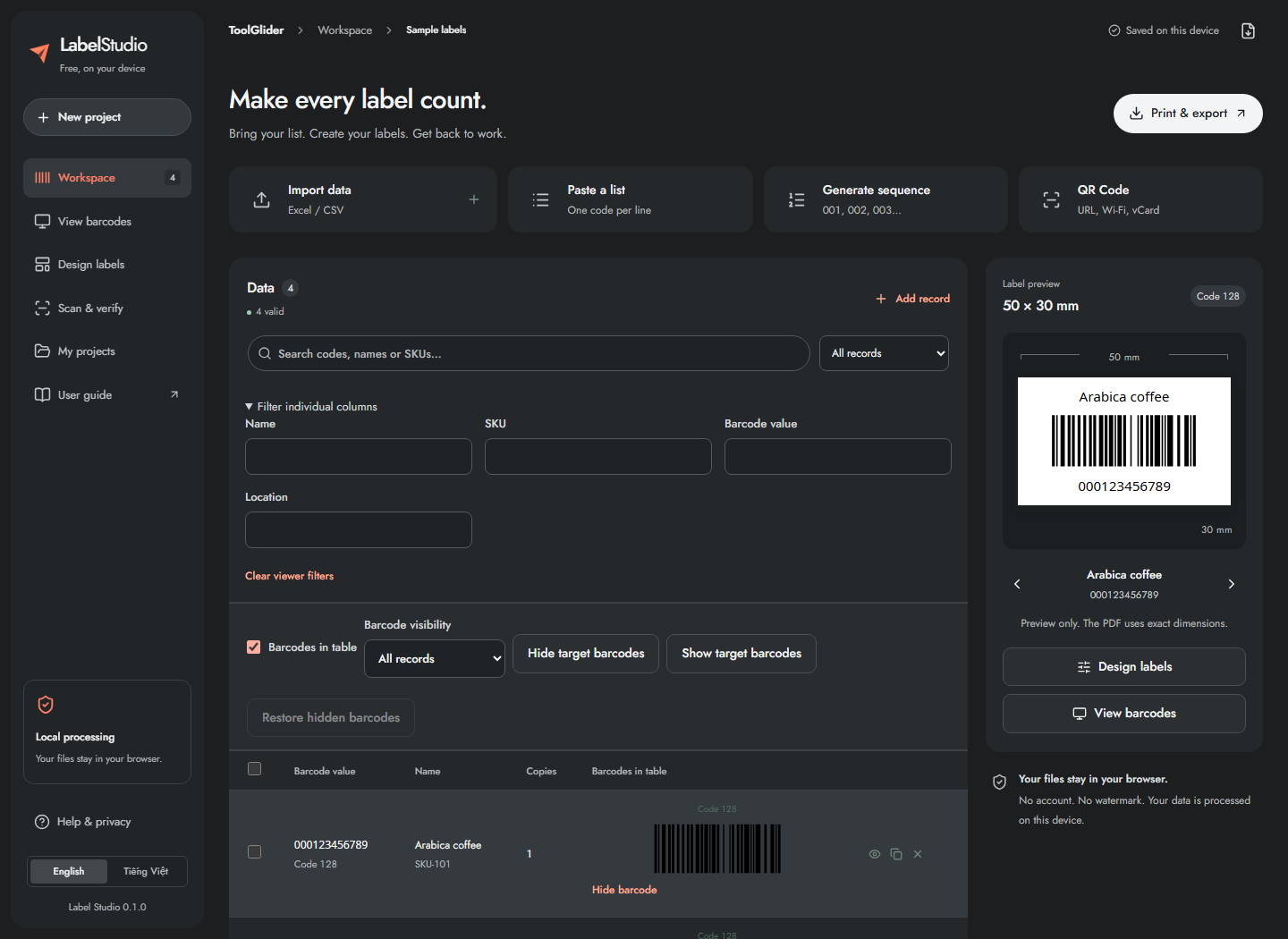
- Type into Search codes, names or SKUs… to narrow the list.
- Use All records to switch to With errors or Duplicate codes.
- Expand Filter individual columns and enter separate Name, SKU, Barcode value or Location filters.
- Enable Barcodes in table to see rendered codes beside records. Turn it off for a more compact table.
- Use Barcode visibility to show all, visible or hidden codes. The hide/show buttons target the selected set when one exists; otherwise they target the current table page.
- Use Restore hidden barcodes to show all previously hidden codes. Clear filters to return to the full list.
- Use Previous/Next below the table to move between pages.
The workspace error filter can offer Rejected rows CSV with values and reasons. Download it to correct the source. Filtering does not delete data or automatically clear selection. Inline code visibility is shared with the large viewer and saved with the project.
Frequently asked questions
Does hiding a barcode prevent it from printing?
No. Hiding affects the viewer and inline display. Exclude the record from export if it must not appear in print or image output.
Can selected rows be outside the current filter?
Yes. Selection persists across pages and filters. Check both the selected count and export scope before a batch operation.