
Create QR codes for URLs, Wi-Fi, email, phone and vCard contacts
QR records belong to the same project and export workflow as your barcode labels. Use the content builder for one structured record, or import complete payloads for a batch. The following examples explain what each QR contains and what changes when you add it.
Build QR records: text and web links
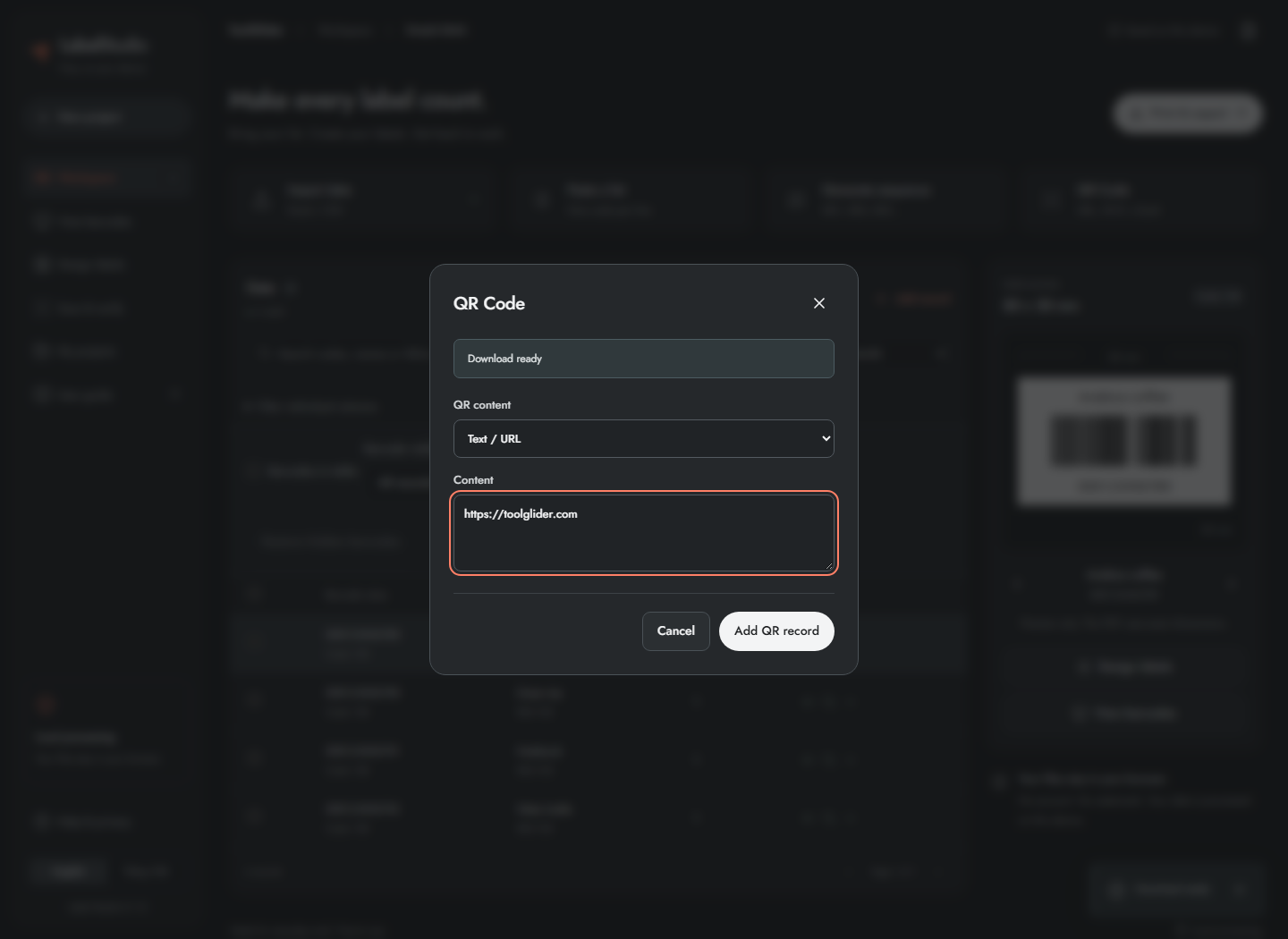
- Return to Workspace and click QR Code.
- Choose Text / URL under QR content.
- Enter text or a complete URL, including
https://for web links. - Click Add QR record.
- Find the newly appended record using the preview arrows or list, then inspect its QR image.
Adding a QR record also changes the project's label template to a 50 × 50 mm QR layout and disables the secondary Code 39 symbol. Back up or use a separate project if you need to preserve a different layout. For a batch, import a value column containing complete URLs/payloads, then choose QR Code in Design labels. There is no dynamic redirect, click-tracking service or editable hosted destination behind these static QR codes.
Build a Wi-Fi QR code
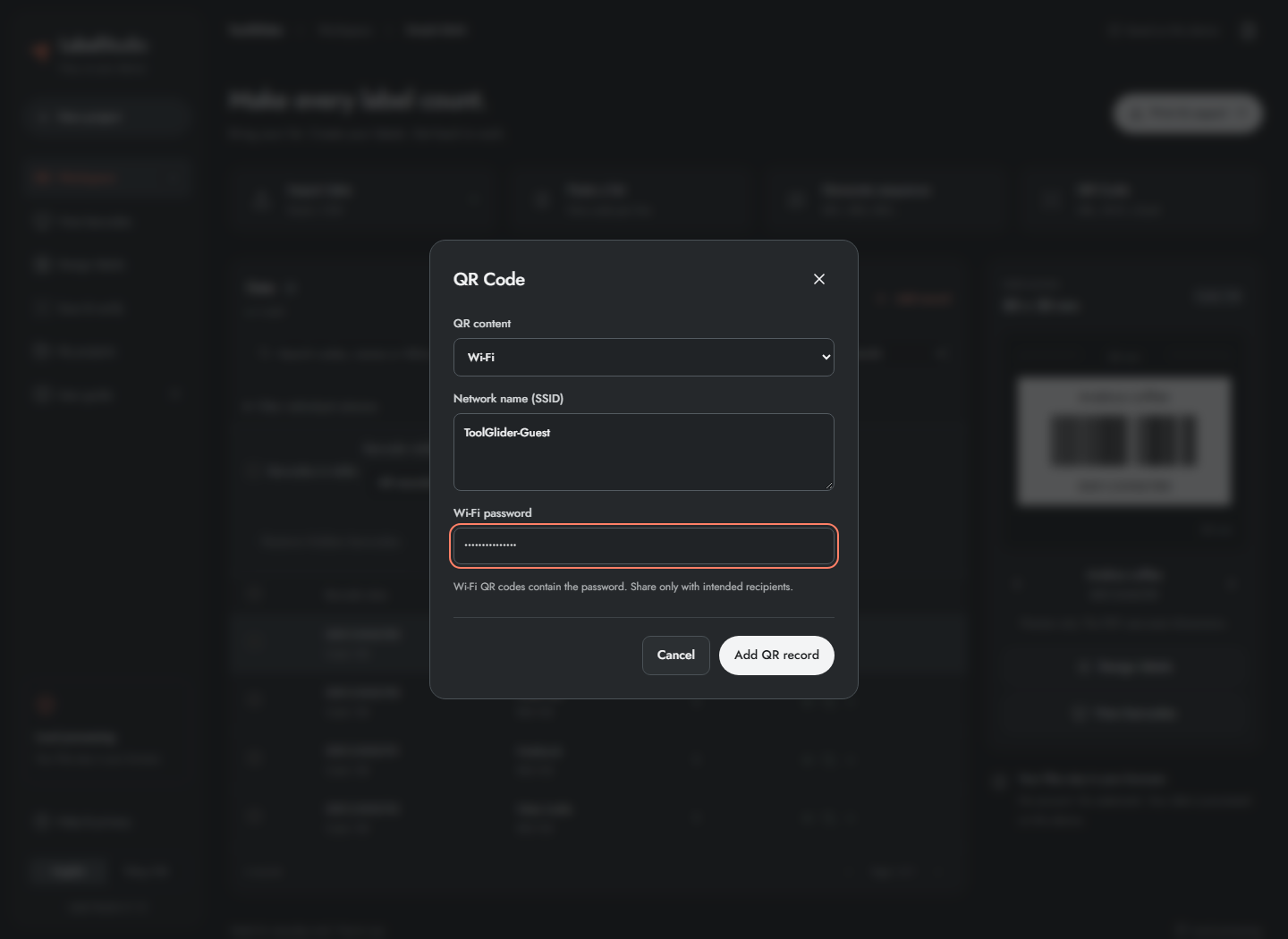
- Open QR Code and choose Wi-Fi.
- Enter the exact Network name (SSID), including case.
- Enter Wi-Fi password.
- Click Add QR record, inspect the new label and test it with a phone.
The current builder creates a WPA-style Wi-Fi payload. It has no separate security-type or hidden-network selector. The QR payload contains the password, even though the entry field masks it. Anyone who can decode the code can read that payload. Use only a network you intend to share and avoid putting a private credential in a public example.
Build email, phone and contact QR codes
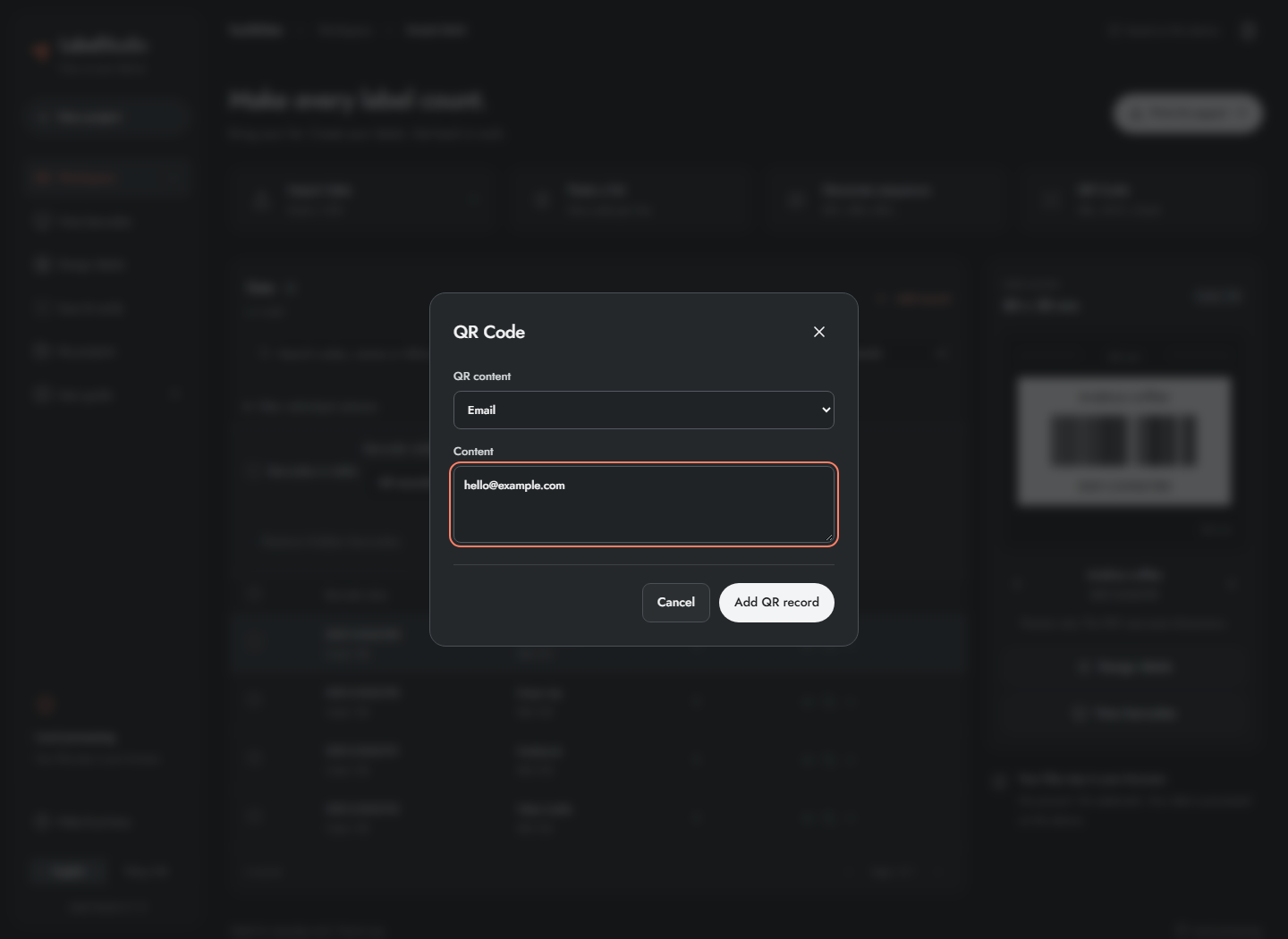
For Email, choose that type, enter an email address, add the record, then scan it to check that your phone offers an email action. The builder creates a mailto: payload; there are no separate subject/body fields.
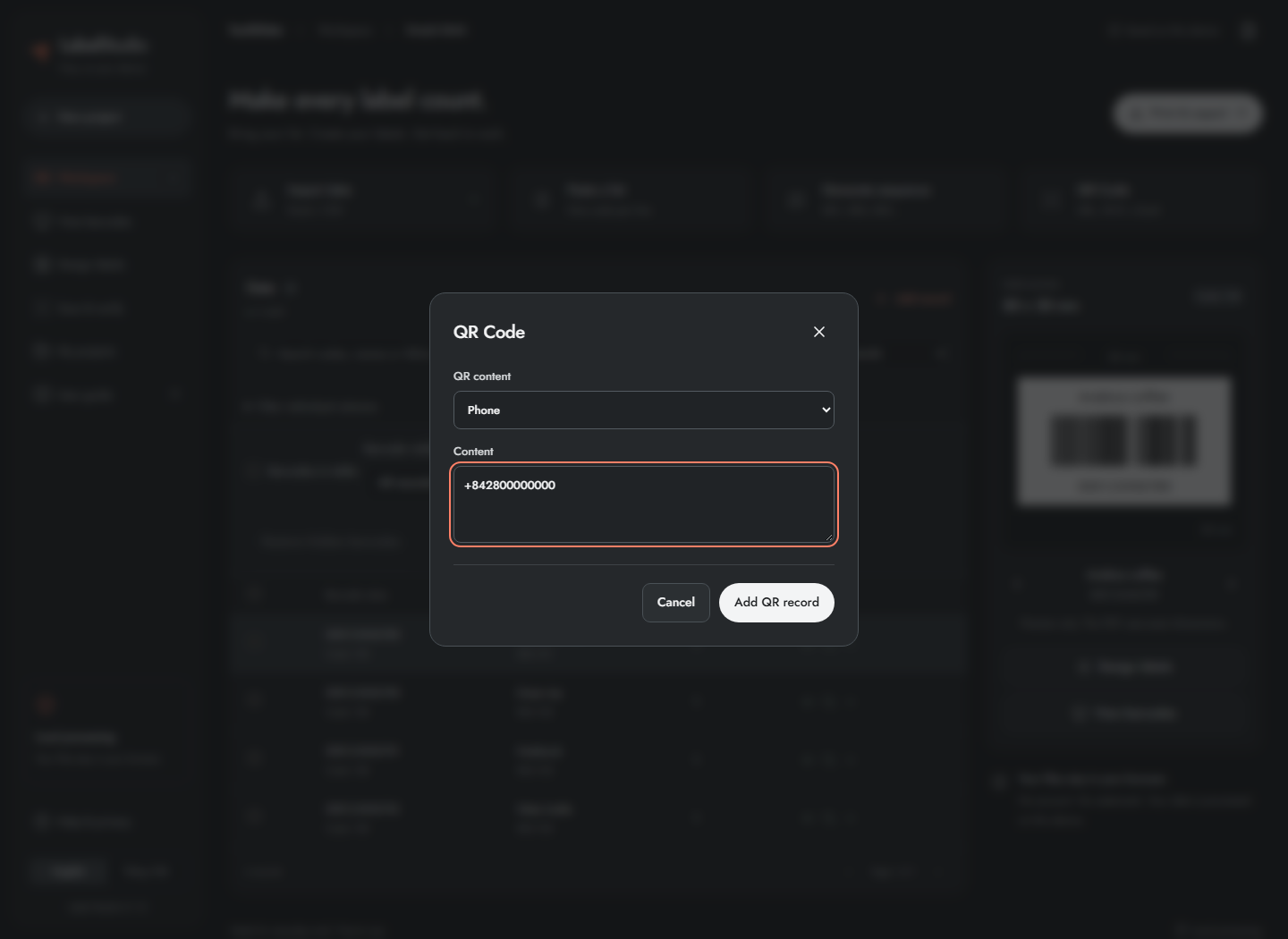
For Phone, enter the number with its international prefix when appropriate, add the record, then scan it to inspect the call action. The builder creates a tel: payload; it does not place a call itself.
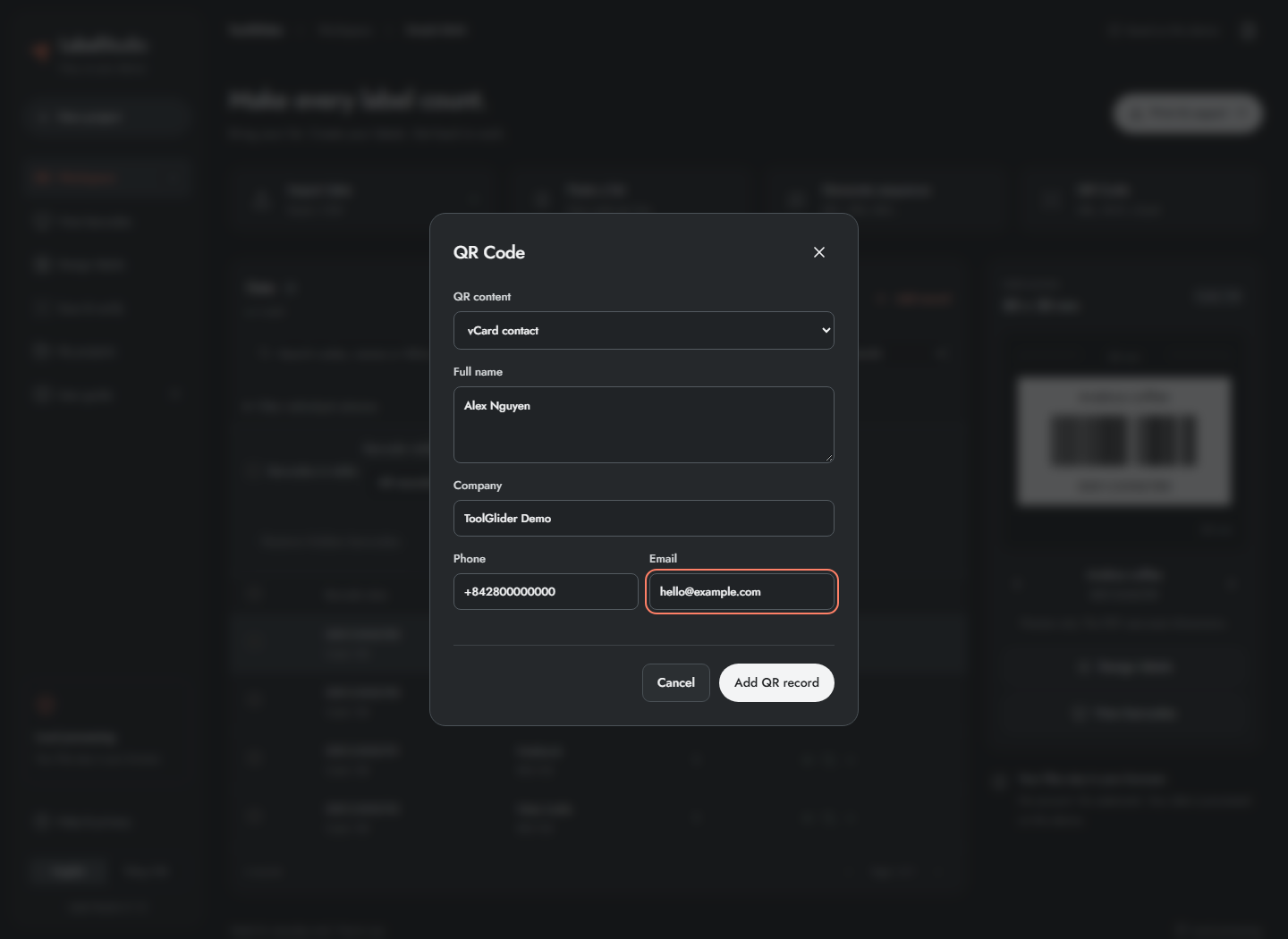
For vCard contact, fill Full name, Company, Phone and Email, then add the record. Scan the label and review the contact before saving it on the phone. The receiving app decides how to display or import the vCard. There is no dedicated SMS builder, QR-logo overlay, color picker or error-correction selector in this version.
Frequently asked questions
Can I change the URL after printing a QR?
A static QR keeps the payload that was encoded. Label Studio does not host a dynamic redirect or a scan-tracking service.
Can a Wi-Fi password be read from the QR?
Yes. The password is part of its payload. Masking the form field does not encrypt the QR contents; share it only with intended recipients.