
Import Excel and CSV to create barcode labels
Import a spreadsheet when you need labels containing codes, product names, SKUs and prices. For a simple column of codes, pasting a list is faster. Follow the mapping checks below before you print: they prevent the wrong column or damaged numeric identifiers from reaching your labels.
Import Excel or CSV and map columns
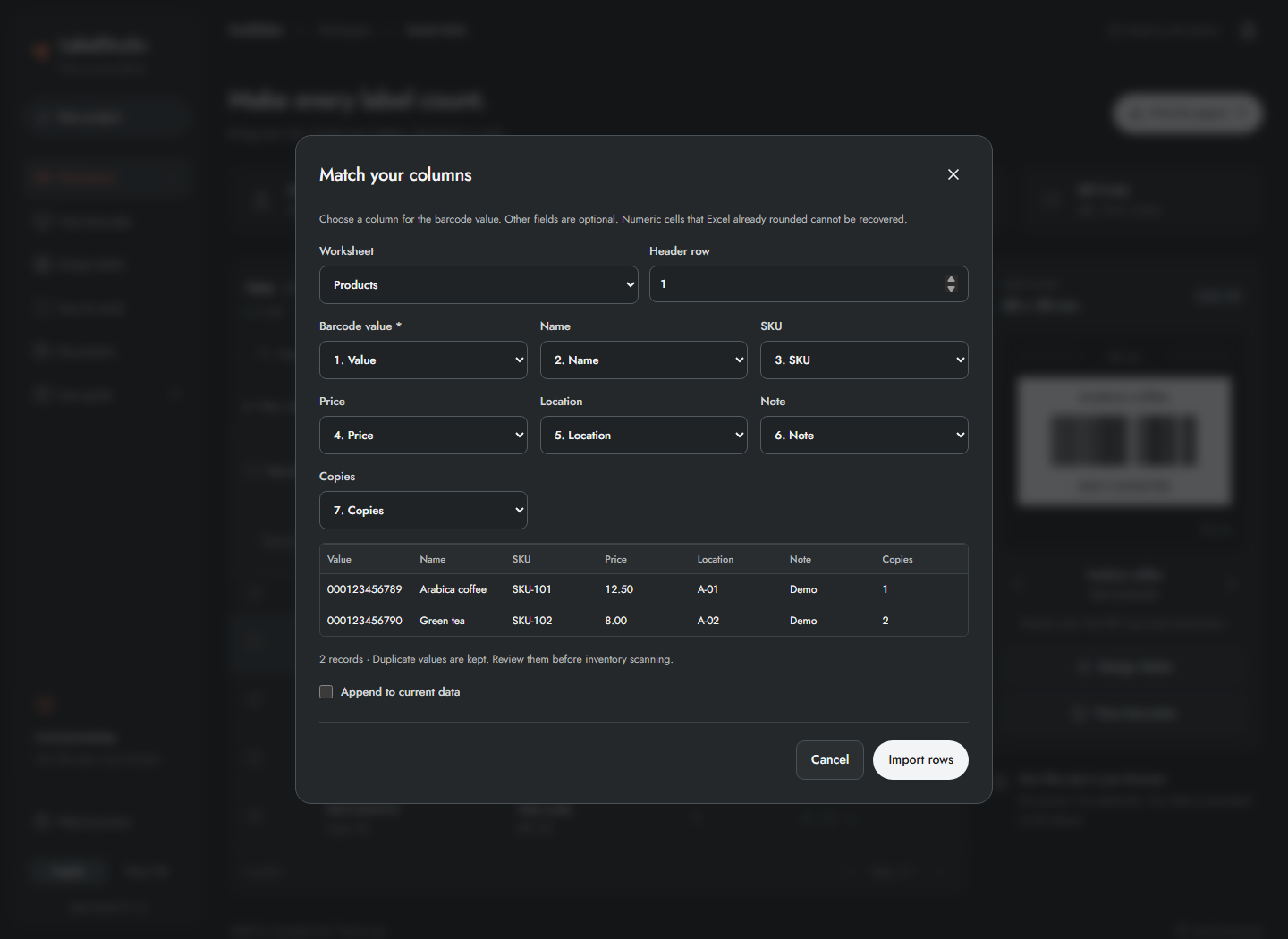
- In Workspace, click Import data and choose an XLSX, XLS or CSV file. You can also drop a file onto the data panel.
- In Match your columns, select the correct Worksheet.
- Set Header row to the row containing column names; choose from the first 100 rows.
- Map Barcode value to the column containing the exact value to encode. This is required.
- Map Name, SKU, Price, Location, Note and Copies when present; choose Not mapped for unused optional fields.
- Check the preview and expected record count. Only the first columns/rows are previewed; the preview is not the entire import.
- Enable Append to current data to keep current records. Disable it to replace the dataset. Back up first if the existing data matters.
- Click Import rows, then review errors and duplicates in the workspace.
The importer recognizes common headers, including original-tool fields such as serial, ten_vttb, ma_vttb and ma_tram_tuyen; always verify the mapping. The first 100 columns are available for mapping. Files are limited to 20 MiB and datasets to 50,000 records. Expanded XLSX content is bounded too.
Excel may already have rounded a long numeric identifier or removed its leading zeros. The app cannot reconstruct those digits. Format identifier columns as Text before saving the source. Numeric-cell warnings require a source check. Formula cells are not calculated; repair any empty mapped values. Duplicate values are retained for you to review.
Paste a list of codes
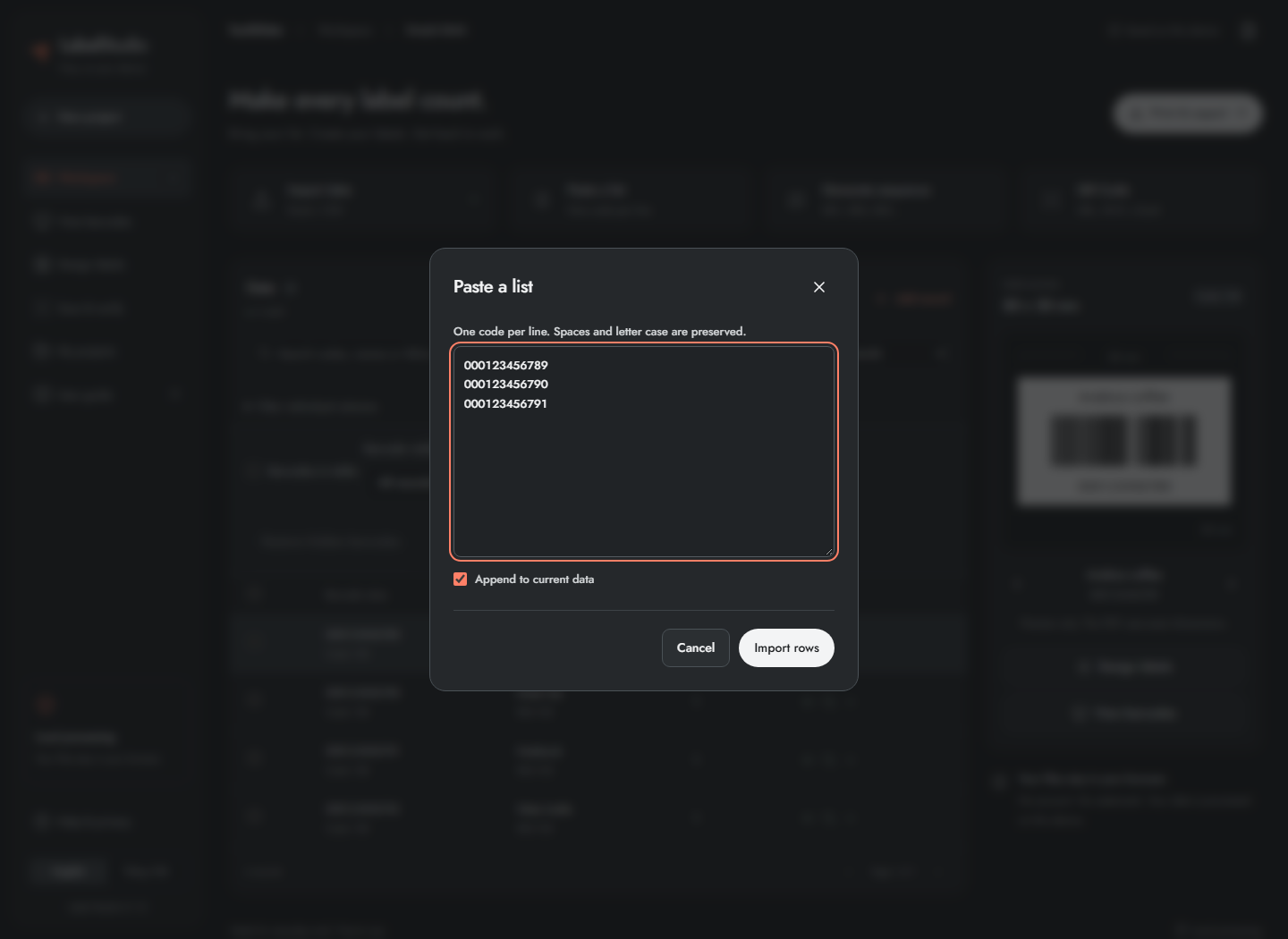
- Click Paste a list.
- Paste one code per line, for example
000123456789,000123456790,000123456791on separate lines. - Choose whether to append to existing data.
- Click Import rows and inspect the results.
Empty lines are skipped. Spaces and letter case in nonempty lines remain unchanged. This input creates barcode values; use spreadsheet import when you also need names, prices and locations. Pasting does not clean duplicates automatically.
Frequently asked questions
Can Label Studio restore zeros that Excel removed?
No. If Excel already changed the identifier, re-create or export the correct text value from its original source. Check the first few imported codes against that source.
Should I append or replace?
Append keeps the current rows and adds the new ones. Replace uses the incoming dataset instead. Back up first, and start a new scan session after either change.