
Design barcode labels with exact dimensions, text and a logo
Design at the physical size of your label, then fit the code and text inside it. This editor uses field-bound text, barcode and logo boxes with millimetre coordinates. A screen preview helps you arrange them; calibration and a physical scan confirm the printed result.
Set label dimensions and edit the template
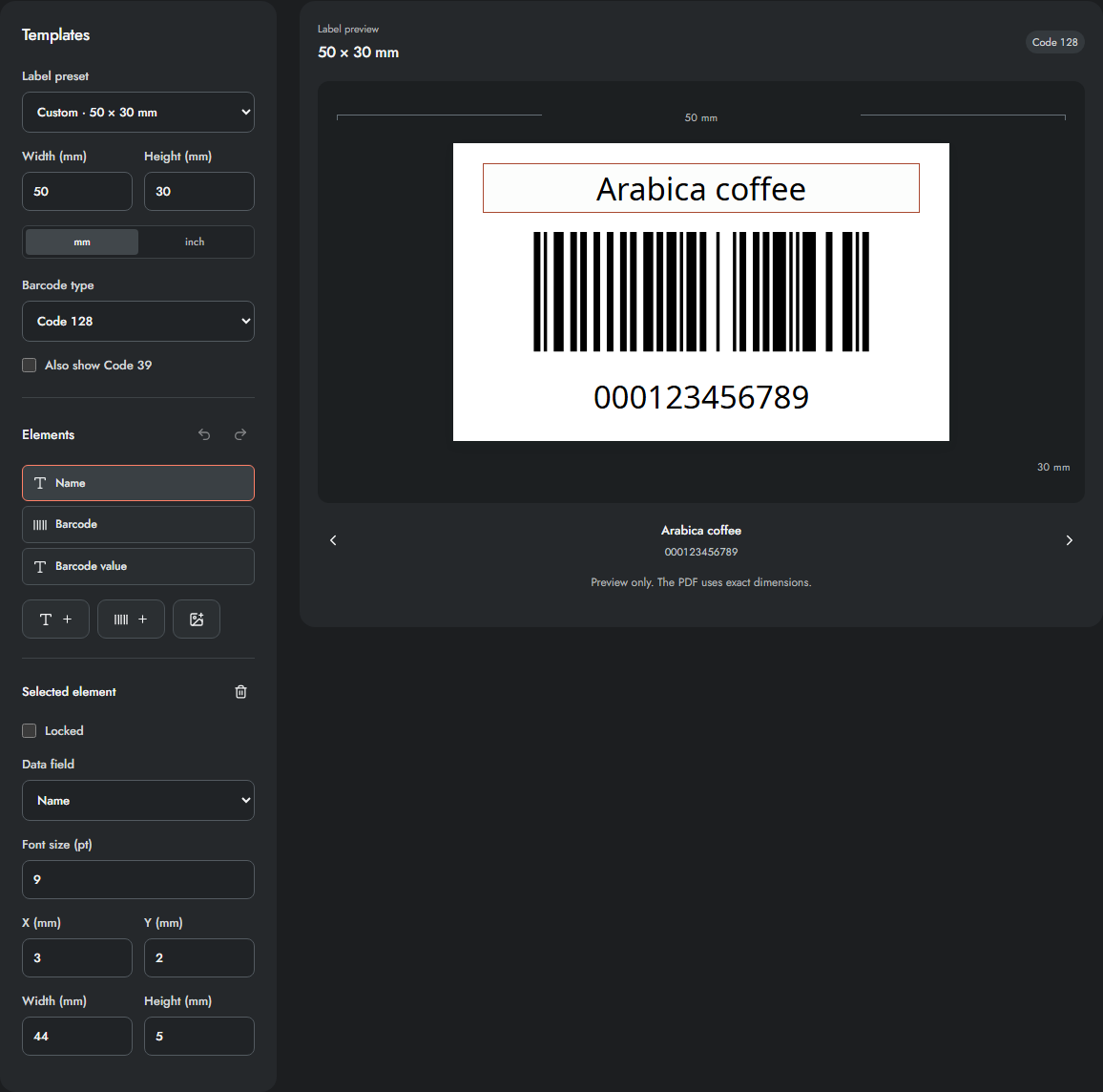
- In Design labels, choose a Label preset, or enter custom Width and Height.
- Use mm/inch for label-size entry. Element coordinates remain labelled in millimetres.
- Select an element in the Elements list or the preview. Drag it within the label, or enter X (mm) and Y (mm) for exact positioning.
- Set the element Width and Height; keep the entire box inside the label.
- Use arrow keys on a focused, unlocked preview element to move it in 0.5 mm steps.
- For text, choose its Data field and Font size (pt). Name, value, SKU, price, location and note can be bound to text elements.
- Use Add text, Add barcode or Add logo to add elements. Text is bound to a record field, rather than being a free-text paragraph editor.
- Lock finished elements to prevent accidental dragging. Use Undo/Redo for template changes, Delete for a selected element and Reset layout when you want default element positions for the size.
Choose a PNG/JPEG logo under 2 MiB and 16 megapixels. The logo is an independent label element; it is not automatically inserted inside a QR symbol. Remove logo clears the imported logo. There is a maximum of 30 elements. If text does not fit, enlarge its box, reduce its font or shorten the source field. Increasing preview zoom does not repair an undersized print layout.
Frequently asked questions
Does a larger preview make the printed barcode larger?
No. Change the template's physical dimensions or the element box. Screen magnification does not change the PDF geometry.
Can I place a logo inside the QR symbol?
The current logo tool creates a separate label element. It does not automatically create a safe overlay inside a QR; keep the symbol and its quiet zone clear.