
Label Studio: complete illustrated guide
Create barcodes and QR codes, design labels, print batches and compare scans with your list. This guide describes the features implemented on 21 October 2026. Screenshots show the English interface with synthetic sample data, captured from the deployed application on the internal network. Camera controls depend on your device; no physical camera or printer result is simulated in these pictures.
Open Label Studio · Đọc tiếng Việt
Use the chapter list to jump to a task. Click any screenshot to open its full-resolution image. Use Print / save PDF for a printable copy.
1. Start here: make your first label
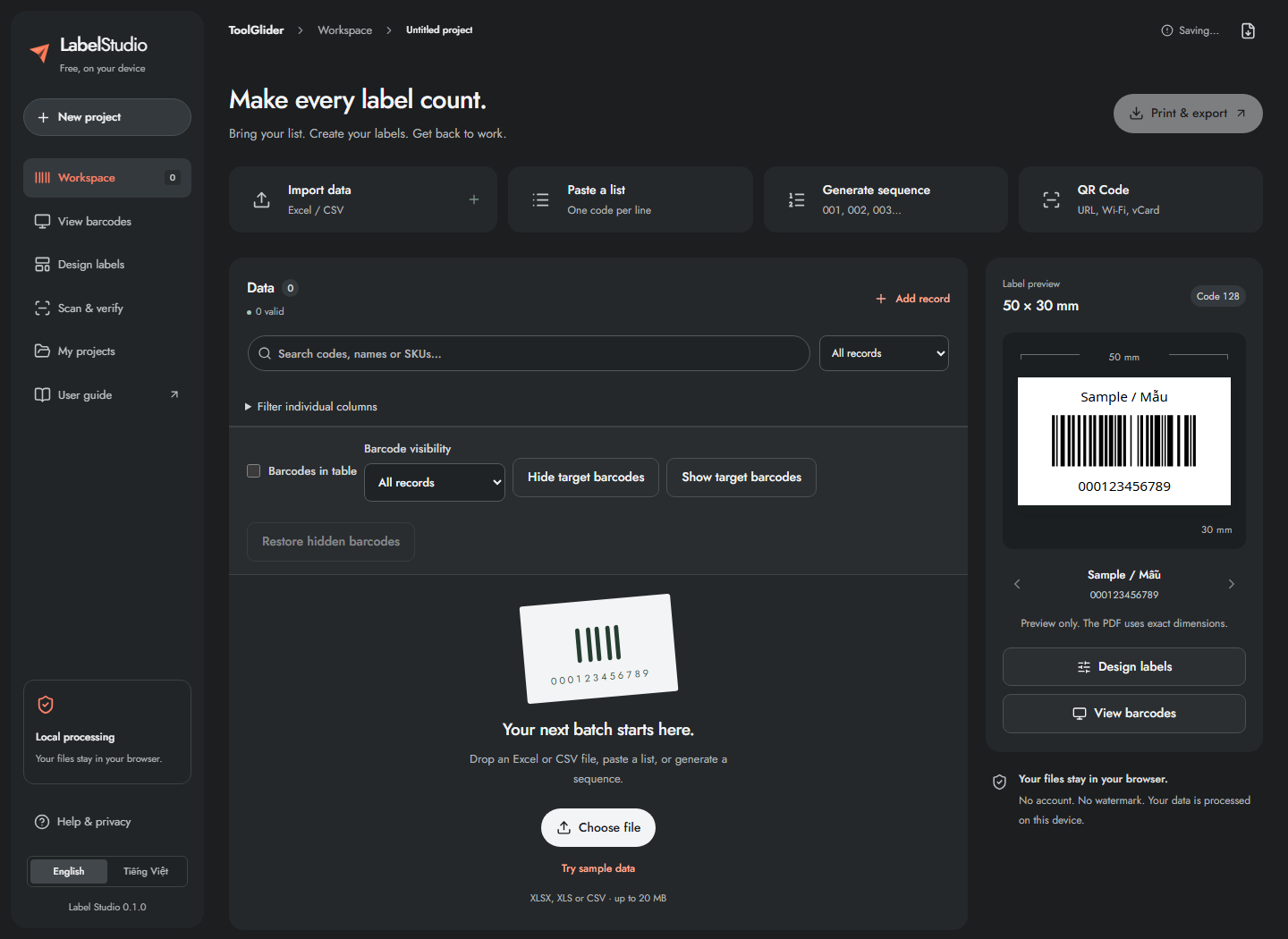
- Open Label Studio in a current browser. Select English if needed.
- Click Try sample data to learn without using your own files. Four example products appear.
- Click a product's barcode value to inspect or edit it. Use the preview arrows to see another label.
- Open Design labels to choose the label size and barcode type.
- Open Print & export, choose Preview record and PDF, then click Download.
- Print the PDF at Actual size / 100%. Test one physical label before printing a batch.
The left navigation contains Workspace, View barcodes, Design labels, Scan & verify, My projects and Help & privacy. The project name and backup action are in the application header. A phone uses the Menu button to reveal navigation. Switching interface language does not translate or change your product data.
2. Understand the workspace and record fields
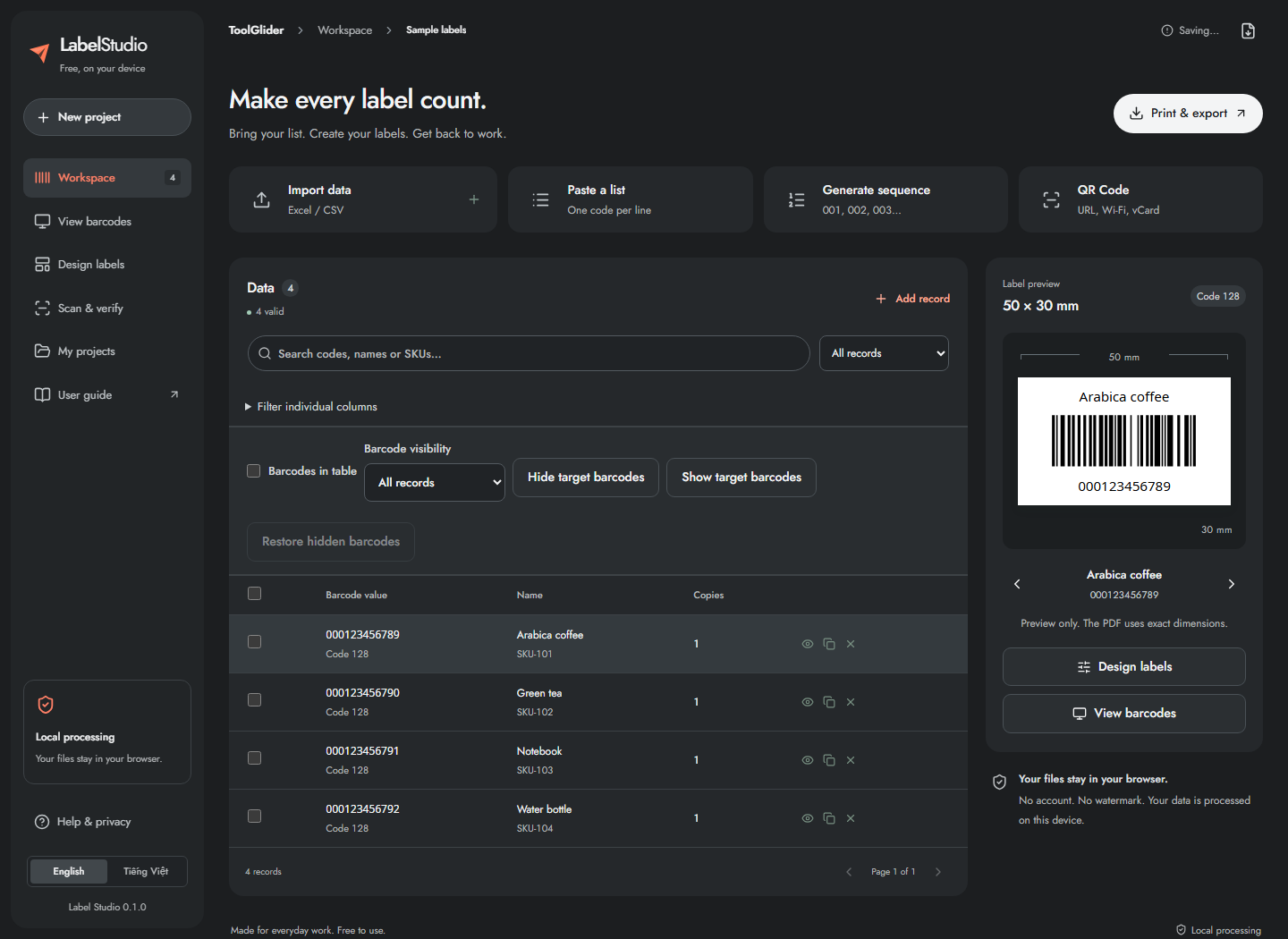
Each record holds Barcode value, Name, SKU, Price, Location, Note and Copies. Barcode value is the encoded payload; the product name is separate display text. Location can identify a shelf, station or warehouse zone. Copies controls how many labels are exported for that record; in count-each-scan mode it also supplies the expected quantity.
- Read the total and valid/error counts above the table.
- Use the label preview to inspect the current record and its template.
- Move between preview records using its arrows.
- Use Add record for one new item, or one of the input methods below for a batch.
Keep identifiers as text: 000123456789 and 123456789 are different values. The app preserves letter case and spaces rather than silently repairing them.
3. Import Excel or CSV and map columns
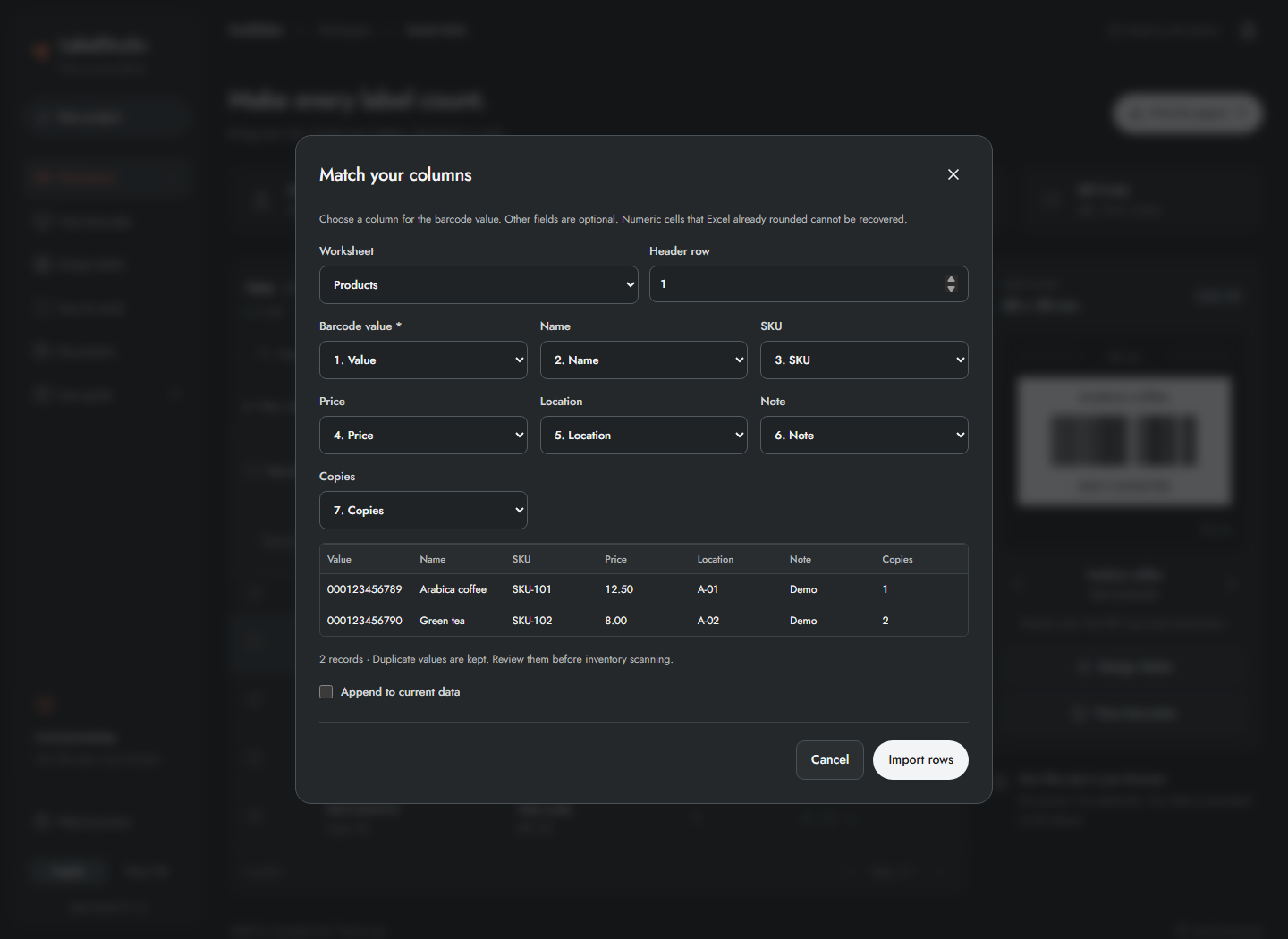
- In Workspace, click Import data and choose an XLSX, XLS or CSV file. You can also drop a file onto the data panel.
- In Match your columns, select the correct Worksheet.
- Set Header row to the row containing column names; choose from the first 100 rows.
- Map Barcode value to the column containing the exact value to encode. This is required.
- Map Name, SKU, Price, Location, Note and Copies when present; choose Not mapped for unused optional fields.
- Check the preview and expected record count. Only the first columns/rows are previewed; the preview is not the entire import.
- Enable Append to current data to keep current records. Disable it to replace the dataset. Back up first if the existing data matters.
- Click Import rows, then review errors and duplicates in the workspace.
The importer recognizes common headers, including original-tool fields such as serial, ten_vttb, ma_vttb and ma_tram_tuyen; always verify the mapping. The first 100 columns are available for mapping. Files are limited to 20 MiB and datasets to 50,000 records. Expanded XLSX content is bounded too.
Excel may already have rounded a long numeric identifier or removed its leading zeros. The app cannot reconstruct those digits. Format identifier columns as Text before saving the source. Numeric-cell warnings require a source check. Formula cells are not calculated; repair any empty mapped values. Duplicate values are retained for you to review.
4. Paste a list of codes
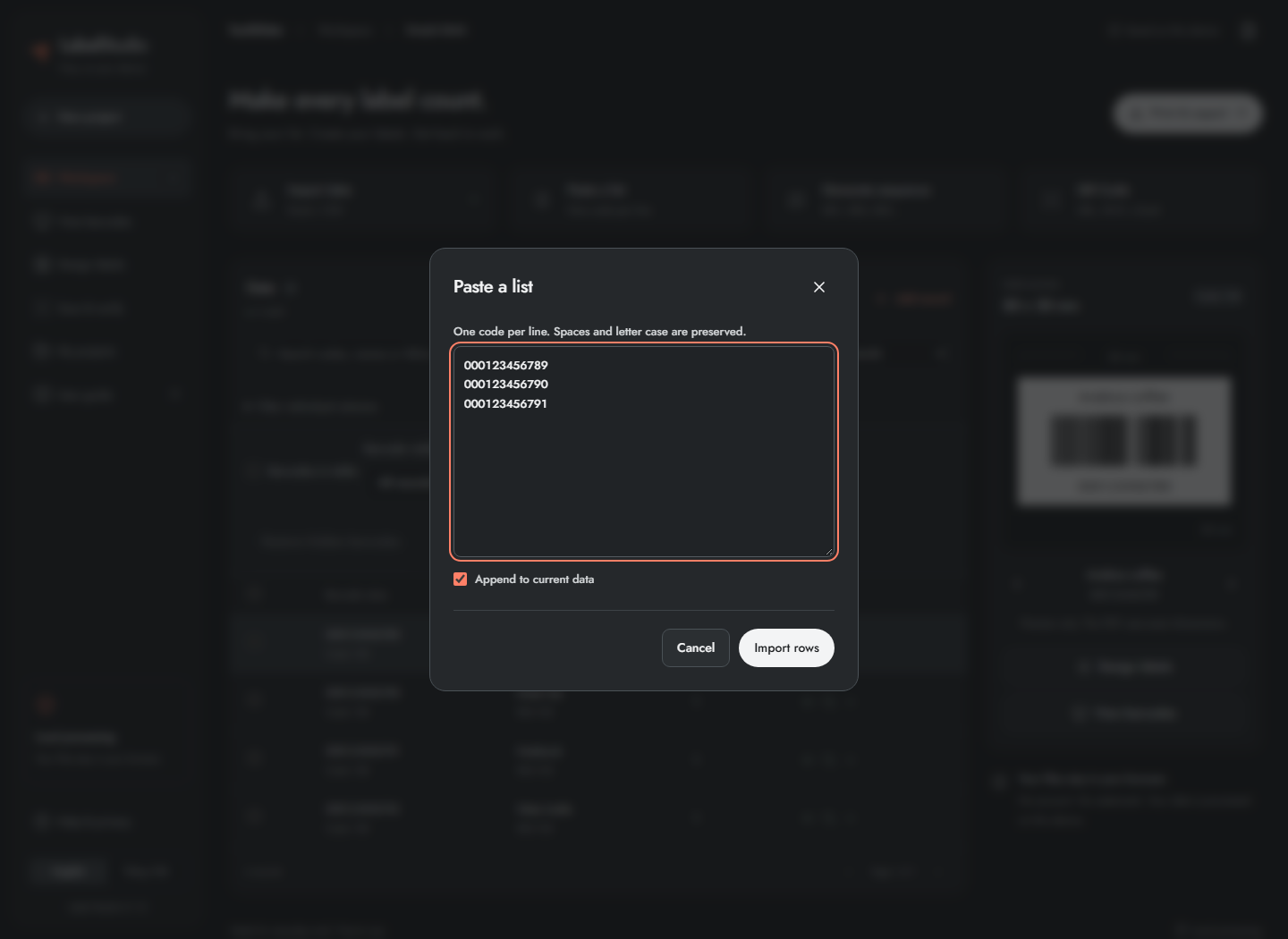
- Click Paste a list.
- Paste one code per line, for example
000123456789,000123456790,000123456791on separate lines. - Choose whether to append to existing data.
- Click Import rows and inspect the results.
Empty lines are skipped. Spaces and letter case in nonempty lines remain unchanged. This input creates barcode values; use spreadsheet import when you also need names, prices and locations. Pasting does not clean duplicates automatically.
5. Generate sequential serial numbers
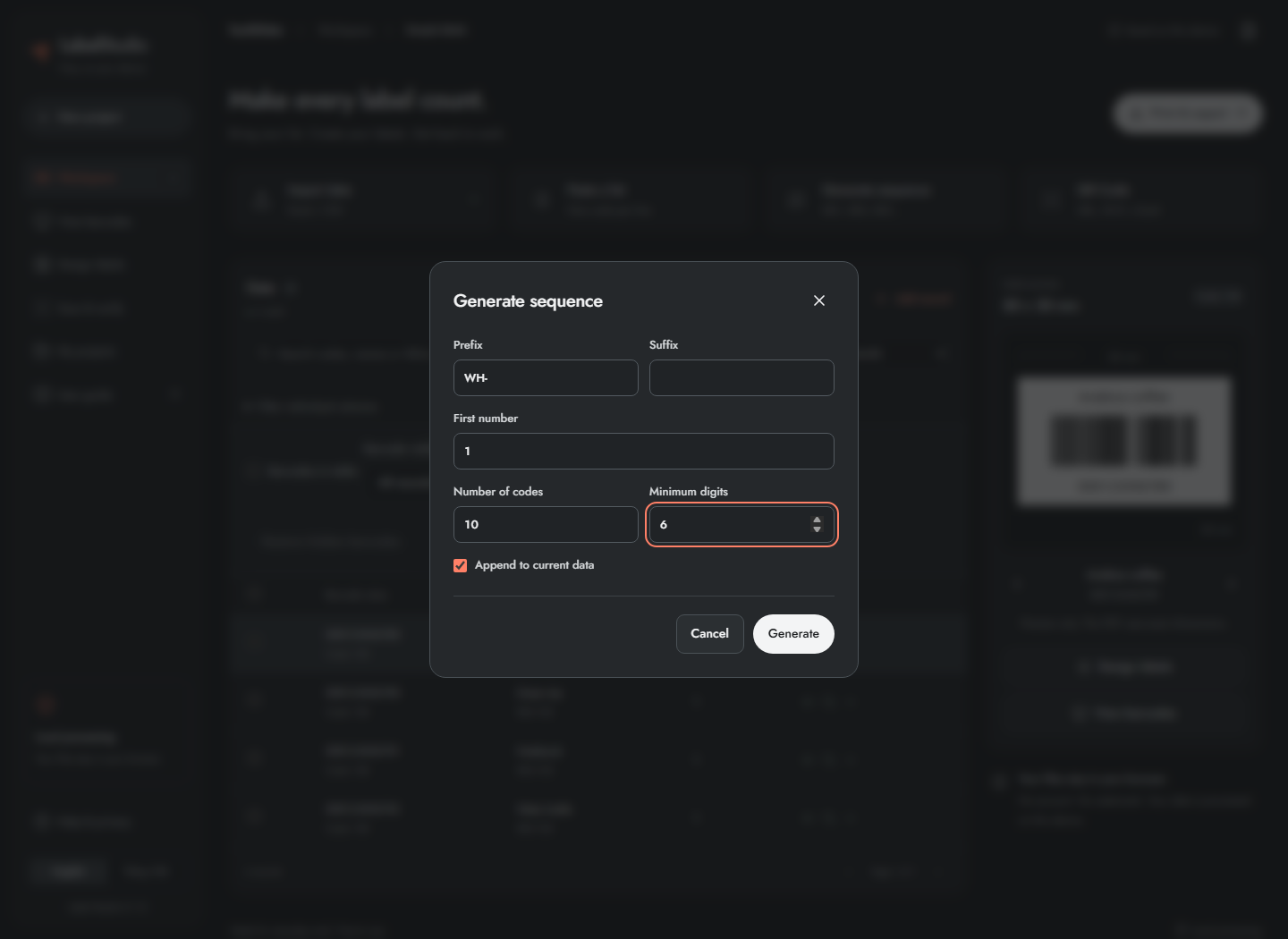
- Click Generate sequence.
- Enter Prefix, such as
WH-, and an optional Suffix. - Enter First number, for example
1. - Set Number of codes, for example
10, and Minimum digits, for example6. - Select append or replace, then click Generate.
This example produces WH-000001 through WH-000010. The numeric part increments by one. Minimum digits is padding, not a maximum length. Nonnegative integer starts, 1–50,000 codes and 1–30 digits are supported. Exact integer generation also handles values beyond JavaScript's ordinary safe-integer range. A custom increment and automatic SKU rules are not implemented.
6. Add, edit, copy or exclude a record
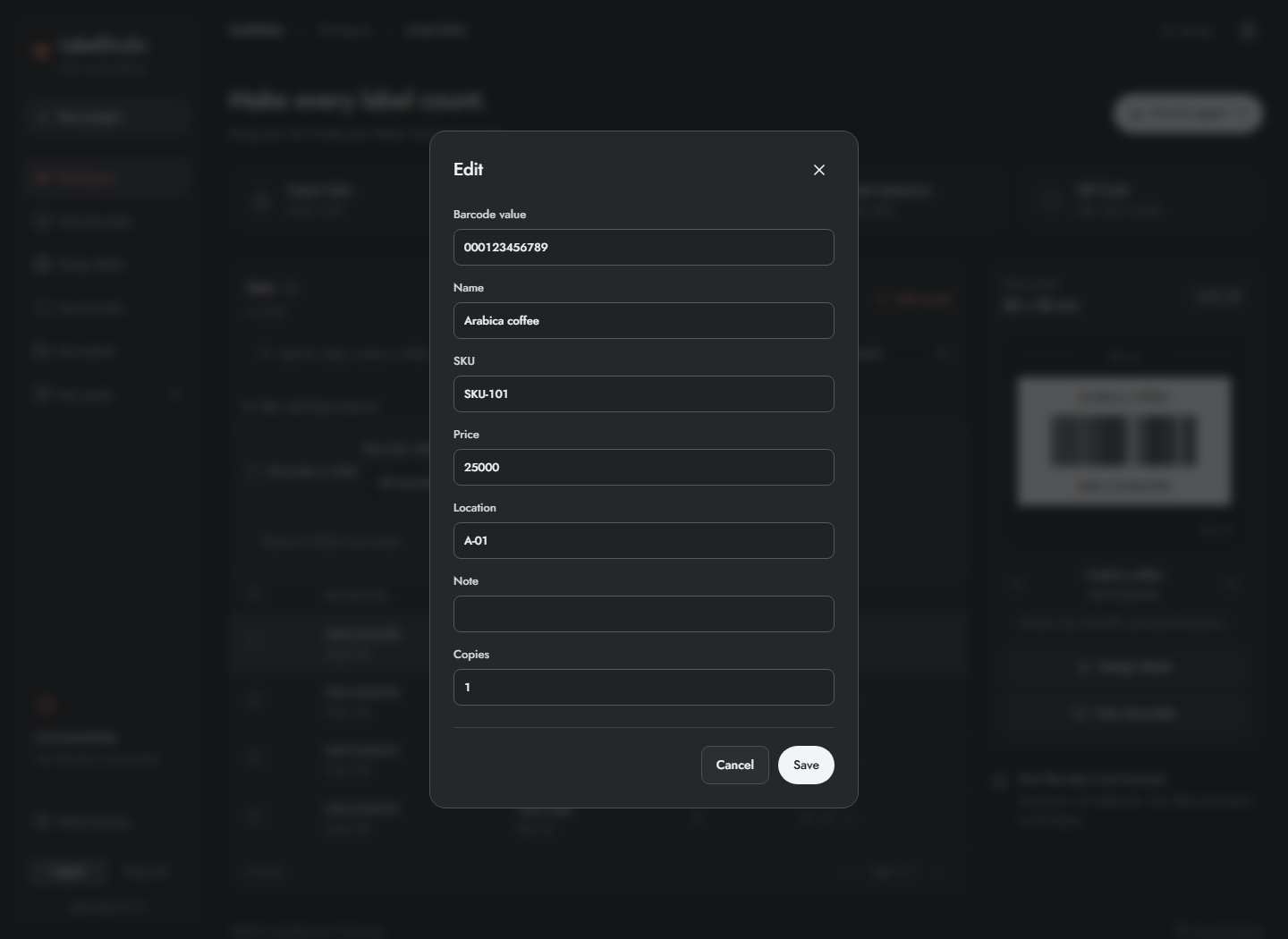
- Click Add record, or click an existing barcode value to open Edit.
- Enter the value and any optional fields. Check Copies before exporting a large batch.
- Click Save to keep the change, or Cancel to leave it unchanged.
- Use the row's copy icon to copy its value. Clipboard permission may be required by the browser.
- Use Exclude from export to keep the record in the project while omitting it from print/image/data export. Use Include in export to restore it.
- To delete records, select them and use Delete; read the confirmation first.
Excluding, hiding and selecting are different actions: exclusion affects export, hiding affects viewing, and selection defines a set of records for operations. Editing data invalidates the current scan comparison; see the scan-session chapter.
7. Select records and edit a batch
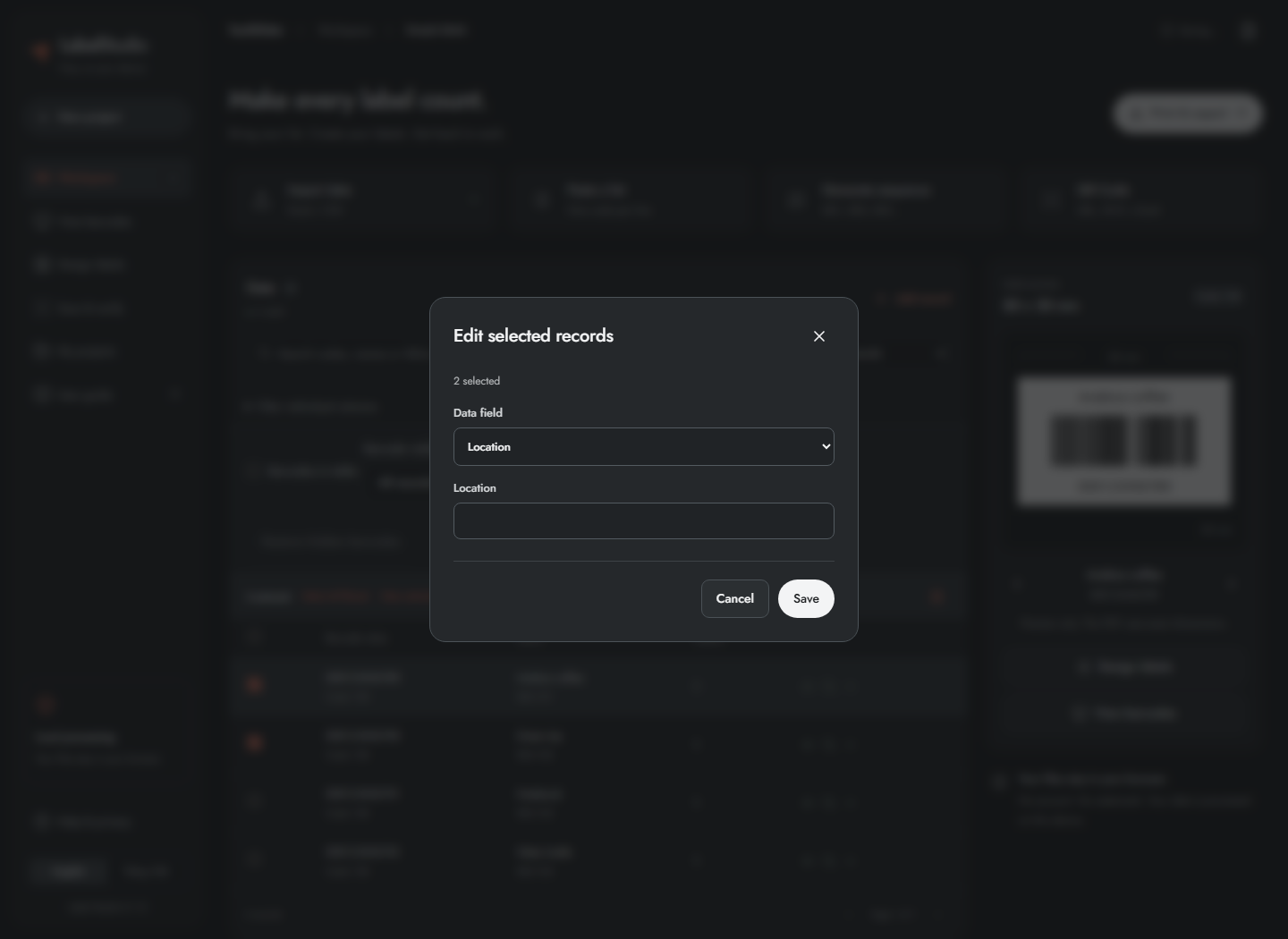
- Tick the checkbox beside each desired record. The header checkbox selects the current page.
- Use Select all filtered when you want every matching record, including other pages.
- Open Edit selected records, choose an optional data field or Copies, enter the replacement value and apply it. Barcode value is not offered for bulk replacement. This writes the same value to that field across the selection, not a different value per row.
- Clear the selection when finished, particularly before the next export.
Selections persist while you change pages and filters. A selected record outside the current filter can still belong to the selection. Always check the selected count and export scope. Deleting selected records changes the dataset and requires a fresh scan session.
8. Search, filter and show codes inside the table
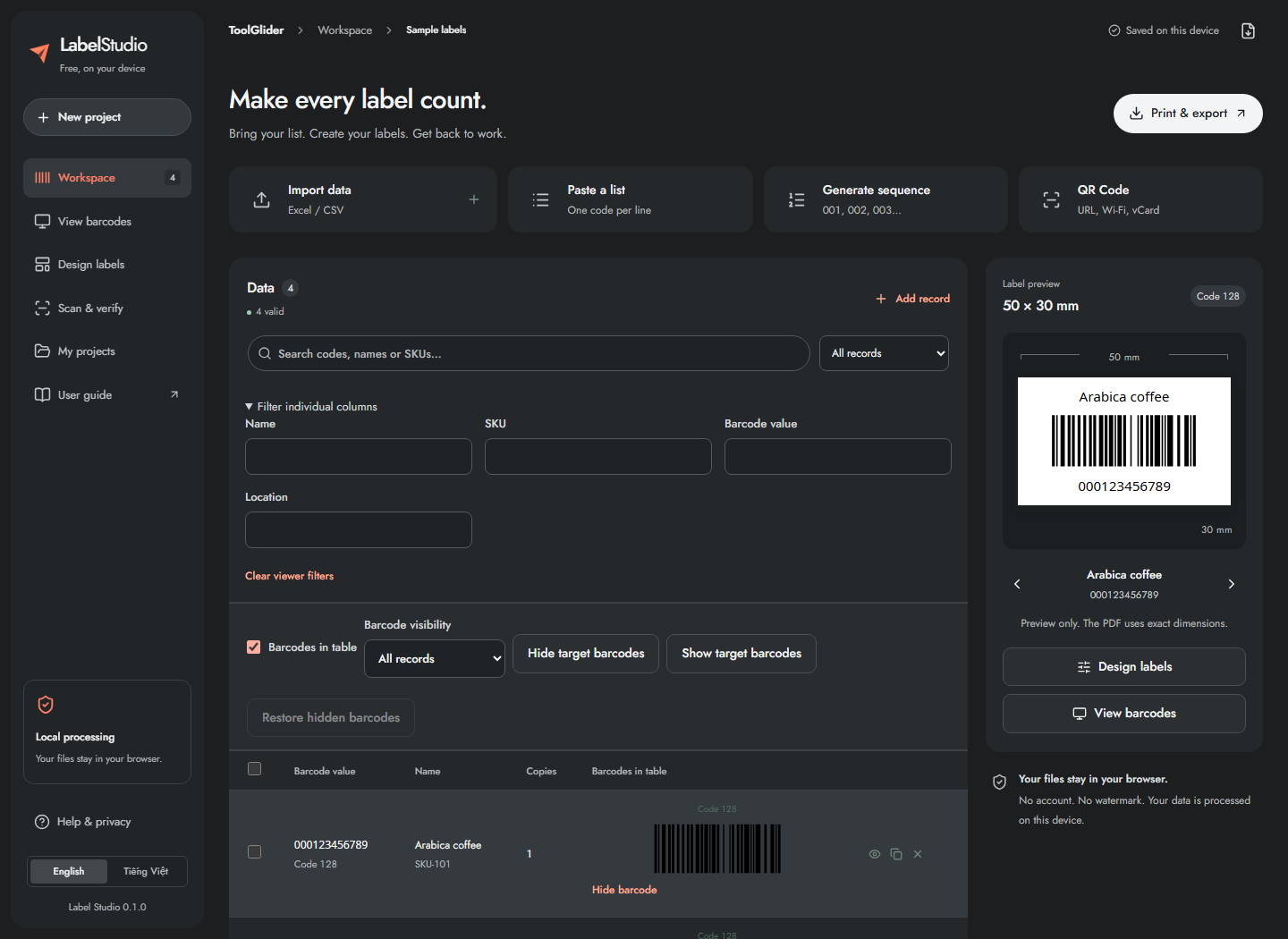
- Type into Search codes, names or SKUs… to narrow the list.
- Use All records to switch to With errors or Duplicate codes.
- Expand Filter individual columns and enter separate Name, SKU, Barcode value or Location filters.
- Enable Barcodes in table to see rendered codes beside records. Turn it off for a more compact table.
- Use Barcode visibility to show all, visible or hidden codes. The hide/show buttons target the selected set when one exists; otherwise they target the current table page.
- Use Restore hidden barcodes to show all previously hidden codes. Clear filters to return to the full list.
- Use Previous/Next below the table to move between pages.
The workspace error filter can offer Rejected rows CSV with values and reasons. Download it to correct the source. Filtering does not delete data or automatically clear selection. Inline code visibility is shared with the large viewer and saved with the project.
9. Choose the correct barcode format
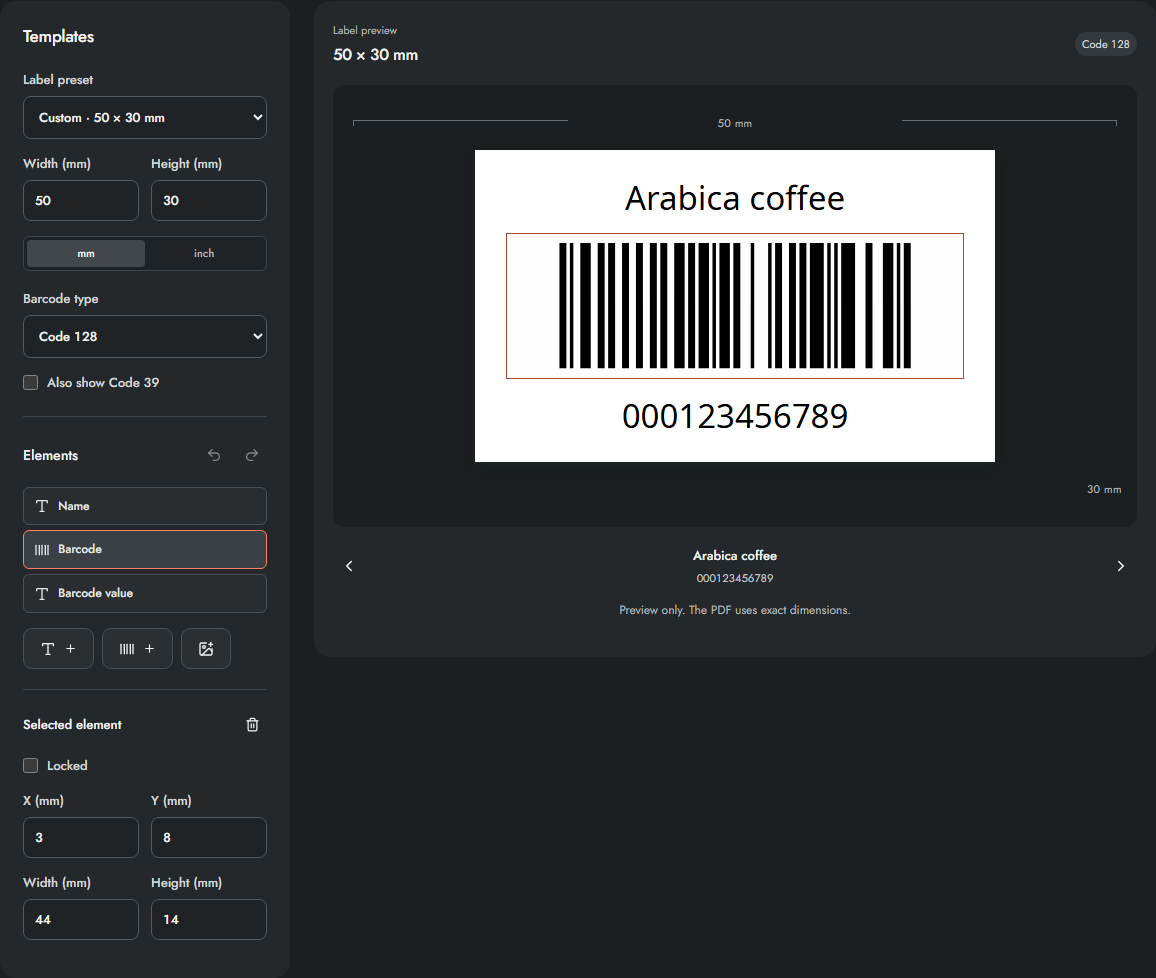
- Open Design labels.
- Choose Barcode type to match the receiving system or scanner.
- Check the data error count after changing formats; the same value can be valid for one format and invalid for another.
- Enable Also show Code 39 only if your values satisfy Code 39 rules and the label has room for both symbols.
| Format | Use and input requirements |
|---|---|
| Code 128 | General ASCII identifiers; suitable for the sample numeric codes. Non-ASCII text needs another format. |
| Code 39 | Uppercase A–Z, digits, spaces and - . $ / + %; lowercase is not silently converted. |
| EAN-13 | Exactly 13 digits including a valid check digit. |
| EAN-8 | Exactly 8 digits including a valid check digit. |
| UPC-A | Exactly 12 digits including a valid check digit. |
| ITF-14 | Exactly 14 digits including a valid check digit. |
| QR Code | Text or structured QR payloads; suitable for URLs and Unicode text. |
| Data Matrix | Compact 2D symbol; confirm payload and reader compatibility. |
| PDF417 | Stacked 2D symbol; allow enough space for its contents. |
| GS1-128 | Parenthesized application identifiers, for example (01)09506000134352(10)ABC123. |
The app checks digits, lengths and encoding rules; it does not assign a retail GTIN or certify GS1 compliance. A standalone check-digit calculator is not part of this release. Keep quiet zones clear and verify a printed sample with the scanner you will use.
10. Build QR records: text and web links
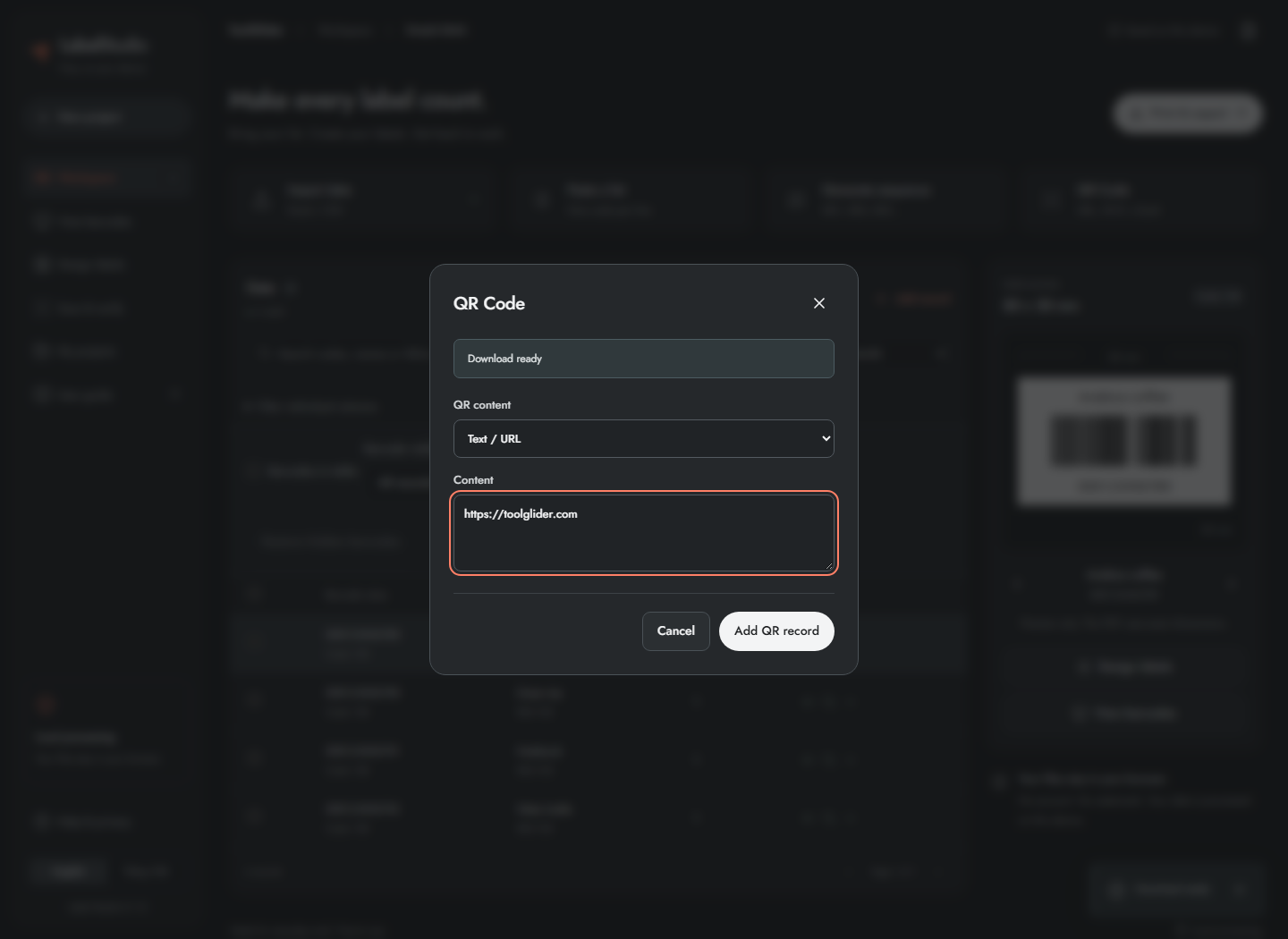
- Return to Workspace and click QR Code.
- Choose Text / URL under QR content.
- Enter text or a complete URL, including
https://for web links. - Click Add QR record.
- Find the newly appended record using the preview arrows or list, then inspect its QR image.
Adding a QR record also changes the project's label template to a 50 × 50 mm QR layout and disables the secondary Code 39 symbol. Back up or use a separate project if you need to preserve a different layout. For a batch, import a value column containing complete URLs/payloads, then choose QR Code in Design labels. There is no dynamic redirect, click-tracking service or editable hosted destination behind these static QR codes.
11. Build a Wi-Fi QR code
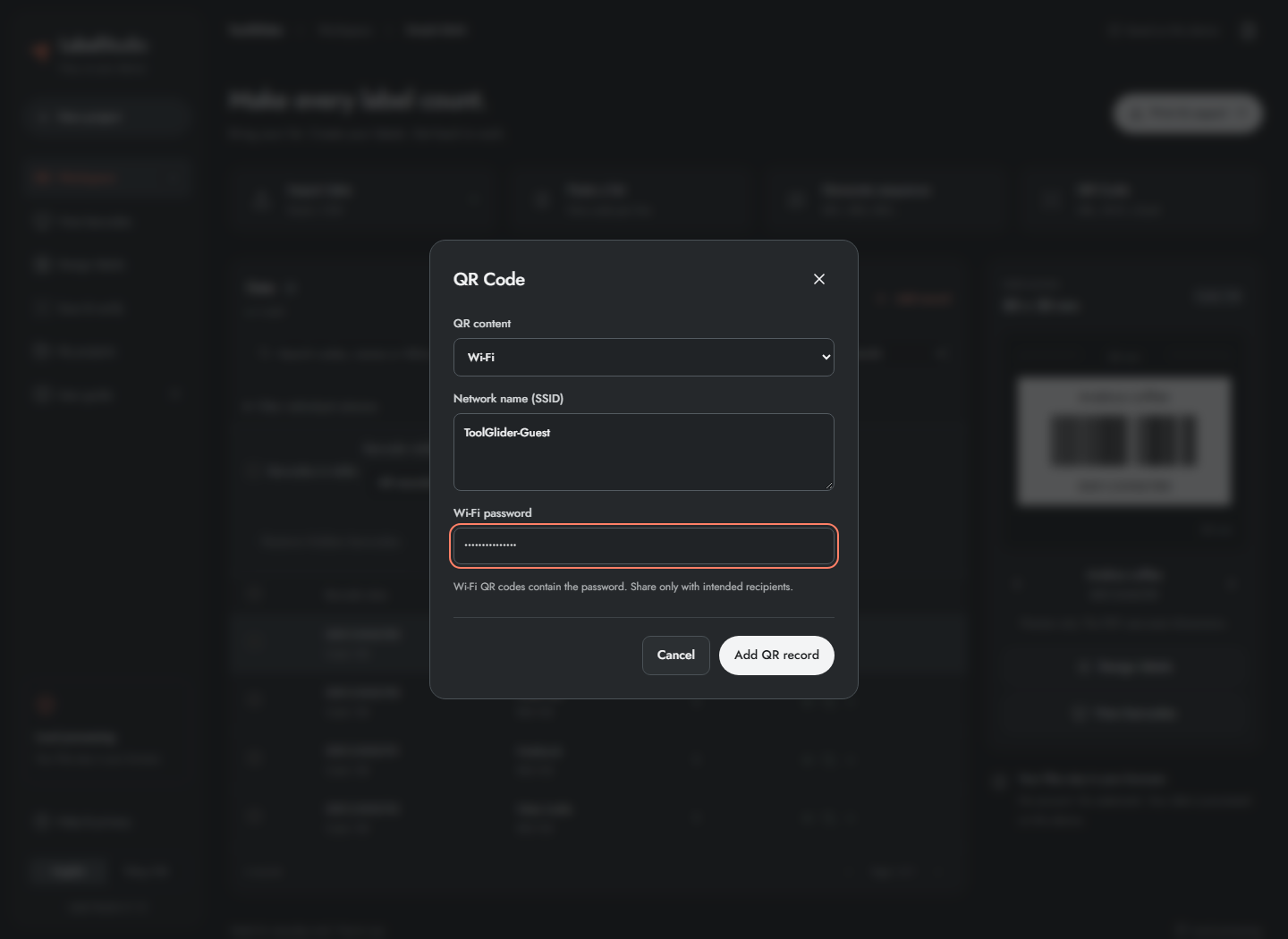
- Open QR Code and choose Wi-Fi.
- Enter the exact Network name (SSID), including case.
- Enter Wi-Fi password.
- Click Add QR record, inspect the new label and test it with a phone.
The current builder creates a WPA-style Wi-Fi payload. It has no separate security-type or hidden-network selector. The QR payload contains the password, even though the entry field masks it. Anyone who can decode the code can read that payload. Use only a network you intend to share and avoid putting a private credential in a public example.
12. Build email, phone and contact QR codes
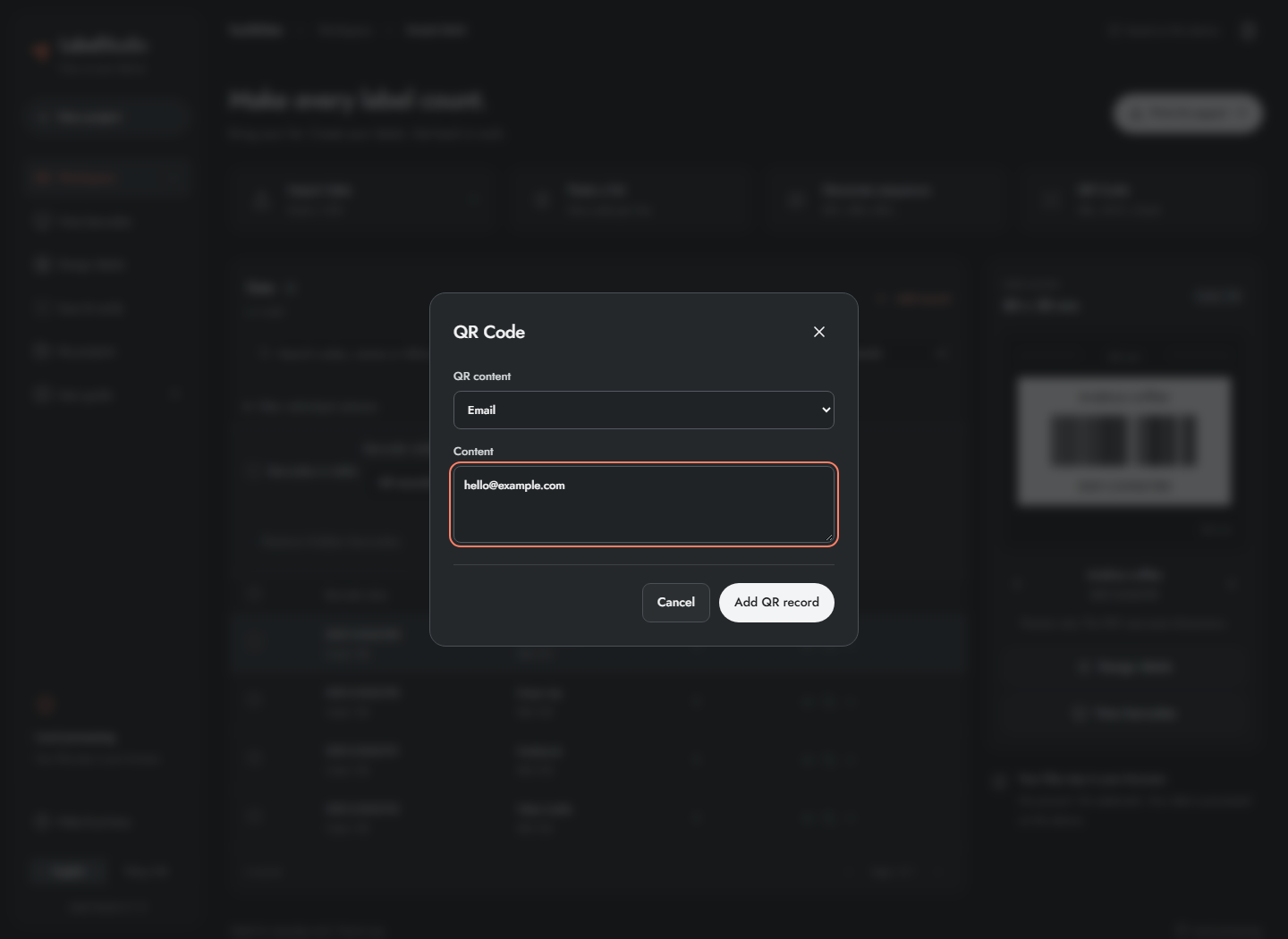
For Email, choose that type, enter an email address, add the record, then scan it to check that your phone offers an email action. The builder creates a mailto: payload; there are no separate subject/body fields.
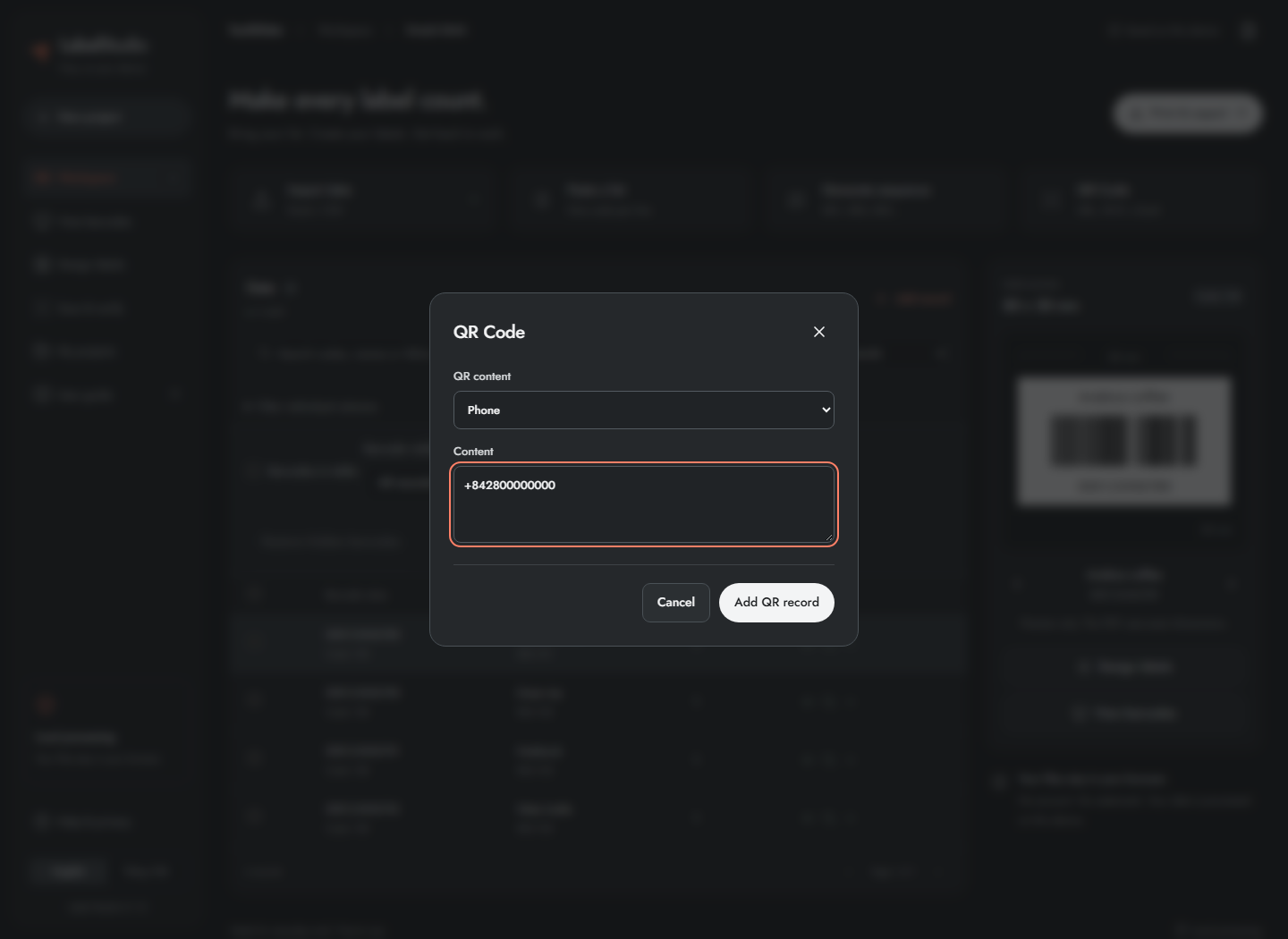
For Phone, enter the number with its international prefix when appropriate, add the record, then scan it to inspect the call action. The builder creates a tel: payload; it does not place a call itself.
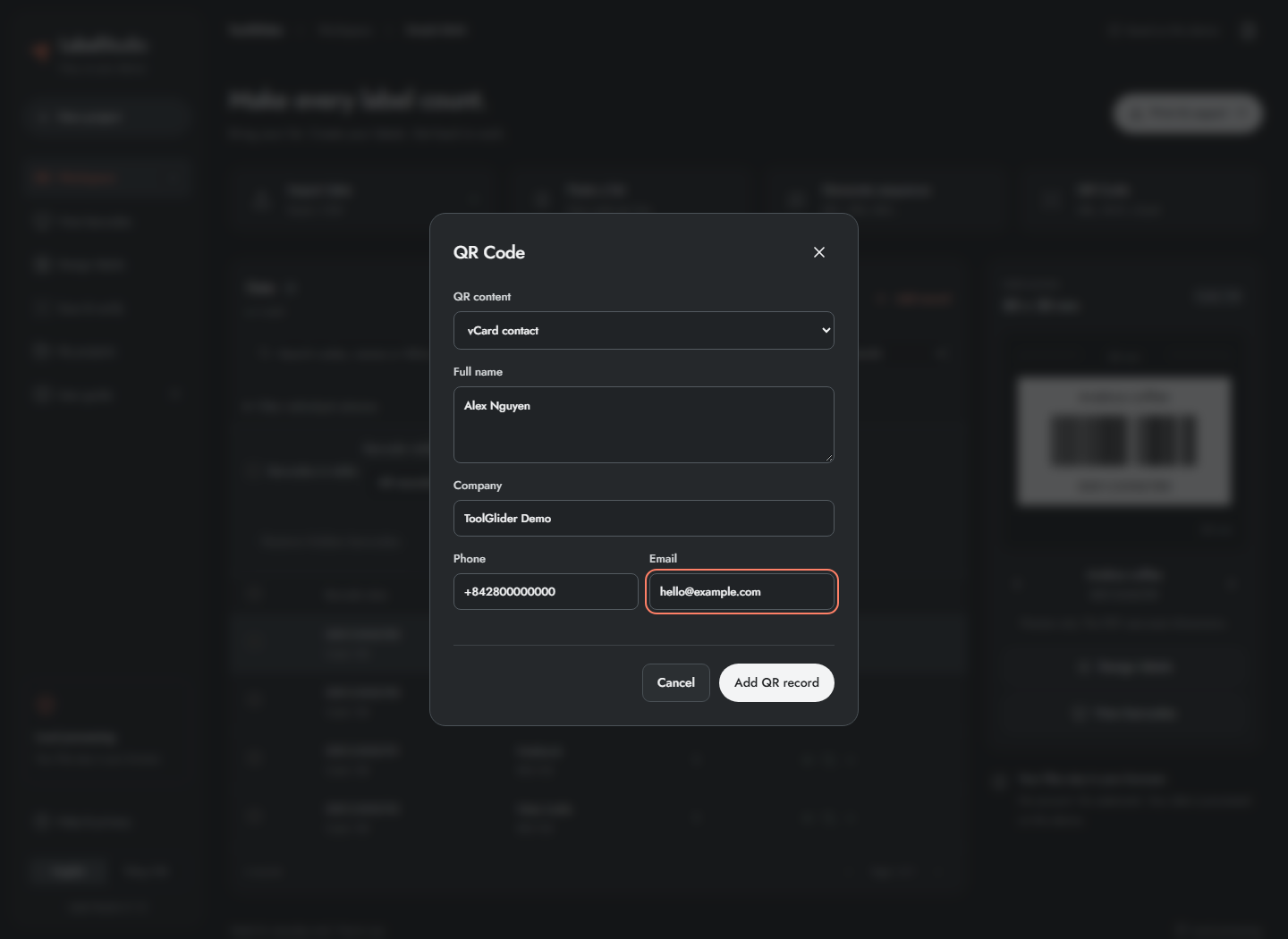
For vCard contact, fill Full name, Company, Phone and Email, then add the record. Scan the label and review the contact before saving it on the phone. The receiving app decides how to display or import the vCard. There is no dedicated SMS builder, QR-logo overlay, color picker or error-correction selector in this version.
13. Set label dimensions and edit the template
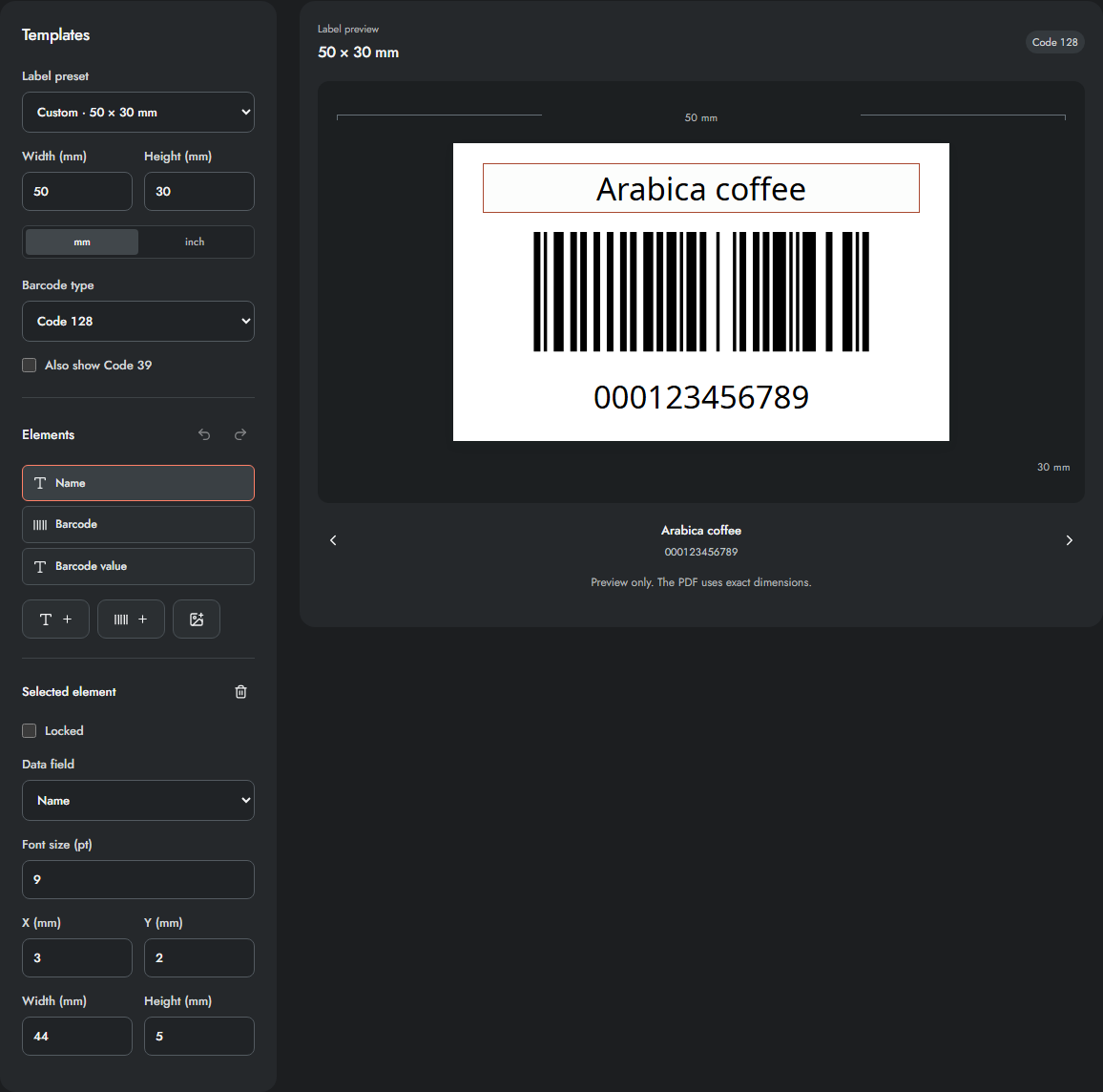
- In Design labels, choose a Label preset, or enter custom Width and Height.
- Use mm/inch for label-size entry. Element coordinates remain labelled in millimetres.
- Select an element in the Elements list or the preview. Drag it within the label, or enter X (mm) and Y (mm) for exact positioning.
- Set the element Width and Height; keep the entire box inside the label.
- Use arrow keys on a focused, unlocked preview element to move it in 0.5 mm steps.
- For text, choose its Data field and Font size (pt). Name, value, SKU, price, location and note can be bound to text elements.
- Use Add text, Add barcode or Add logo to add elements. Text is bound to a record field, rather than being a free-text paragraph editor.
- Lock finished elements to prevent accidental dragging. Use Undo/Redo for template changes, Delete for a selected element and Reset layout when you want default element positions for the size.
Choose a PNG/JPEG logo under 2 MiB and 16 megapixels. The logo is an independent label element; it is not automatically inserted inside a QR symbol. Remove logo clears the imported logo. There is a maximum of 30 elements. If text does not fit, enlarge its box, reduce its font or shorten the source field. Increasing preview zoom does not repair an undersized print layout.
14. Browse one barcode at a time
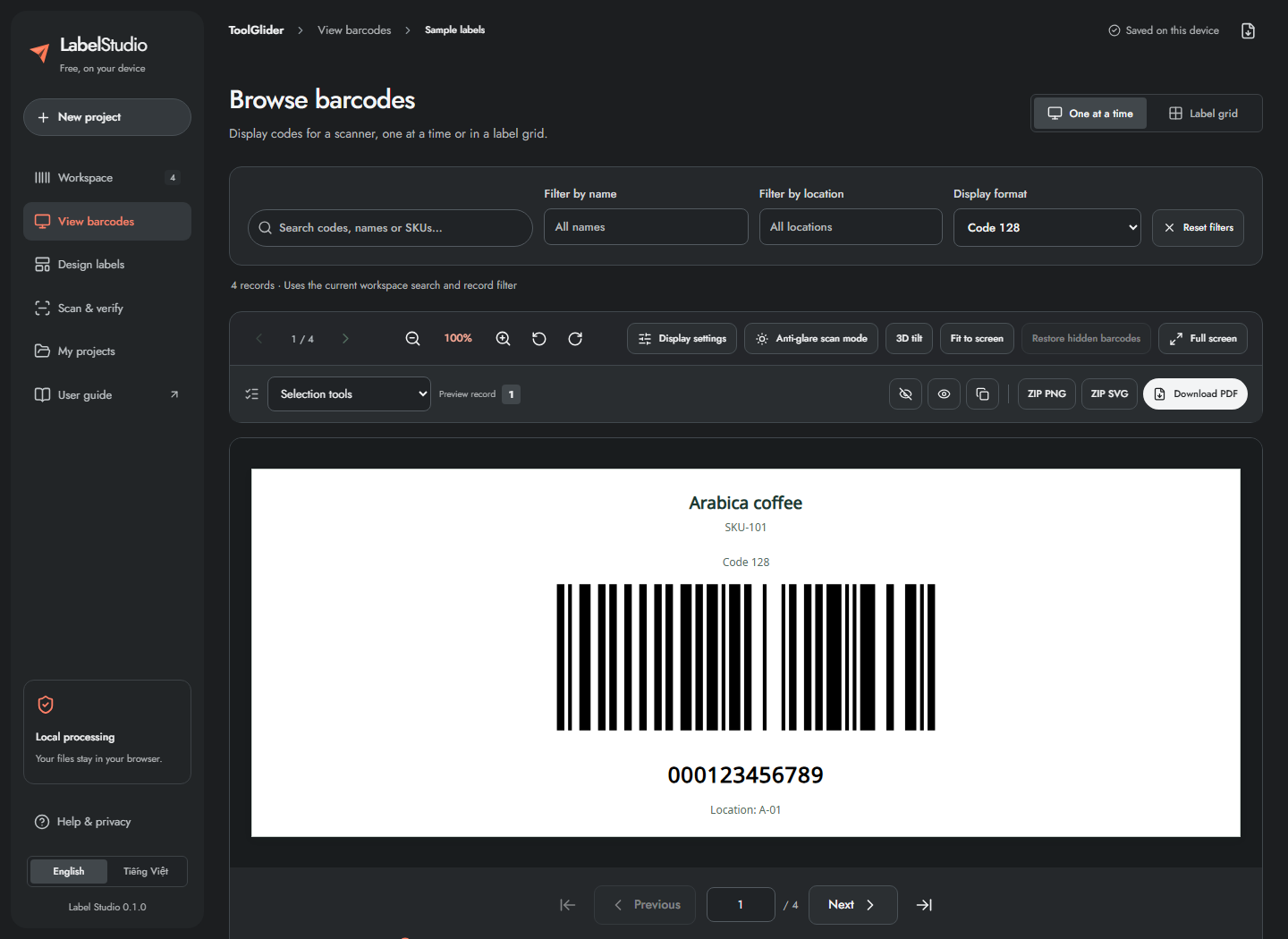
- Open View barcodes, or use a row's View this barcode eye icon.
- Choose One at a time.
- Use first/previous/next/last buttons, the position slider, or Go to barcode number and Enter.
- Use Left/Right and Home/End when navigating the viewer. Swipe horizontally on a touch device; mouse dragging also moves between records at the default zoom.
- Search codes or names, filter by name or location, and select Display format. It can show Code 128, Code 39, both together or the other supported formats without changing the print template.
- Use Reset filters if expected records are missing. Workspace search and the workspace record filter also constrain this viewer.
The viewer is for presenting existing values to a scanner. Changing the displayed symbology does not modify the stored value or make an invalid payload valid.
15. Adjust display, anti-glare, tilt, zoom and rotation
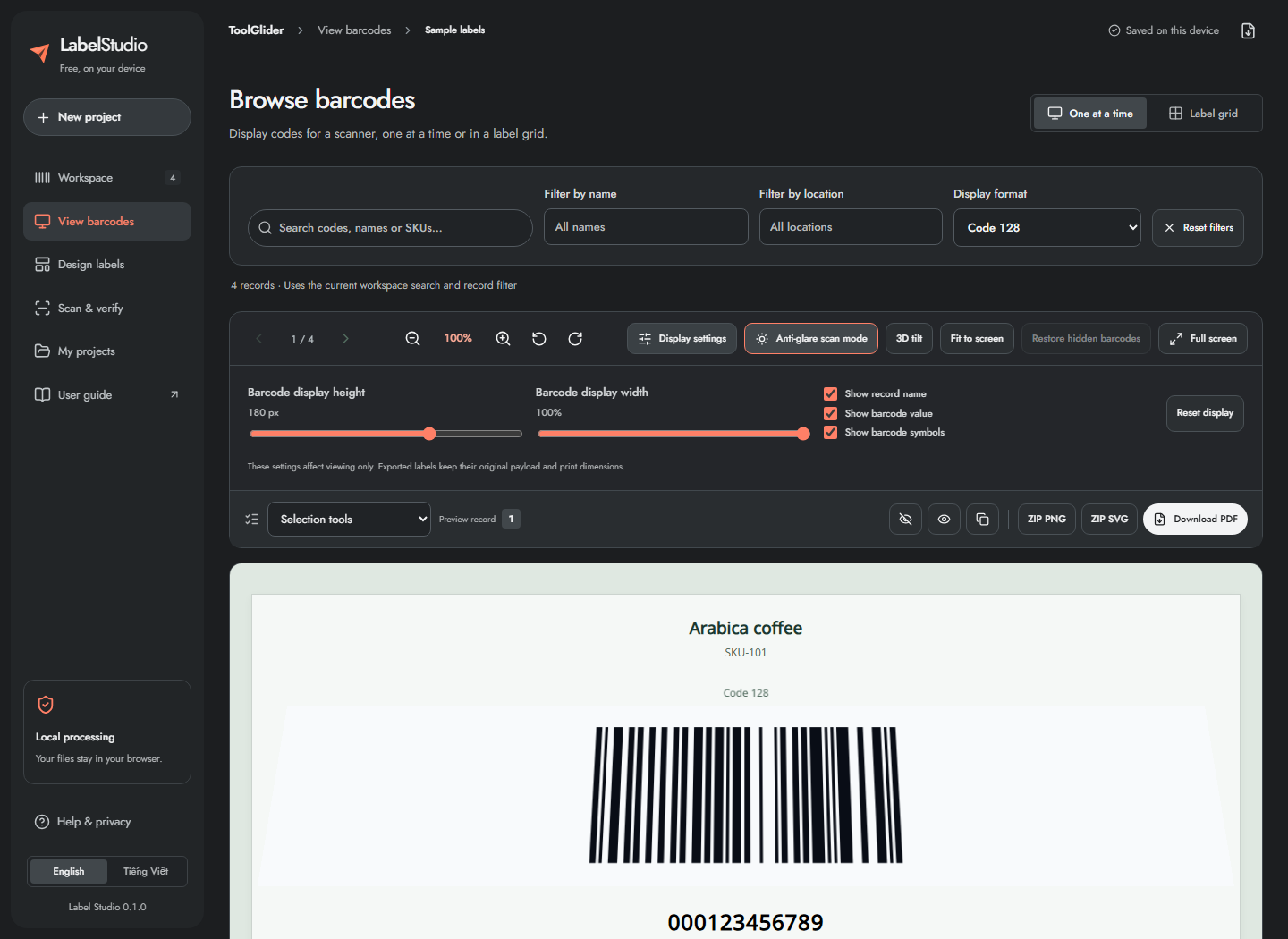
- Open Display settings.
- Adjust Barcode display height (60–240 px) and Barcode display width (50–100%).
- Toggle record name, barcode value or barcode symbols as needed.
- Enable Anti-glare scan mode for a softer background, dark ink, larger quiet zones and a taller/wider presentation suitable for screen scanning.
- Try 3D tilt if a slight presentation angle helps your scanner. It applies a 14° perspective tilt; it cannot remove physical reflections from a screen.
- Use zoom out/in, left/right 90° rotation, Fit to screen, or Reset display to return to an ordinary view.
Long linear codes may scroll horizontally so their bars are not squeezed too small. Display preferences are saved per project. These settings affect the screen, not the original payload or the dimensions of designed print exports. Test scan distance and ambient light with your actual device.
16. Full-screen viewing and label grids
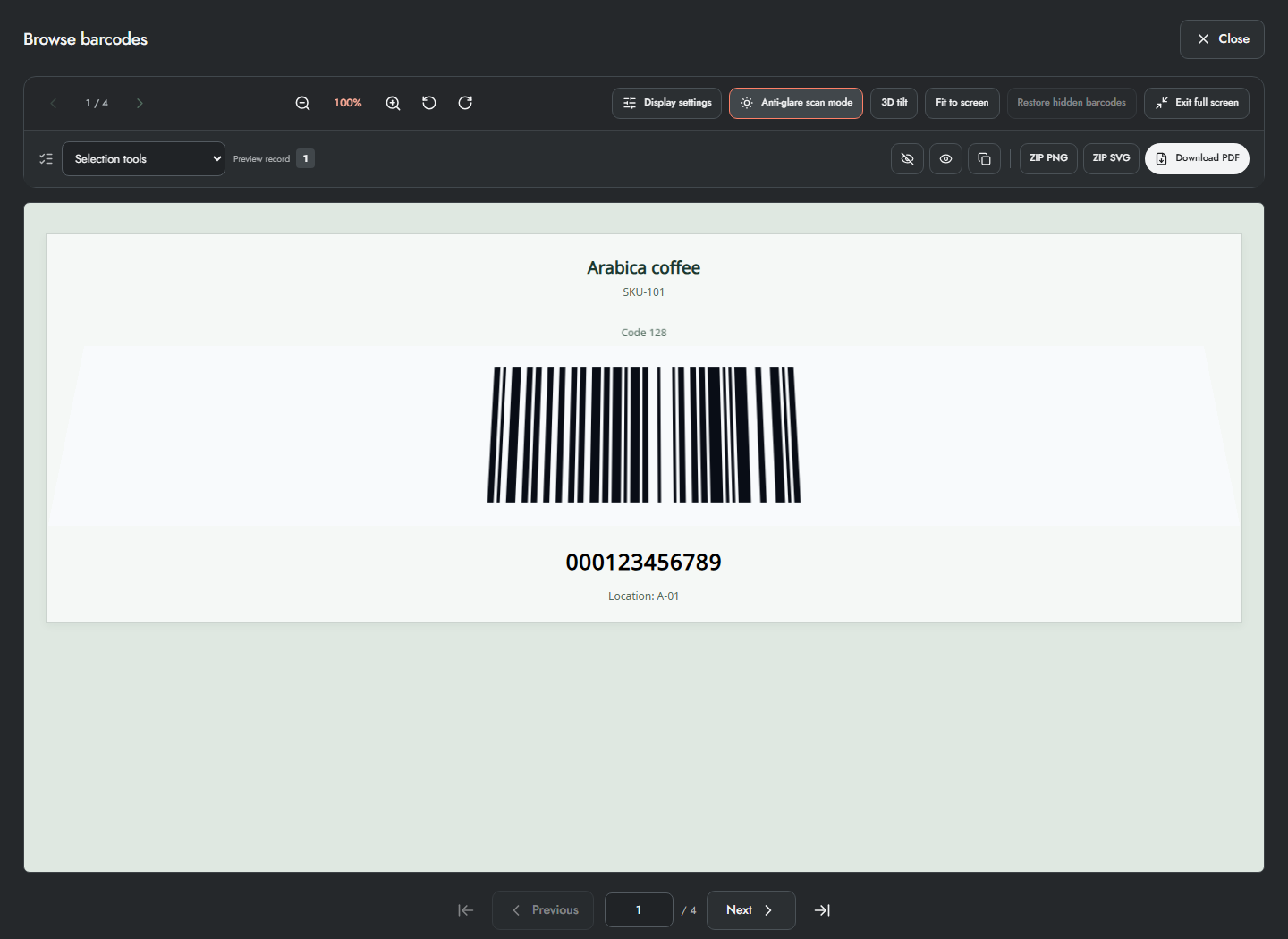
- Click Full screen to open the expanded viewer dialog. It is an in-app expanded view, not a promise to hide browser chrome.
- Use the pinned navigation/display/export tools inside it.
- Press Esc or its close/exit button to return.
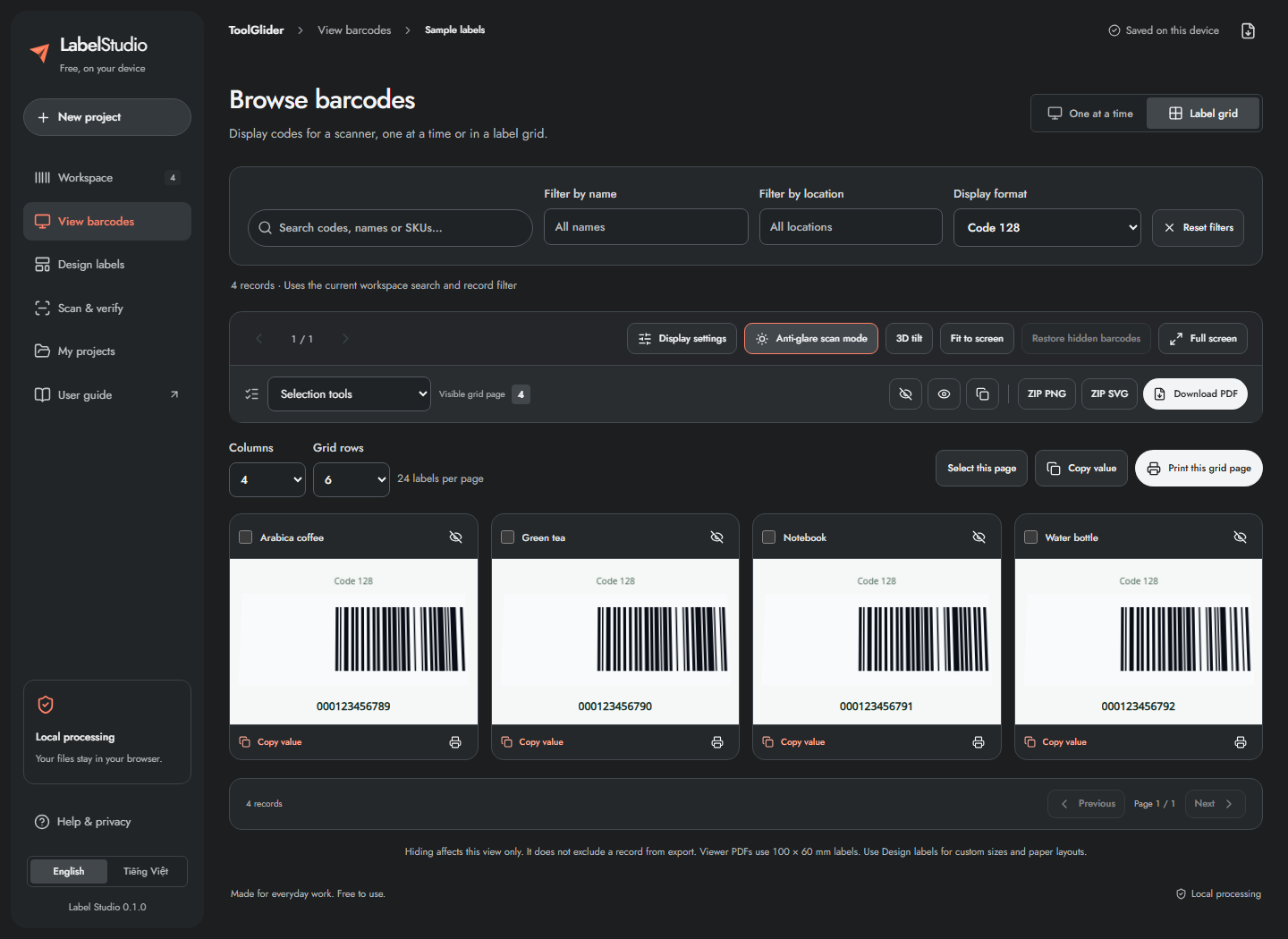
- Choose Label grid.
- Set Columns from 1–6 and Grid rows from 1–8.
- Move between grid pages. On narrow screens, extra columns scroll inside the grid.
- Select cards, expand one card, copy its value, hide/show it or print that code.
- Use the selection menu to select current/page/all filtered, invert the filtered selection or clear it.
Hide/show actions affect presentation only. Restore hidden barcodes brings them back. A hidden record is not automatically excluded from export.
The toolbar automatically shrinks to a single row when you scroll down. The compact pager shows the current grid page or barcode position. Use Tools to open display and selection/export controls in a separate panel; close the panel or press Escape to return to your codes. Returning to the top restores the full toolbar.
Printing now opens Print preview first: check the 100 × 60 mm label, record count and total labels including copies. Use Previous/Next to inspect each label. Cancel returns without opening a PDF; Continue to print PDF opens the captured selection for printing at actual size (100%).
17. Export directly from the barcode viewer
Use the viewer's selection/export toolbar to copy target values, hide/show target codes, download PNG or SVG, produce PNG ZIP/SVG ZIP, download PDF, or print the current/selected/visible grid codes.
- Inspect the target description before clicking: selected records take priority; otherwise the action uses the current code or visible grid page as indicated.
- Check copies and excluded records; image archives honor both.
- Use single PNG/SVG for one output label. For multiple outputs, choose a ZIP/PDF action.
- Cancel a long export with Cancel and wait for it to stop before starting another action.
Viewer exports use the displayed symbology; both Code 128 and Code 39 can appear together. Viewer PDF labels are 100 × 60 mm. For custom label dimensions, paper layouts and calibration, use Design labels and Print & export instead. Screen rotation and zoom do not change output geometry.
18. Export designed labels and source data
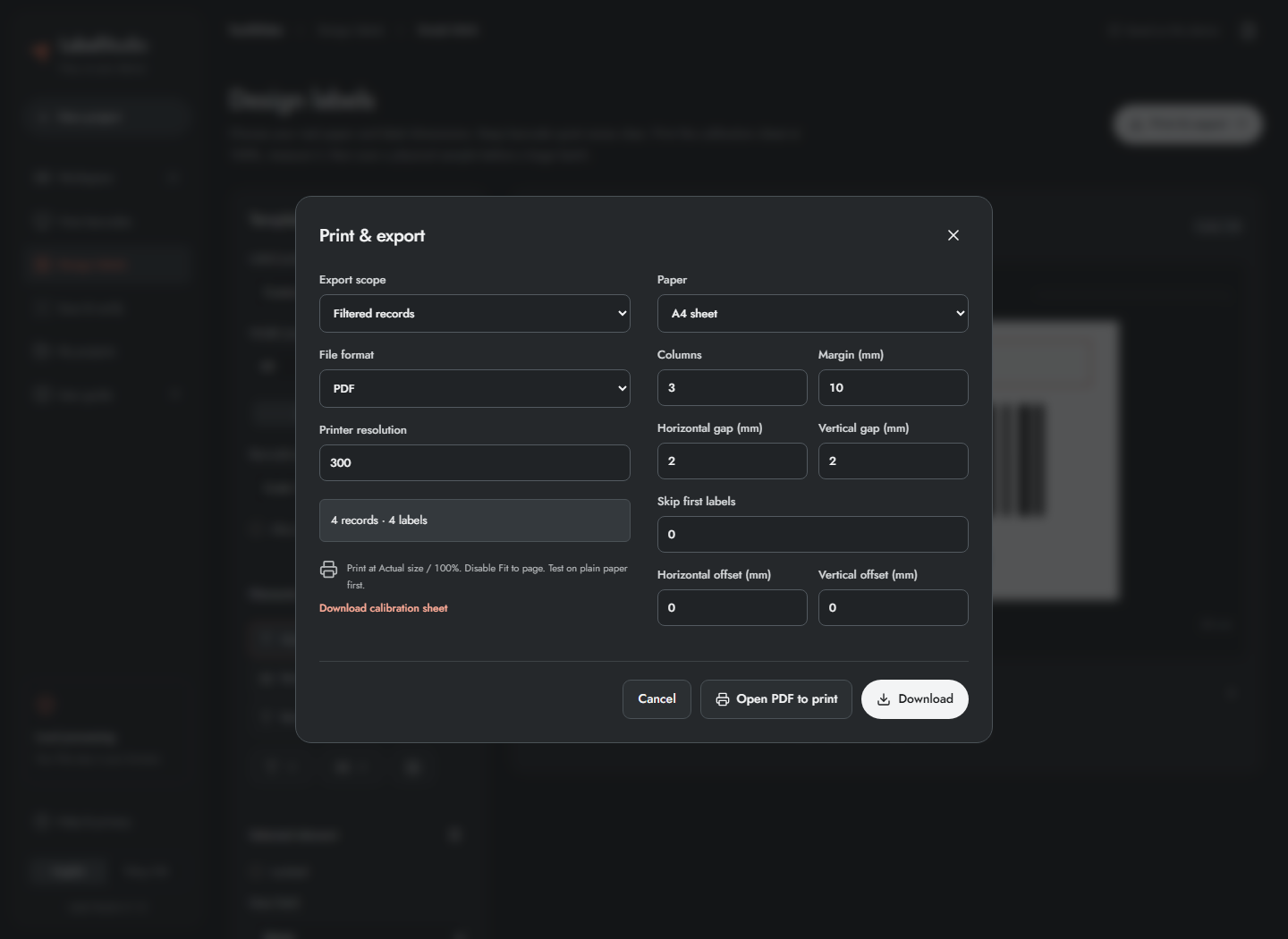
- Click Print & export.
- Choose Export scope: Filtered records, Selected records or Preview record. Selection may include records outside the visible page/filter.
- Choose PDF, SVG, PNG, CSV / Data, ZIP / SVG or ZIP / PNG.
- Read the record and label counts. Labels include Copies; CSV stores one row and its copy count.
- Set printer resolution to match your device: 203, 300 or 600 DPI.
- Click Download. Use Open PDF to print to open a printable PDF; allow pop-ups or download it if the browser blocks the window.
SVG/PDF labels retain vector barcode geometry. SVG text is outlined; PDF embeds a subset of Noto Sans, including Vietnamese. PNG is raster output at the chosen DPI. CSV exports the record data, not a rendered label. Spreadsheet-looking formula text is prefixed with an apostrophe for safer CSV opening. Excluded records are not exported.
PDF and SVG ZIP are limited to 2,000 labels per job including copies; PNG ZIP to 200 labels and 100 MiB accumulated image data. Single SVG/PNG requires exactly one label including copies. Split larger batches; an invalid value or layout blocks export rather than silently producing an unreliable label.
19. Print A4/Letter sheets, rolls and calibration pages
For A4 sheet or US Letter, set Columns, Margin, Horizontal gap, Vertical gap and Skip first labels to match the physical sheet. Skip first labels is useful for a partially used sheet. Adjust Horizontal/Vertical offset in millimetres for consistent printer displacement. Positive offsets move output right/down; negative values move left/up, subject to page-fit checks.
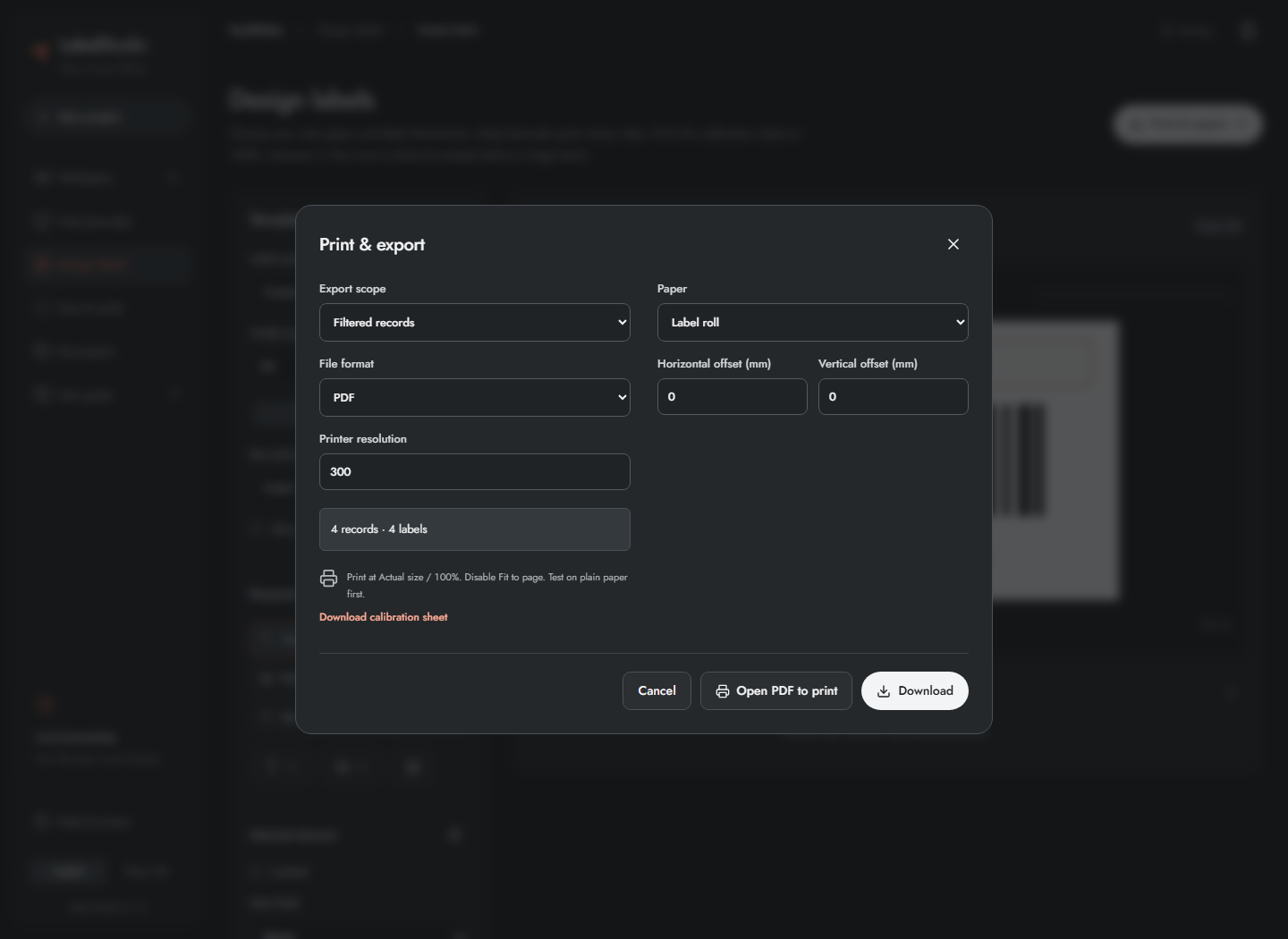
- For a thermal roll, choose Label roll. Each PDF page uses one label's dimensions; sheet columns/gaps are not used.
- Download the calibration sheet and print at Actual size / 100%, with Fit to page disabled.
- Measure the square: it must be 50 × 50 mm. Correct printer scaling before using position offsets.
- Print a few labels on plain paper, align against the stock, then test a real printed barcode.
- Print the full batch only after size, alignment and scan results are satisfactory.
If modules would be less than two printer dots, enlarge the barcode box, choose an appropriate DPI or shorten the payload. If labels do not fit, reduce columns, gaps/margins or label size as appropriate. Print settings do not provide direct USB/network printer control, ZPL export, PDF crop/merge or an existing-PDF converter.
20. Start a scan session and record codes
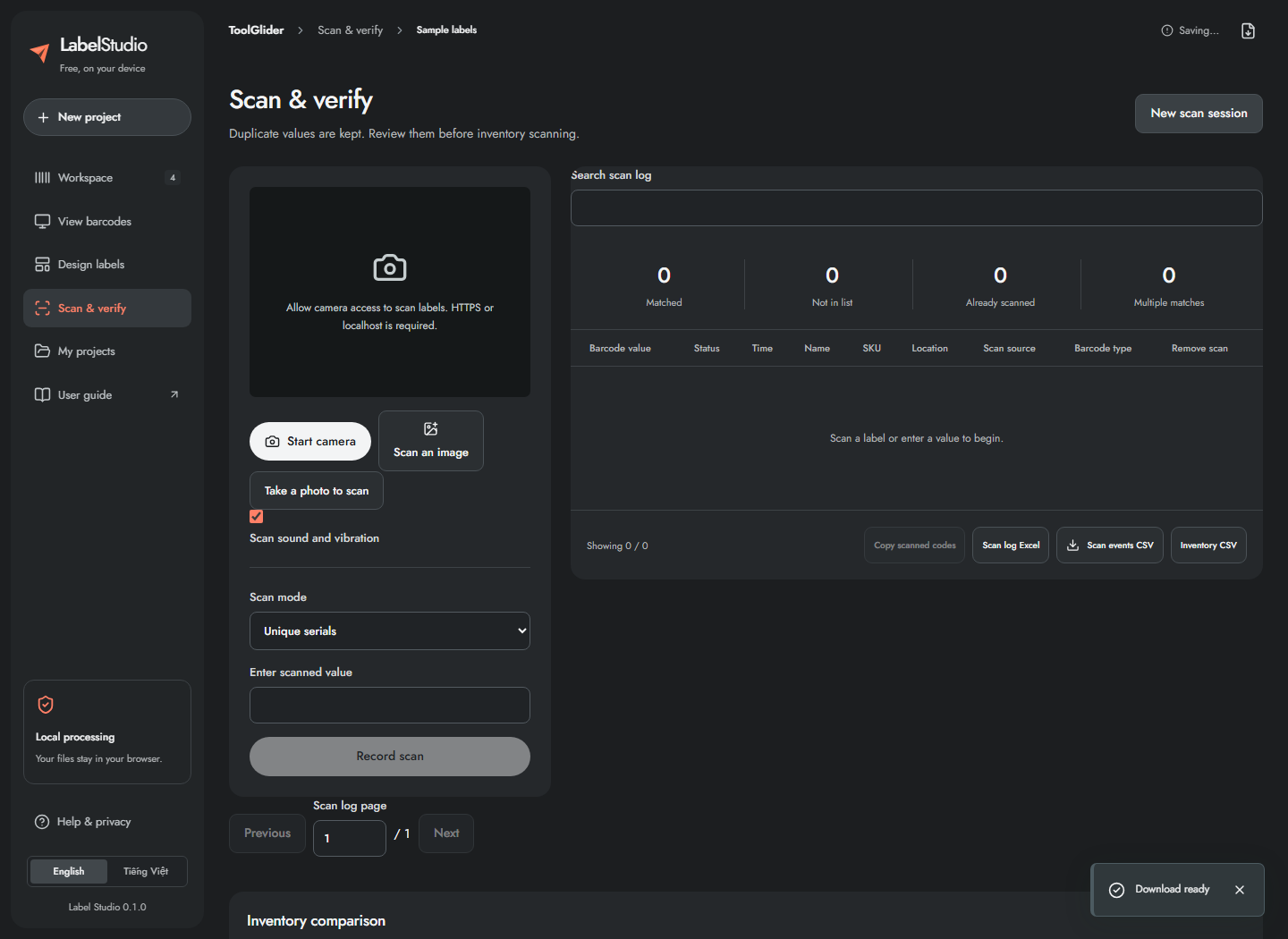
- Import the expected catalogue, review duplicate values, then open Scan & verify.
- Click New scan session. Export an existing report before confirming a reset.
- Choose Scan mode before recording events. The mode becomes fixed once events exist; start a new session to change it.
- For manual entry, type the exact payload in Enter scanned value and click Record scan or press Enter.
- For a USB/Bluetooth keyboard scanner, focus that field and scan. Configure the scanner to send Enter after the value, or click Record scan manually.
Unique serials mode counts a catalogue record once; a repeated read becomes Already scanned. Count each scan mode counts repeated reads against Copies. Both modes match the scanned payload to Barcode value; count mode does not automatically switch matching to the separate SKU column. To count SKU codes, make those codes the value column in your input.
21. Scan with a camera or an image
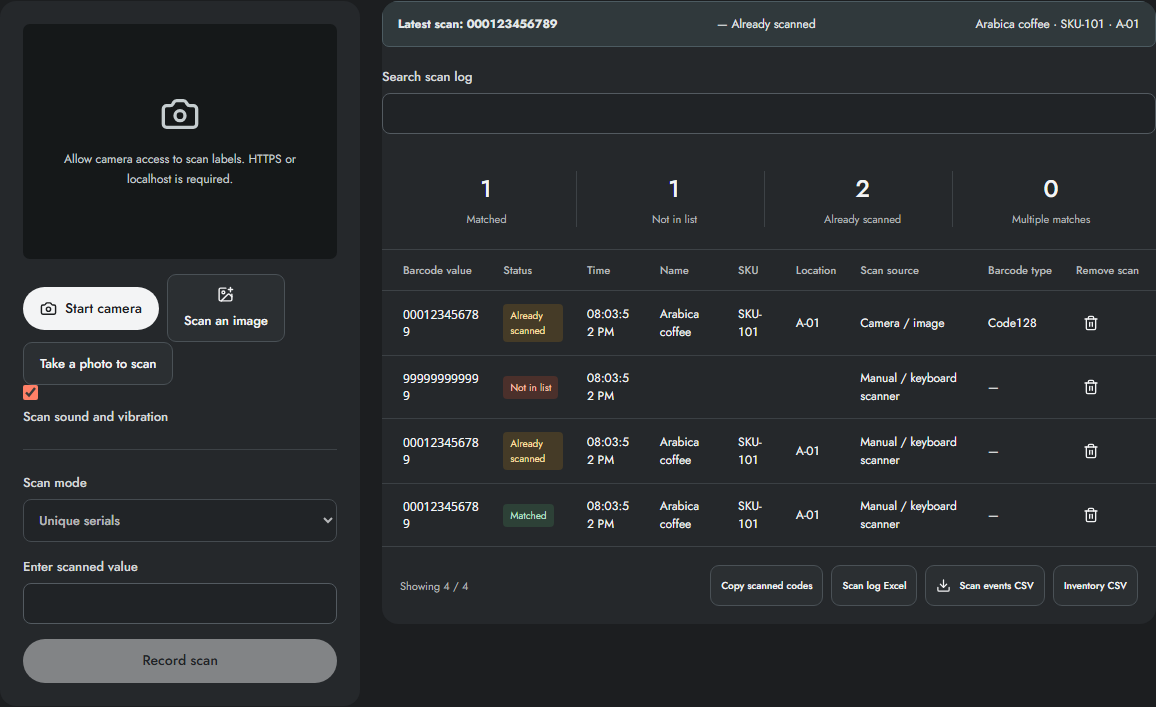
Camera: use HTTPS or localhost, click Start camera, grant permission, place a clear code in the guide and wait for a result. Select another Camera if several are available. Use Camera light only when the device exposes a torch; zoom uses hardware where available and a digital fallback otherwise. Continuous focus is requested when supported. Stop camera when finished; switching away or hiding the page also stops its tracks.
Saved image: click Scan an image and choose PNG/JPEG/WebP. Take a photo to scan asks a supporting phone/browser to capture an image; the browser may instead show a file chooser. Images are decoded locally, resized when needed and tried with rotation/inversion assistance. Use a sharp crop with a complete code and quiet zones. The current flow records a decoded result; it is not a batch multi-code image extraction tool.
Image limits are 20 MiB and 100 million input pixels; large images are reduced to at most 2560 px on the long edge before decoding. If no code is found, improve focus/light or enter it manually. Sound/vibration can be toggled and depends on browser support and user interaction. The app cannot create camera permission or hardware features that your device does not supply.
22. Interpret scan results and manage the log
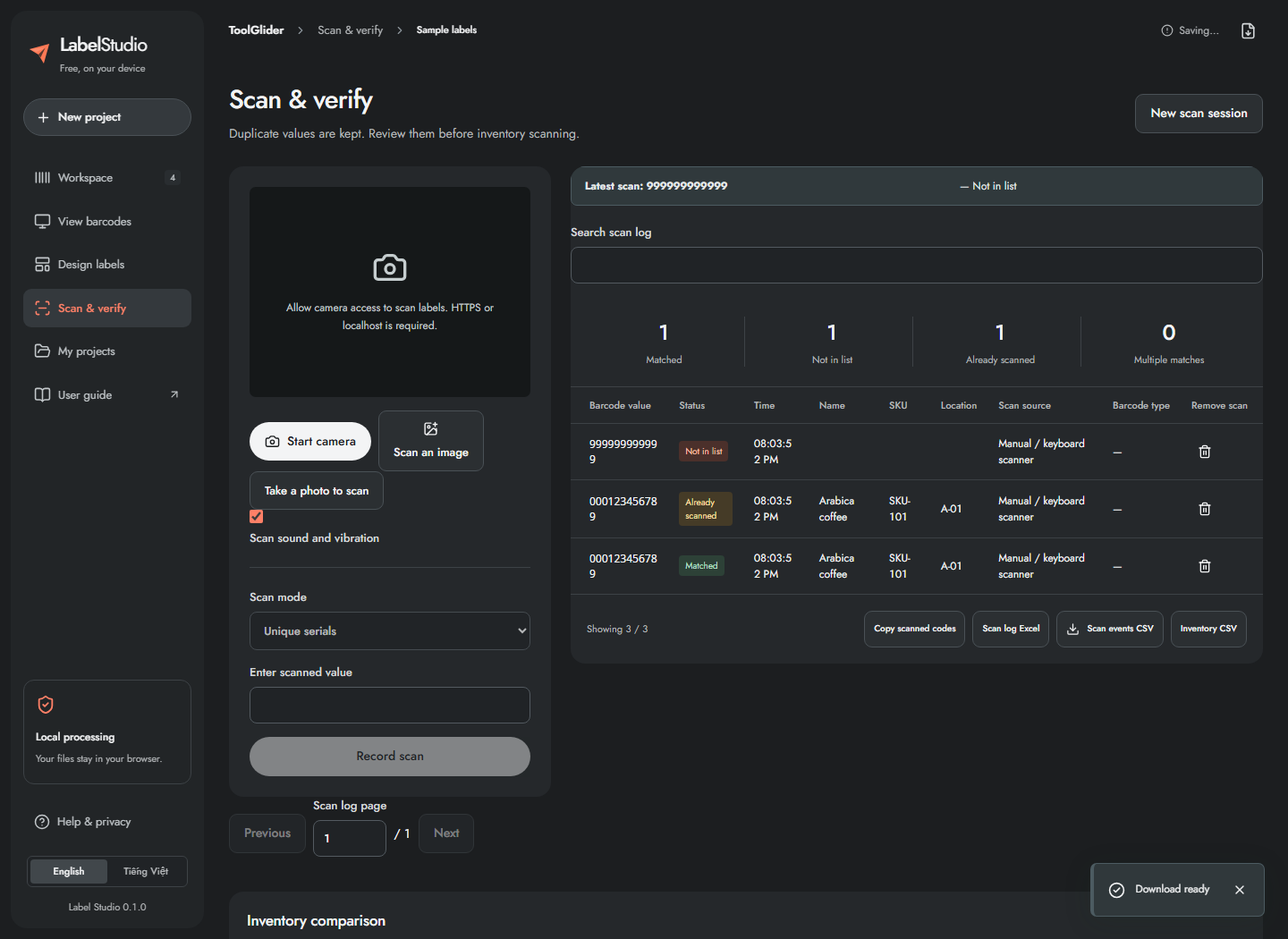
| Result | Meaning and next step |
|---|---|
| Matched | One catalogue record matches; inspect the name/SKU/location in Latest scan. |
| Already scanned | A serial has already been counted in Unique serials mode. Check whether it was scanned twice. |
| Not in list | No catalogue value matches. Verify the raw payload and expected list. |
| Multiple matches | Duplicate catalogue values prevent an unambiguous record match; fix the source and begin a fresh session. |
Use Search scan log and its page controls to find events. Latest scan shows details; the log retains raw scan, format when available, source and time. Manual/keyboard input has no detected optical format. Copy scanned codes or export Scan log Excel / Scan events CSV to keep the full history. Reports include all events, not just the displayed page.
Remove an accidental event with its remove button. Removing an initial matched serial promotes its oldest remaining duplicate so the comparison stays consistent. Values are not generally uppercased or stripped of leading zeros. UPC-A normalization is applied only for an explicitly UPC-A dataset. Sessions hold at most 50,000 events; export and start a new one at the limit.
23. Read inventory differences and handle changed data
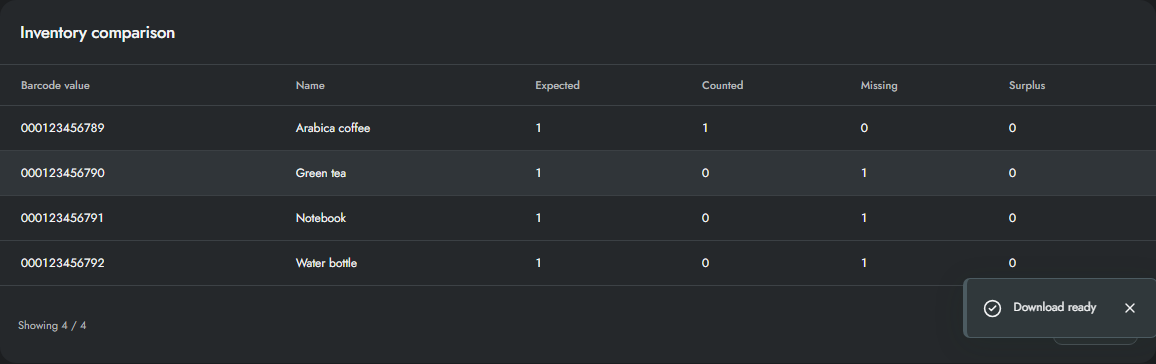
- Scroll to Inventory comparison.
- Read Expected, Counted, Missing and Surplus for each record.
- In Unique serials mode, Expected is one per record. In Count each scan mode, Expected comes from Copies.
- Investigate missing/extra items, then download Inventory CSV for the complete dataset. The on-screen inventory table shows the first 100 records only.
- If you edit, import, append, replace or delete dataset records, the app keeps the previous history but marks the session stale. Export that history, then click New scan session to compare with the changed dataset.
This is a local comparison session, not a shared multi-user stock database. Reports do not update an ERP or synchronize inventory to other devices.
24. Projects, rename, backup and restore
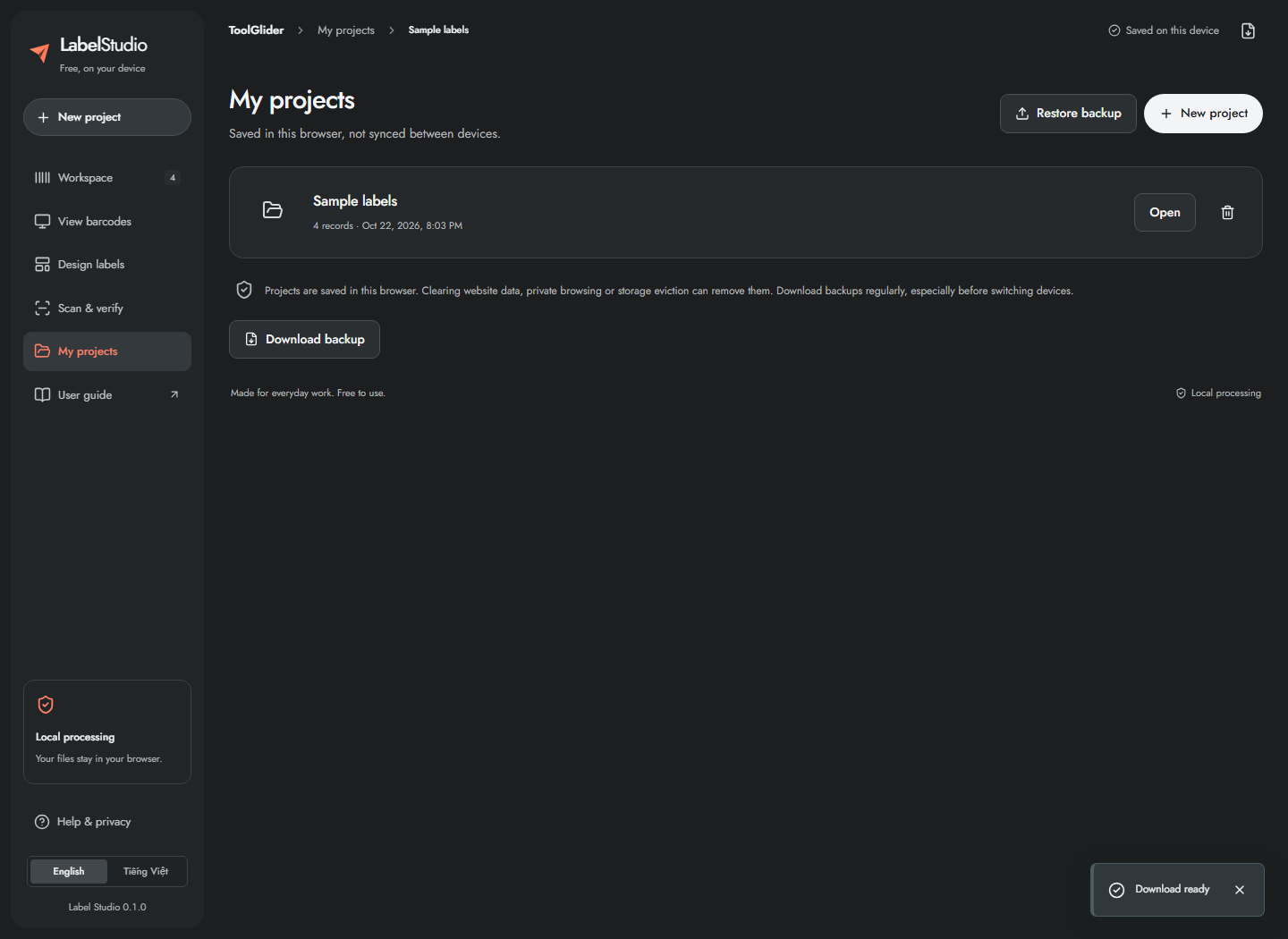
- Open My projects to see locally saved projects and their record counts.
- Click Open to switch. The app saves the current project first; if saving fails, download a backup before leaving it.
- Use the rename control beside the project name to rename the current project.
- Click Download backup regularly. The JSON backup keeps project data, template, print profile and scan session; retain it somewhere outside the browser.
- On the same or another device, choose Restore backup and select that JSON file. Restore validates the format and creates a separate project; existing projects remain.
- Delete a project only after confirming you no longer need it or have a backup.
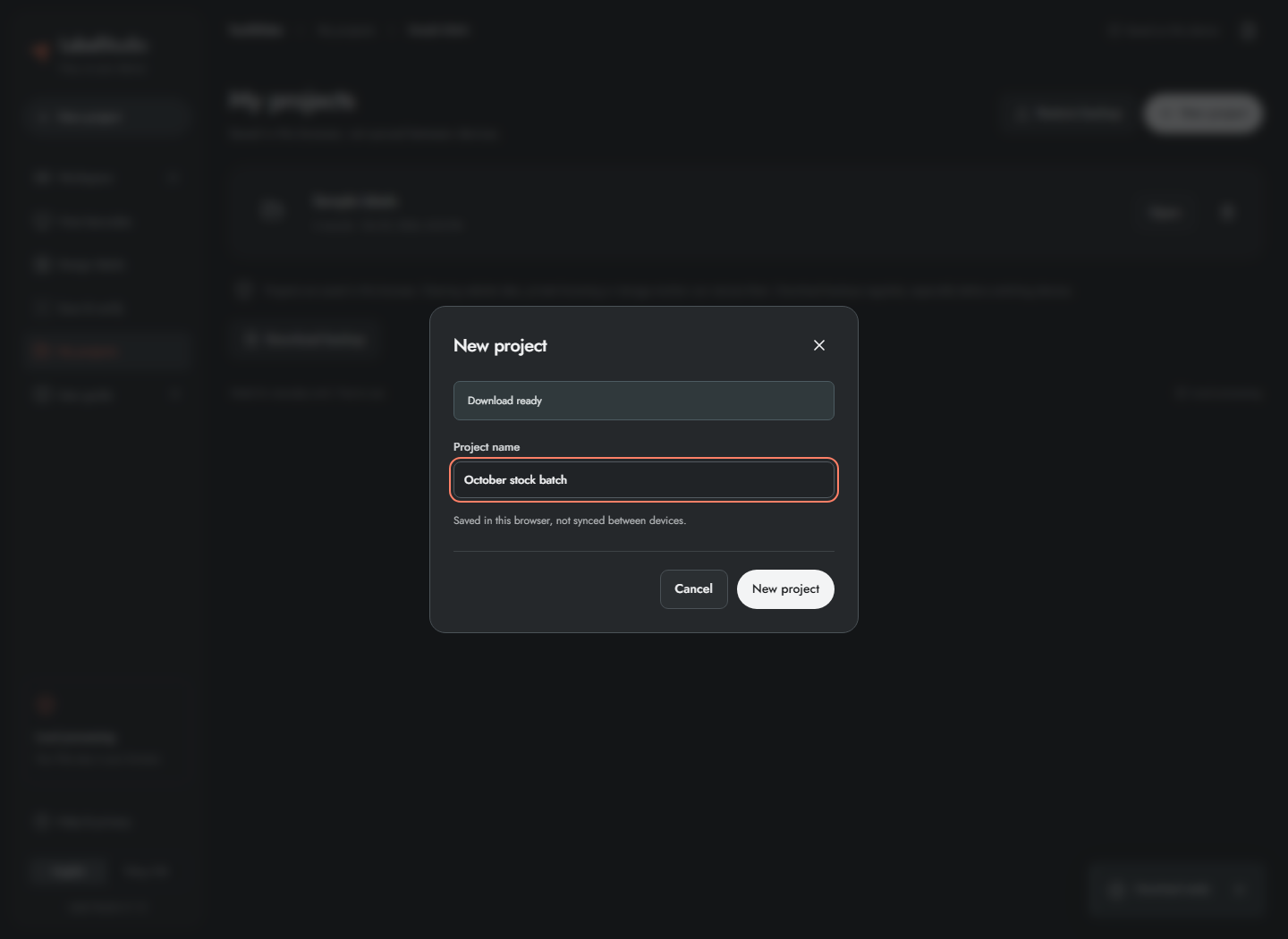
New project asks for a name and creates a blank project; use Try sample data in the workspace if you want examples. Backup restore accepts up to 100 MiB in the supported version-1 format. Projects belong to the browser profile and origin: localhost, the LAN IP and tools.coinxsight.com have separate storage. A backup/restore transfers them; changing the URL does not synchronize them.
25. Mobile use, offline mode and updates
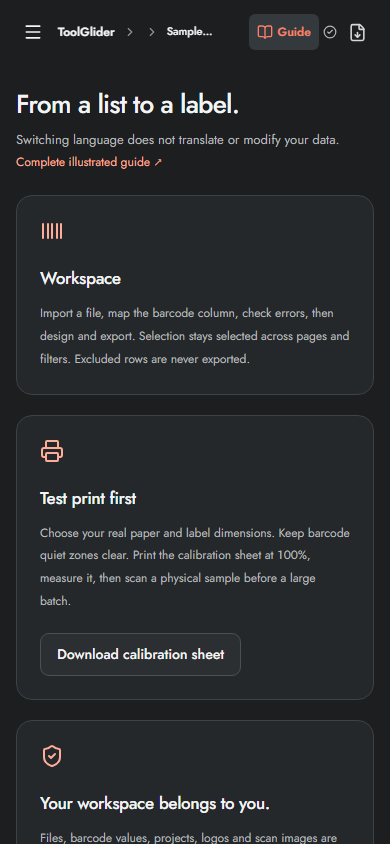
- On a phone, use Menu to navigate and swipe the single-code viewer. Scroll inside wide tables/grids as needed.
- On HTTPS, load the app while online and wait for Ready for offline use. Only then test offline operation.
- If the browser offers Install app/Add to Home Screen, follow its own install flow. Availability differs by browser and platform.
- Keep project backups separately; cached application files are not a backup of your data.
- When Update available appears, finish active work and click Save & update. The app attempts to save the project before refreshing.
Camera permission, clipboard, full-screen presentation and downloads depend on browser policy. Offline use is after a successful first cache, not an offline first visit. This illustrated guide and its images are separate reference assets; their offline availability is not guaranteed by the application's ready indicator.
26. Privacy and practical limits
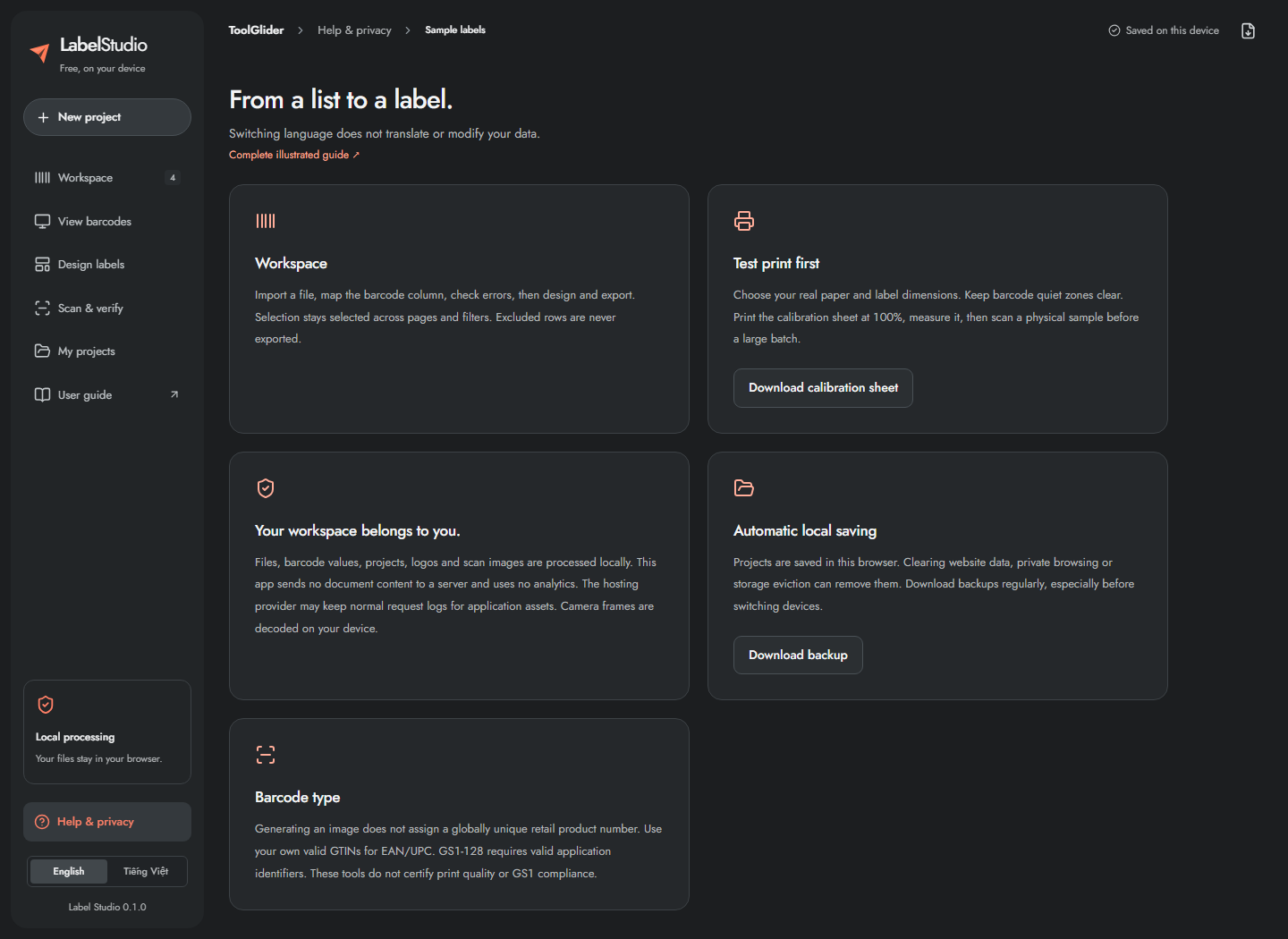
Files, payloads, logos, camera frames and scan-image decoding are processed on your device. The application has no user account, document upload endpoint or application analytics. Hosting/CDN providers may retain normal asset-request logs. A QR containing personal contact details or a Wi-Fi password exposes that content to anyone who reads the code.
Browser storage can disappear when site data is cleared, private browsing ends, storage is evicted or organizational policy intervenes. Check the visible save state. If saving fails, download a backup immediately. There is no automatic cloud sync or shared catalogue.
| Item | Limit |
|---|---|
| Spreadsheet file / dataset | 20 MiB / 50,000 records |
| Mapping / header selection | First 100 columns / first 100 rows |
| Barcode payload | 2,000 characters, with stricter format-specific rules; QR builder content entry is capped at 1,500 characters before payload formatting |
| PDF or SVG ZIP | 2,000 labels, including copies |
| PNG ZIP | 200 labels; 100 MiB accumulated output |
| Single PNG/SVG | Exactly one output label |
| Project restore | 100 MiB, supported schema version 1 |
| Scan history | 50,000 events per session |
| Inventory table | First 100 records visible; full CSV export |
| Logo | PNG/JPEG, 2 MiB, 16 megapixels |
| Scan image | PNG/JPEG/WebP, 20 MiB, 100 million input pixels |
27. Troubleshooting and a complete batch checklist
| Problem | Steps to resolve |
|---|---|
| Wrong leading zeros / long serial | Check the original spreadsheet. Re-export identifier cells as text; already lost digits cannot be recovered. |
| Invalid Code 39 / Code 128 | Review character rules. Correct the source deliberately or choose a compatible format; the app does not silently change case. |
| Wrong EAN/UPC check digit | Verify the issued number with your source. Do not invent a retail number to remove an error. |
| Text overflow | Enlarge its element box, reduce font size or shorten the field. |
| Barcode too small | Enlarge its box or label, reduce payload length, and use the real printer DPI. |
| Empty viewer/export | Clear filters, inspect hidden/excluded state, check selected scope and nonzero label count. |
| Shifted or scaled prints | Print calibration at 100%; correct scale first, then offsets/margins/gaps. |
| Camera fails | Use HTTPS, review site permission and device availability; close other camera apps or scan an image. |
| Image unreadable | Use focus, even light, full quiet zones and a sharper image; enter the exact value manually if needed. |
| Scan session stale | Export old history and start a new session after dataset changes. |
| Multiple matches | Resolve duplicate values in the catalogue; do not assume a random row was counted. |
| Download/window blocked | Allow the download/pop-up or use Download PDF instead of opening it to print. |
| Data not saved | Download backup now. Check browser storage and avoid clearing site data. |
| New domain looks empty | Restore a backup from the old origin; projects do not move between origins automatically. |
For every real batch: back up → import/map → review values/errors/duplicates → choose symbology → design → verify export scope/copies → calibrate → scan a physical sample → print → start a fresh comparison session → export reports → back up again.
Functions discussed as future ideas—automatic data cleaning, two-file list comparison, configurable SKU rules, a standalone check-digit calculator, PDF crop/merge and ZPL—are not instructions for currently available features. This guide covers the implemented application, not a promised roadmap.