
Add positioned text, headers and footers to PDF pages
Place new text with millimetre coordinates, templates and page-specific scope.
Before you start
Keep your original inputs. This walkthrough uses the current PDF Studio beta and its English controls. Start with the built-in sample if you want to practise without personal files. Supported input is ordinary static PDF, JPEG and PNG; processing occurs in your browser.
Quick access: After importing pages, the document toolbar provides Add text or Header / footer. On mobile, choose Pages, Add content or Convert & export to reveal the relevant group. The detailed Page tools route below remains available.
Step-by-step instructions
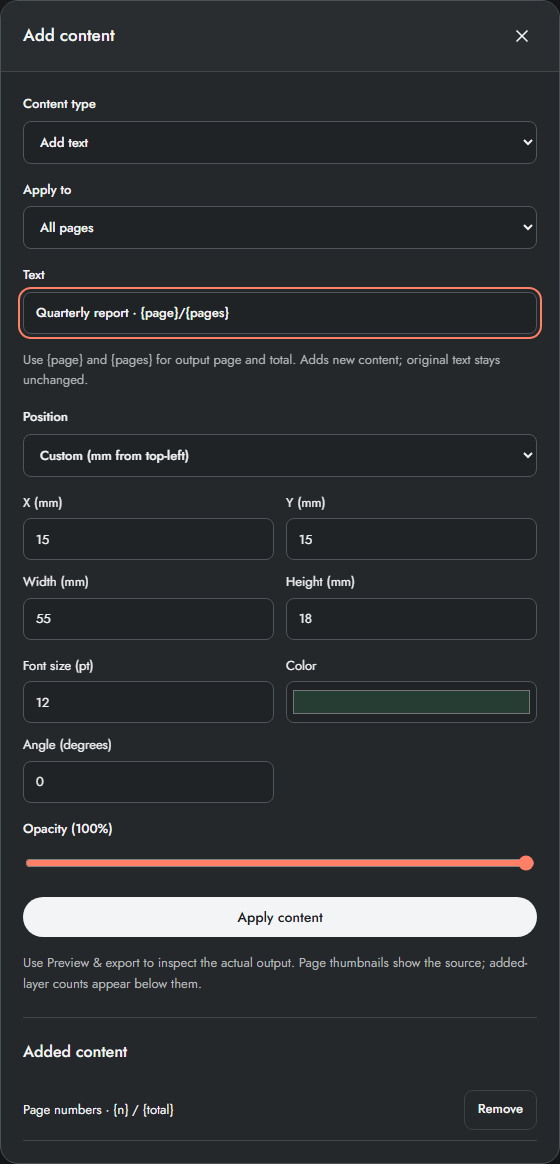
Open Page tools → Add text, numbers & signature. Choose Add text, Header or Footer and then choose All pages, Selected pages or Page range.
Enter a single line of text. For a running header such as Report · 2/8, use Report · {page}/{pages}. Vietnamese text can be entered directly.
Choose a position preset or Custom (mm from top-left). For Custom, enter X, Y, Width and Height. Set font size, colour, angle and opacity; the text must fit inside its area on every target page.
Apply content and Create preview. Inspect the added text at 150% or 200%. To remove a layer, return to the content dialog and use its Remove control; Undo also reverses the application.
Coordinates and text fit
X increases to the right and Y increases downwards from the visible top-left, even on a rotated or cropped page. Width and Height define the containing area, not the physical glyph size. Font size uses points. A positive text angle uses PDF rotation; inspect the output to confirm its direction.
Text must fit after rotation. If an area crosses a target page edge, application fails instead of silently clipping it. On mixed paper sizes, use presets or restrict scope to similarly sized pages. Use a shorter single line or smaller font if textFit appears.
Example: a discreet report header
Choose Header, All pages, text Quarterly report · {page}/{pages}, Top center, 10 pt and full opacity. Apply and inspect the output. Applying Header again replaces that header on targeted pages; applying Add text creates another independent layer instead.
Limits and checks
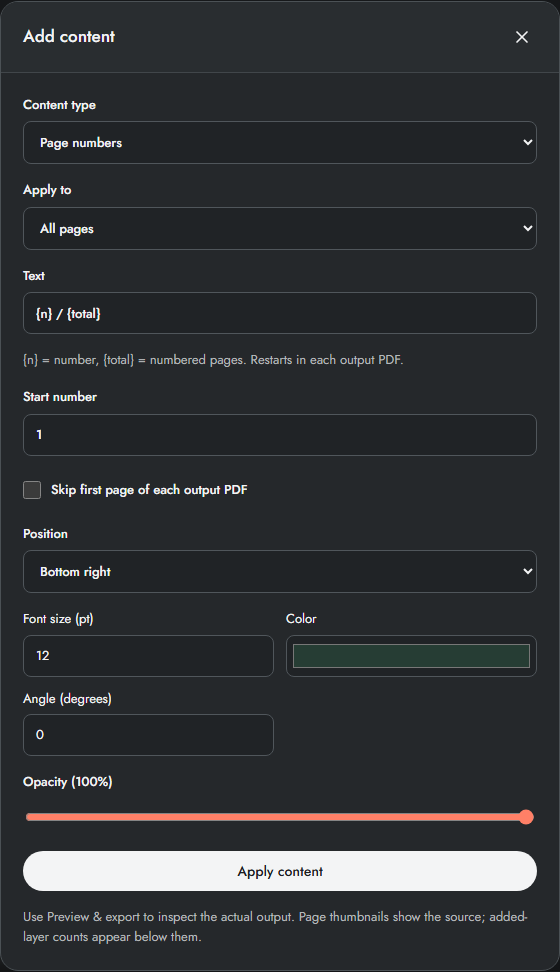
This adds a new layer; it cannot select, replace, erase or redact existing PDF text. Add text and Signature append layers; Header, Footer, Watermark and Page numbers replace the same role on targeted pages.
Before sharing, compare the page count, first and last pages, and any added content with your intended result. If a job fails, keep the workspace open and correct the reported cause before retrying. See the troubleshooting guide for file, pixel and browser-storage limits.
Frequently asked questions
Can I enter multiple lines?
The current text tool supports one line per layer. Add separate text layers for separate lines.
Why does an emoji fail?
The embedded font supports English and Vietnamese but not every Unicode glyph. Remove unsupported characters instead of accepting missing symbols in the output.
Continue your workflow
- Add page numbers, headers and footers to a PDF — Use templates, start numbers and cover-page skipping with millimetre placement.
- Add a text or image watermark to a PDF — Place a translucent watermark with controlled size, angle and page scope.
- Place a drawn or uploaded signature image on a PDF — Draw locally or upload a transparent signature, then check its exact placement.