
Merge PDF files and arrange pages online
Combine static PDF documents, inspect page order and download one verified PDF.
Before you start
Keep your original inputs. This walkthrough uses the current PDF Studio beta and its English controls. Start with the built-in sample if you want to practise without personal files. Supported input is ordinary static PDF, JPEG and PNG; processing occurs in your browser.
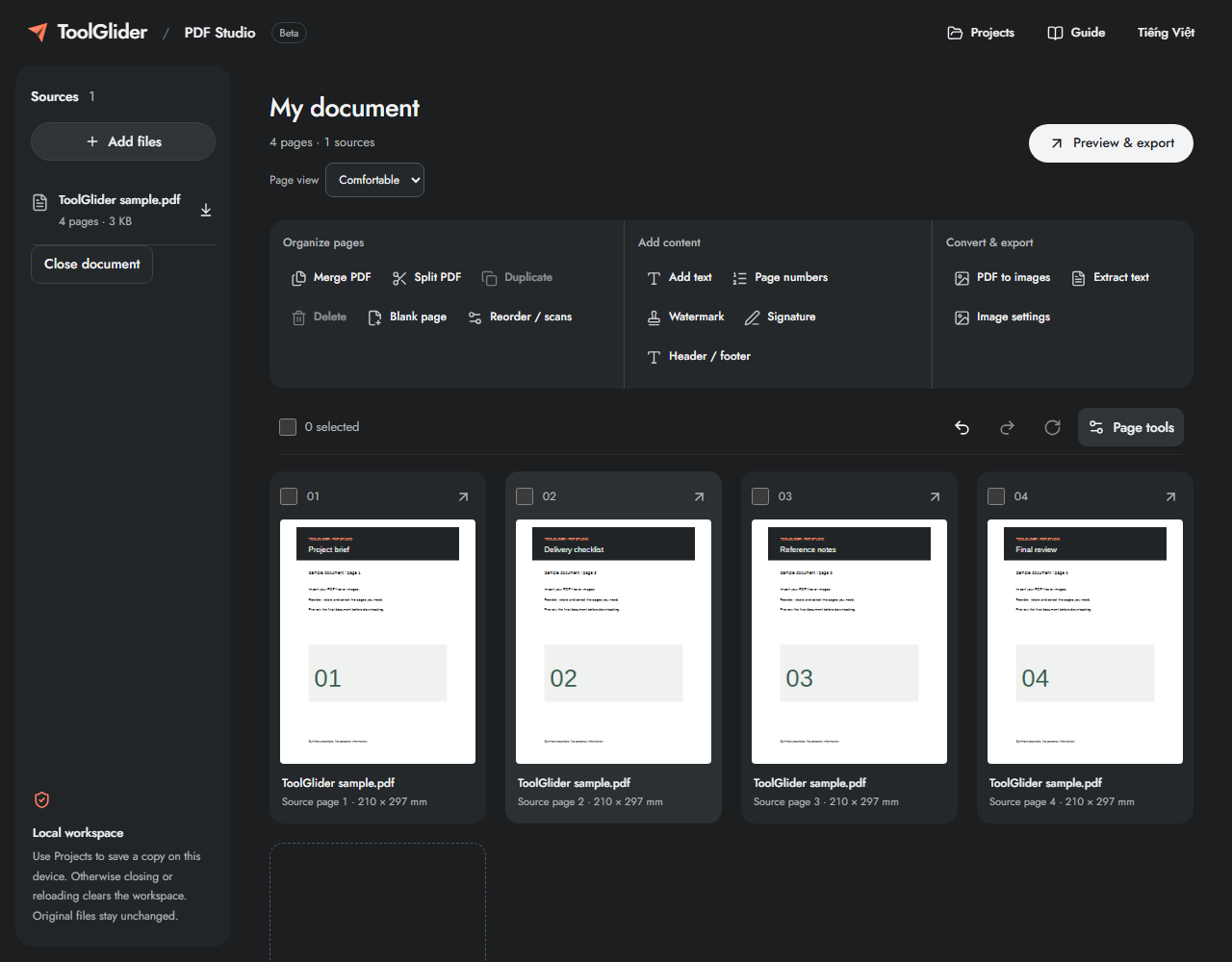
Quick access: After importing pages, the document toolbar provides Merge PDF. On mobile, choose Pages, Add content or Convert & export to reveal the relevant group. The detailed Page tools route below remains available.
Step-by-step instructions
Add two or more PDF files with Add files. Sources lists each accepted file; an unsupported file can be rejected while valid files remain available.
Read the page cards in output order. Select pages and use Move to position, or use the card controls, to place them where you need. Rotate, duplicate or delete pages with Page tools. Undo reverses the last change.
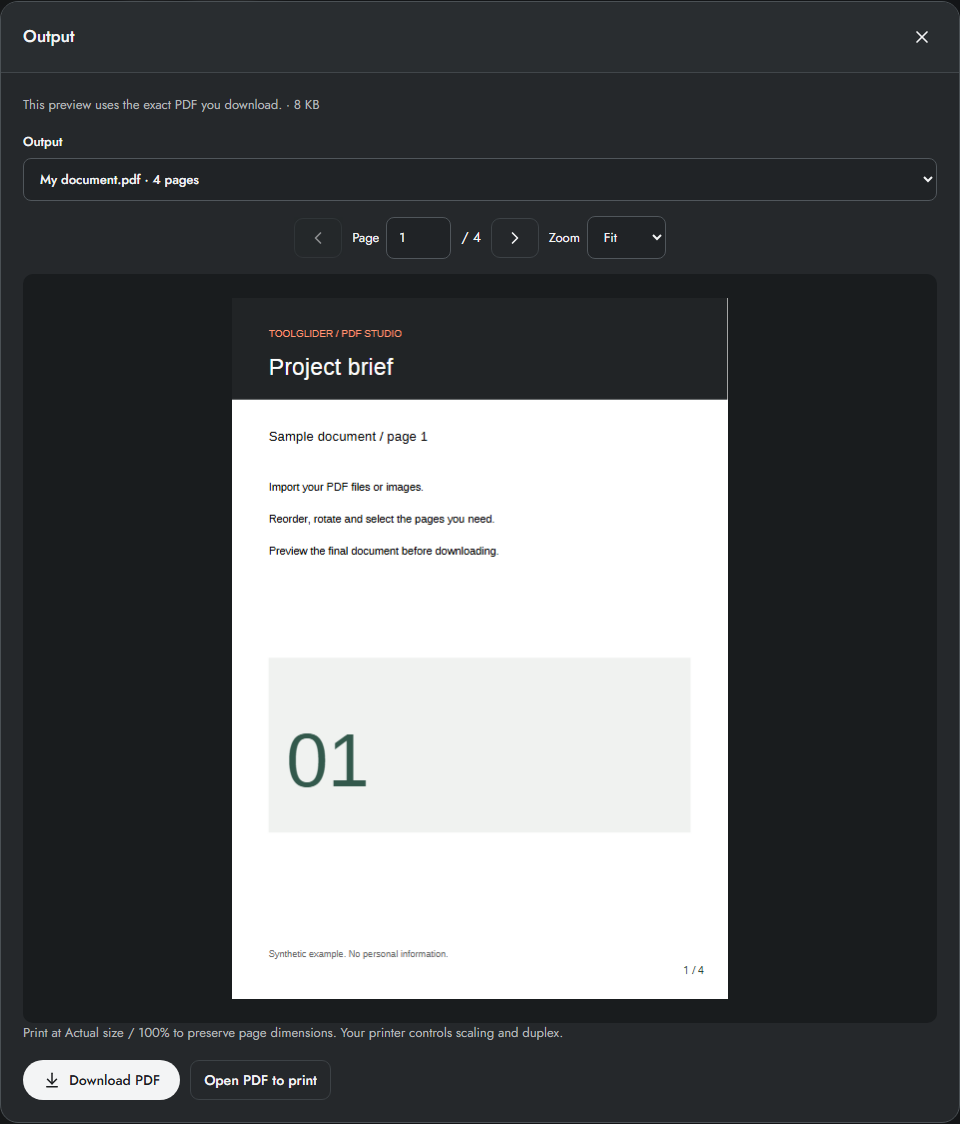
Open Preview & export and choose one merged PDF. Leave the page range empty to include all pages, or enter a range such as 1-3, 5.
Create preview. Browse the actual output, confirm the first and last page of every source, then Download PDF. Keep the original files until you have checked the download.
Choose a reliable page order
Import the main document first and append supporting material. Sources shows files, while the board is the final sequence. Moving a page changes only its workspace position; its source name and original page number stay available for checking.
To insert a whole batch, select its pages and enter the destination through Page tools. The selected pages keep their relative order. Drag handles are useful on desktop; numeric placement is easier to repeat on mobile.
Example: report plus appendix
For a four-page report and two-page appendix, import the report then appendix and export One PDF with a blank range. Expect six pages. To include only the report cover and both appendix pages, use 1, 5-6 after confirming those positions on the board.
Limits and checks
Page order follows the workspace. Complex PDFs open view-only. Prepare editable copy explains any lost tags, bookmarks, forms or links before conversion. Original files remain available; signed PDFs stay view-only.
Before sharing, compare the page count, first and last pages, and any added content with your intended result. If a job fails, keep the workspace open and correct the reported cause before retrying. See the troubleshooting guide for file, pixel and browser-storage limits.
Frequently asked questions
Will mixed paper sizes become A4?
Existing PDF page sizes are retained. Image settings apply to newly imported images, not existing PDF pages.
Does merging change the original files?
No. Export creates a separate document. Download original retrieves the retained original source.
Continue your workflow
- Reorder, rotate, duplicate and delete PDF pages — Control page selection, exact positions, blank pages and undo without changing source files.
- Split a PDF or extract selected pages — Export page ranges, separate pages or fixed-size groups with a ZIP manifest.
- Preview, download and print the final PDF — Inspect exact output bytes, choose a split result, zoom and print at the intended size.