
Create your first PDF with PDF Studio
Learn the workspace, import a sample, inspect pages and download your first PDF.
Before you start
Keep your original inputs. This walkthrough uses the current PDF Studio beta and its English controls. Start with the built-in sample if you want to practise without personal files. Supported input is ordinary static PDF, JPEG and PNG; processing occurs in your browser.
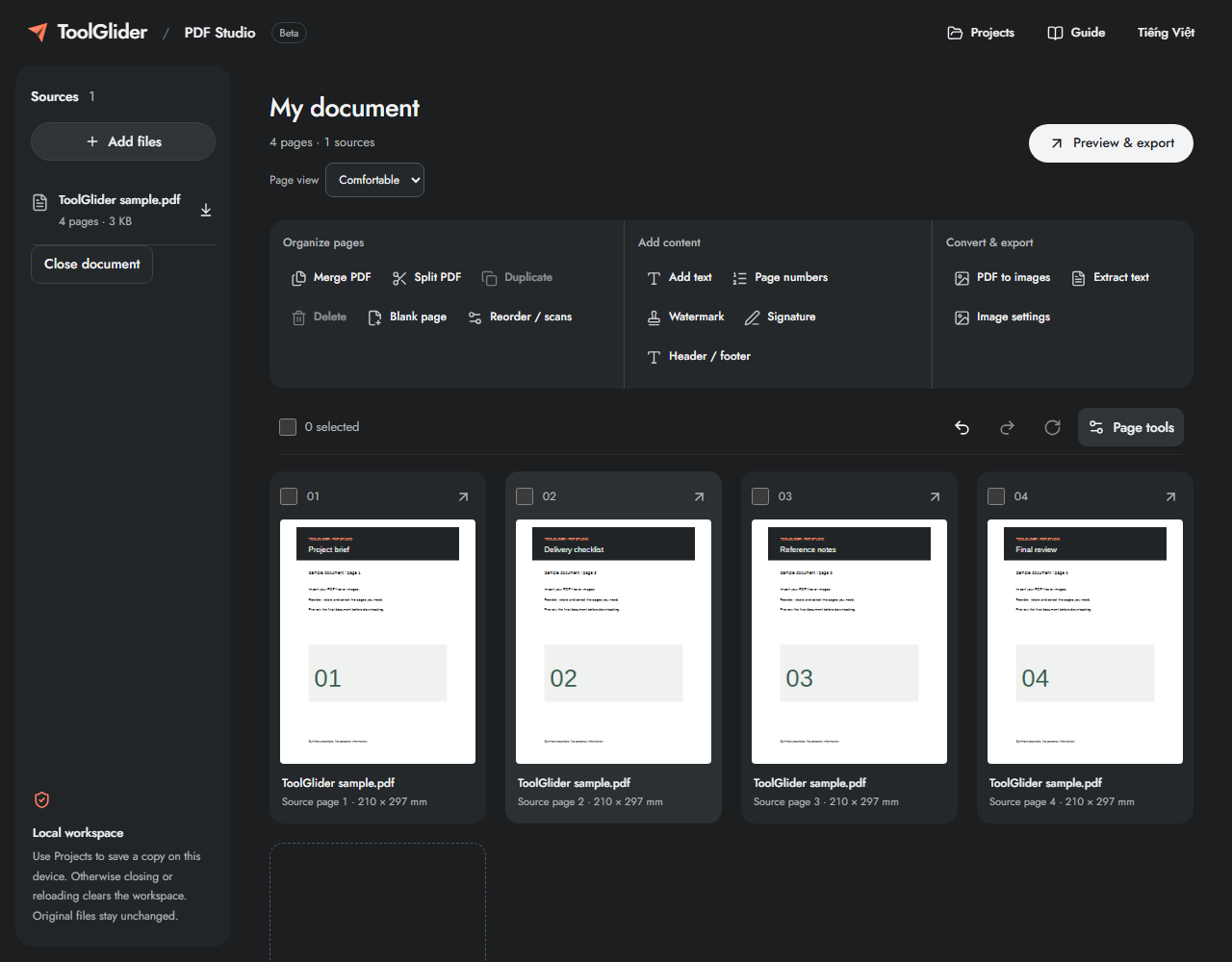
The document toolbar has three groups: Organize pages, Add content and Convert & export. On mobile, tap a group to reveal its controls. Only the compact selection row stays visible when scrolling; the full toolbar scrolls with the document.

Step-by-step instructions
Open PDF Studio in your preferred language. Choose Try a sample document to practice without selecting personal files. Four sample pages appear.
Read Sources on the left and the page cards in the middle. A workspace position is different from Source page, which points back to the original file.
Choose Preview & export. Keep PDF and One PDF, leave Page range blank and enter a document name. Click Create preview and wait for checking to finish.
Browse the four output pages, then Download PDF. Close the preview and use Projects → Save current project on this device if you want to continue later.
Understand the four workspace areas
Sources lists accepted input files, page counts and Download original. The board shows editable page instances and their origin. Page tools contains selection and document actions. Preview & export creates a new output; it does not overwrite a source.
Use Inspect page to read a source before making changes. The small source-page label remains tied to the original even after a page is moved. A +N content layers label means new overlays were added; open the final output preview to see them.
A safe first practice run
With the four-page sample, select page 2, rotate it once, then Undo. Export One PDF with range 1, 4. The output should contain exactly two pages: the first and fourth sample pages, in that order.
Limits and checks
A download is an exported document; a saved project is an editable local workspace. They serve different purposes. Closing the tab without saving loses the current session.
Before sharing, compare the page count, first and last pages, and any added content with your intended result. If a job fails, keep the workspace open and correct the reported cause before retrying. See the troubleshooting guide for file, pixel and browser-storage limits.
Frequently asked questions
Do I need an account?
No. Open the app and work with supported files directly.
Can I import Word or Excel?
PDF Studio accepts PDF, JPEG and PNG, not DOCX or XLSX. Export those documents to an appropriate PDF in their source application first.
Continue your workflow
- Merge PDF files and arrange pages online — Combine static PDF documents, inspect page order and download one verified PDF.
- Reorder, rotate, duplicate and delete PDF pages — Control page selection, exact positions, blank pages and undo without changing source files.
- Save and reopen a PDF project on this device — Save source files, page order and added layers explicitly in browser storage.