
Use PDF Studio on mobile and offline
Find mobile controls, cache the app and understand what is saved locally.
Before you start
Keep your original inputs. This walkthrough uses the current PDF Studio beta and its English controls. Start with the built-in sample if you want to practise without personal files. Supported input is ordinary static PDF, JPEG and PNG; processing occurs in your browser.
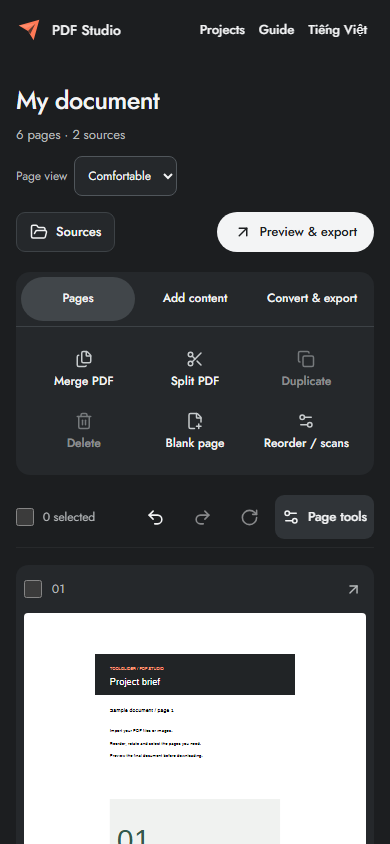
The document toolbar has three groups: Organize pages, Add content and Convert & export. On mobile, tap a group to reveal its controls. Only the compact selection row stays visible when scrolling; the full toolbar scrolls with the document.
Step-by-step instructions
Open the HTTPS PDF Studio page while online. Wait for Ready for offline use before disconnecting. The application caches its own resources, including renderer, fonts and guides.
On a phone, tap Sources to add or inspect files; use Page tools for page selection and editing. The header contains Projects and Guide. Use the system file picker to choose local PDF/JPG/PNG files.
For offline work, retain the tab or reopen the cached app in the same browser profile. Create a sample, arrange pages and export a small PDF to verify the app works on your device before relying on it.
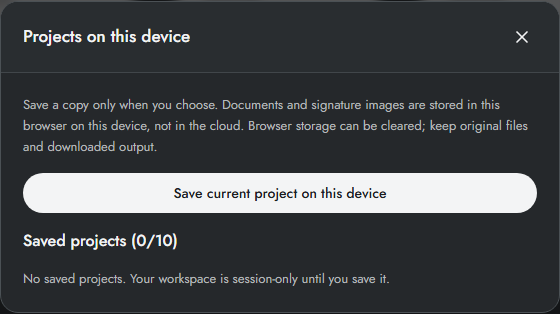
Use Projects to explicitly save an editable workspace. Download output PDFs separately. When an application update is available, save or download work before accepting the update or reloading.
Find the compact controls
On a narrow screen the Sources sidebar becomes a button. Page tools opens selection, move, rotate, duplicate, delete and interleave actions in a dialog. Guide opens a summary and a link to illustrated articles. The guide article menu itself collapses into an expandable list on mobile.
Use numeric placement rather than precise dragging when working with a finger. Signature drawing supports touch; uploading a prepared PNG is an alternative. Keep browser downloads enabled and check the phone’s Downloads folder after exporting.
Test offline without risking a real project
After the ready message appears, disconnect, create the four-page sample, add page numbers and export a PDF. Open one guide article. Reconnect afterwards. If loading fails, go online and complete caching again; initial loading and an uncached application version need a connection.
Limits and checks
Offline availability is not automatic document saving. Private browsing, disabled storage or browser cleanup can remove caches and projects. File and memory budgets still apply; a smaller page range or lower DPI is preferable on a phone.
Before sharing, compare the page count, first and last pages, and any added content with your intended result. If a job fails, keep the workspace open and correct the reported cause before retrying. See the troubleshooting guide for file, pixel and browser-storage limits.
Frequently asked questions
Does installing the PWA back up documents?
No. Installation and caching concern app resources. Save projects explicitly and download outputs separately.
Can a phone handle the maximum limits?
Limits are ceilings, not a device-performance guarantee. Use smaller batches on memory-constrained devices.
Continue your workflow
- Save and reopen a PDF project on this device — Save source files, page order and added layers explicitly in browser storage.
- Preview, download and print the final PDF — Inspect exact output bytes, choose a split result, zoom and print at the intended size.
- PDF Studio errors, supported files and privacy — Resolve rejected files, invalid ranges, output limits, storage errors and cancellation.