
Preview, download and print the final PDF
Inspect exact output bytes, choose a split result, zoom and print at the intended size.
Before you start
Keep your original inputs. This walkthrough uses the current PDF Studio beta and its English controls. Start with the built-in sample if you want to practise without personal files. Supported input is ordinary static PDF, JPEG and PNG; processing occurs in your browser.
The document toolbar has three groups: Organize pages, Add content and Convert & export. On mobile, tap a group to reveal its controls. Only the compact selection row stays visible when scrolling; the full toolbar scrolls with the document.
Step-by-step instructions
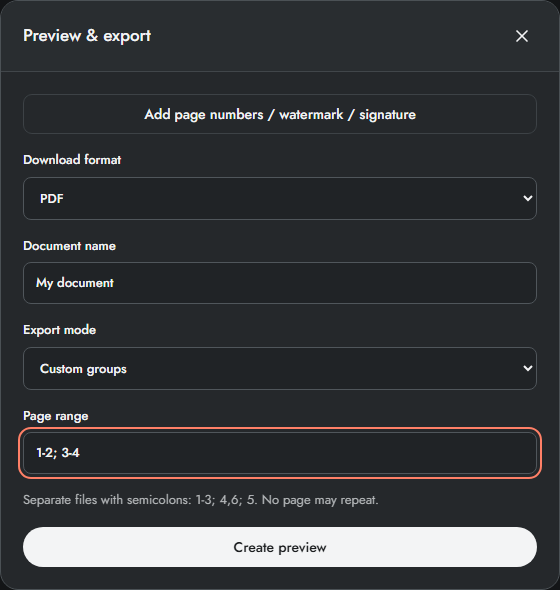
Finish arranging pages and content. Open Preview & export, choose PDF, set a name, export mode and page range, then Create preview.
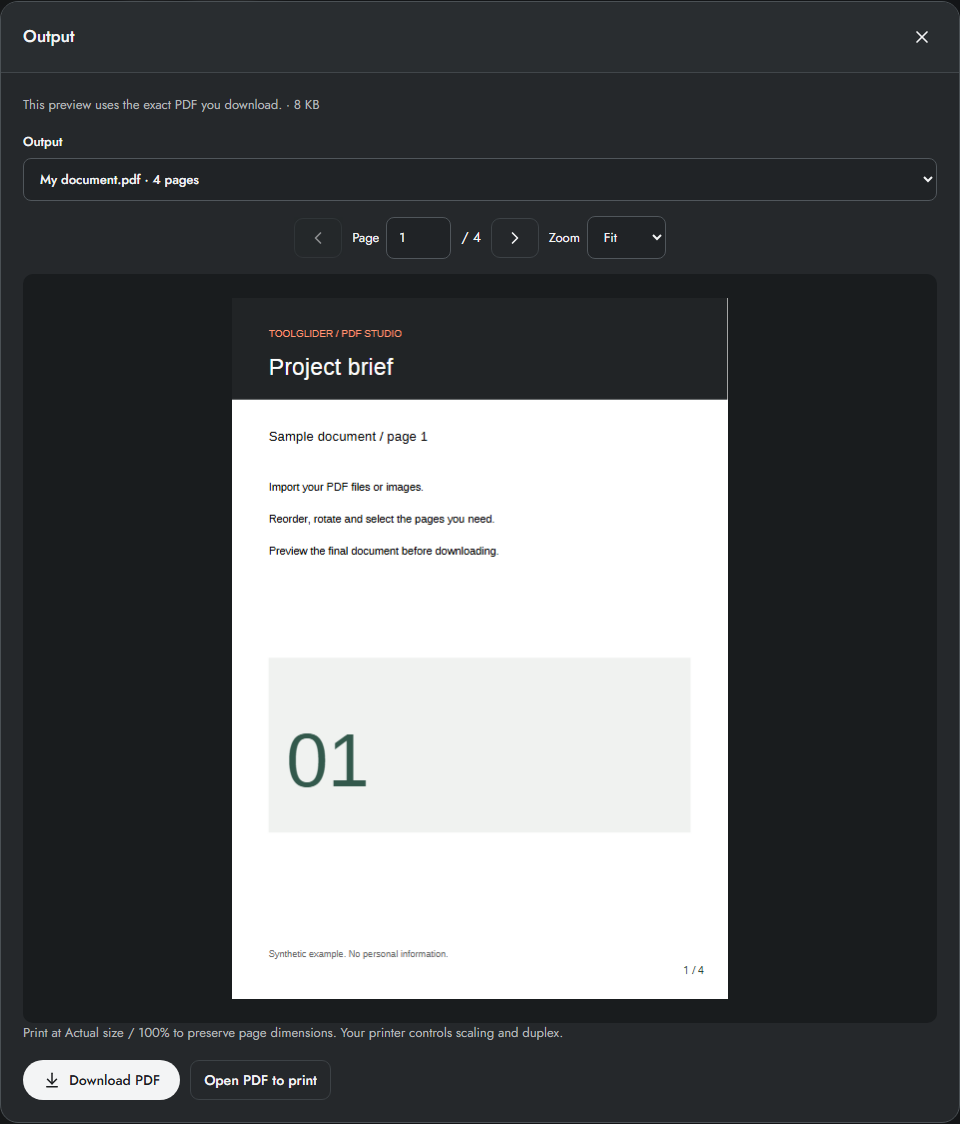
Use the output selector when several files were generated. Use Page, Previous and Next to inspect each document. Fit keeps a page in the reader; 150% and 200% enlarge details.
Download PDF saves the selected PDF. Download ZIP + manifest packages multiple outputs and their page provenance. Verify your browser has completed the download before closing the workspace.
Choose Open PDF to print. In the browser PDF viewer, open Print and select Actual size or 100% when physical dimensions matter. Select paper, orientation and duplex in your printer settings, then print one test page.
Source preview versus output preview
Inspect page reads a source page. Preview & export rebuilds the selected output with current order, rotation and overlays, then checks the generated PDF. The preview is therefore the right place to approve numbering, signatures and final page counts.
Changing the document invalidates the old generated result. Create preview again after editing. Choosing an image format shows the resulting image and pixel size, while TXT shows extracted text; switch back to PDF to use the PDF printing action.
Printing checklist
Check first and last pages, mixed-size sheets, margins, orientation and overlay placement. Print one page at 100% before a batch. Fit-to-paper in a printer dialog may resize pages; the app cannot control your driver, installed printers, paper feed or duplex alignment.
Limits and checks
PDF preview and download use the same generated bytes. A thumbnail is a source preview and can omit overlays. Opening a PDF to print does not send it directly to a physical printer.
Before sharing, compare the page count, first and last pages, and any added content with your intended result. If a job fails, keep the workspace open and correct the reported cause before retrying. See the troubleshooting guide for file, pixel and browser-storage limits.
Frequently asked questions
The print tab did not open. What next?
Check the browser popup message or download the PDF and open it in a trusted local reader to print.
Can I print a ZIP directly?
No. Extract it, select the required PDFs and print those documents. The manifest is a checking aid, not a print file.
Continue your workflow
- Split a PDF or extract selected pages — Export page ranges, separate pages or fixed-size groups with a ZIP manifest.
- Convert PDF pages to PNG or JPG at a chosen DPI — Export rendered pages, including added content, as images with verified pixel dimensions.
- Save and reopen a PDF project on this device — Save source files, page order and added layers explicitly in browser storage.