
Split a PDF or extract selected pages
Export page ranges, separate pages or fixed-size groups with a ZIP manifest.
Before you start
Keep your original inputs. This walkthrough uses the current PDF Studio beta and its English controls. Start with the built-in sample if you want to practise without personal files. Supported input is ordinary static PDF, JPEG and PNG; processing occurs in your browser.
Quick access: After importing pages, the document toolbar provides Split PDF. On mobile, choose Pages, Add content or Convert & export to reveal the relevant group. The detailed Page tools route below remains available.
Step-by-step instructions
Import a supported PDF and check its page count. Page numbers refer to the current workspace order, including any moves or duplicates.
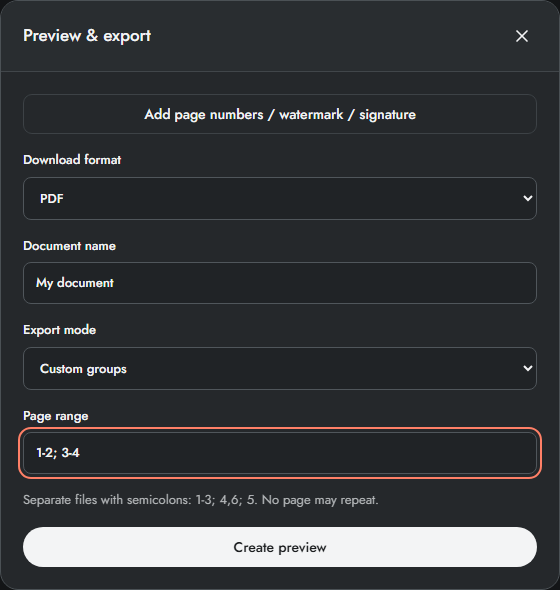
Open Split & extract. Choose the required split mode: selected range, individual pages or groups. Enter ranges with commas and hyphens, such as 1-3, 5.
For grouped output, set the group size. Review which pages fall into each output; an incomplete final group can contain fewer pages.
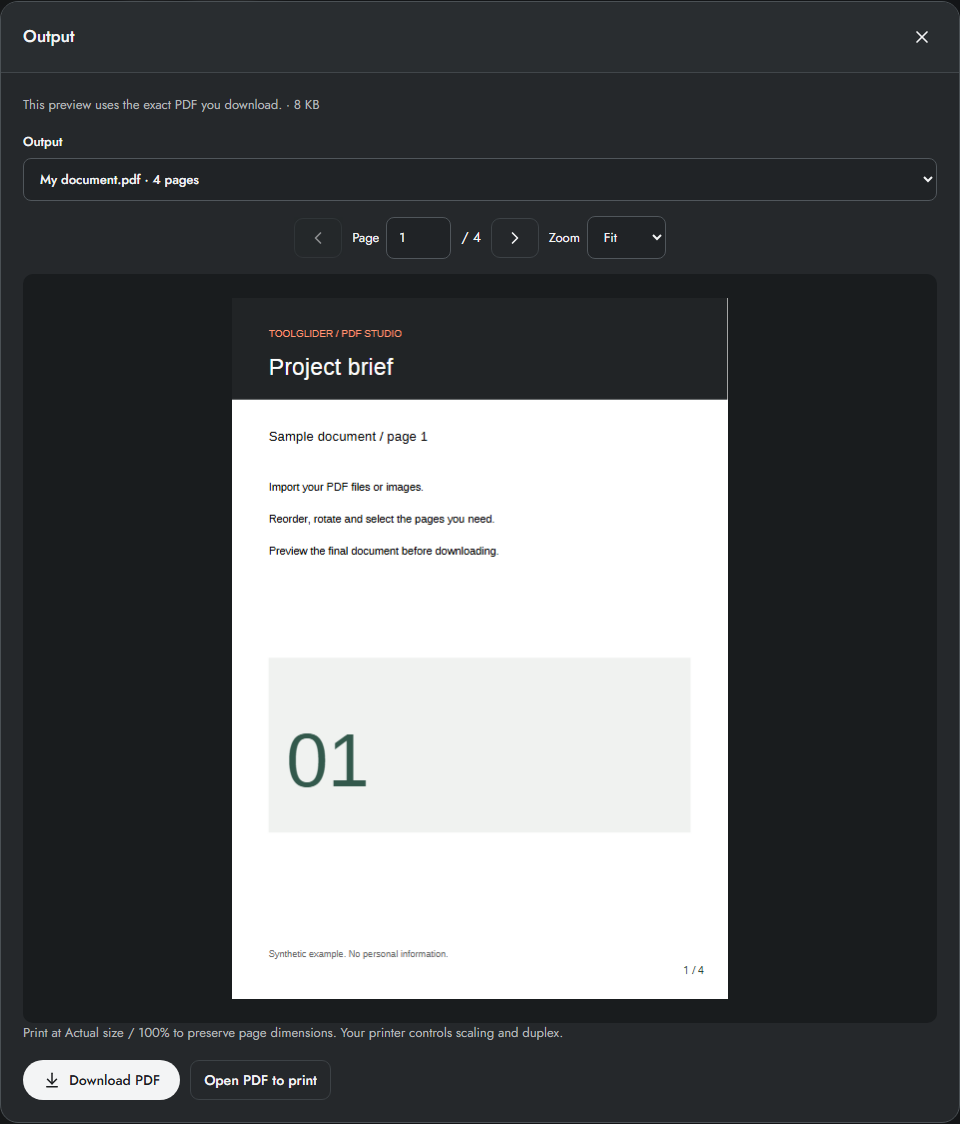
Create preview and inspect every output PDF in the output selector. Download an individual result or the ZIP with manifest. Use the manifest to confirm file names and page counts.
Understand all four export modes
One PDF extracts the chosen range into one file. One PDF per page makes a separate file for every chosen page. Split every N pages divides the chosen sequence into fixed-size chunks. Custom groups uses semicolons to define the pages of each output explicitly.
Blank range means all pages except in Custom groups, where groups must be entered. No page may repeat across ranges or custom groups. Commas combine page numbers and ranges; semicolons separate files only in Custom groups.
Worked range examples
For eight pages, One PDF with 1-3, 5 produces four pages. Split every N pages with N=3 and a blank range produces files of 3, 3 and 2 pages. Custom groups with 1-2; 3-6; 7-8 produces three files of 2, 4 and 2 pages. Input 1-3; 3-4 is rejected because page 3 repeats.
Limits and checks
Splitting does not remove pages from the source file. Numbering restarts in each output PDF. A range outside the available page count must be corrected before export.
Before sharing, compare the page count, first and last pages, and any added content with your intended result. If a job fails, keep the workspace open and correct the reported cause before retrying. See the troubleshooting guide for file, pixel and browser-storage limits.
Frequently asked questions
Can I use the selected cards?
Yes. In a non-custom export mode, Use selected pages fills the range from current selection. Selection alone does not automatically limit every export.
Why did numbering restart?
Numbering is calculated separately for each generated PDF, including its optional first-page skip.
Continue your workflow
- Merge PDF files and arrange pages online — Combine static PDF documents, inspect page order and download one verified PDF.
- Add page numbers, headers and footers to a PDF — Use templates, start numbers and cover-page skipping with millimetre placement.
- Preview, download and print the final PDF — Inspect exact output bytes, choose a split result, zoom and print at the intended size.