
Save and reopen a PDF project on this device
Save source files, page order and added layers explicitly in browser storage.
Before you start
Keep your original inputs. This walkthrough uses the current PDF Studio beta and its English controls. Start with the built-in sample if you want to practise without personal files. Supported input is ordinary static PDF, JPEG and PNG; processing occurs in your browser.
The document toolbar has three groups: Organize pages, Add content and Convert & export. On mobile, tap a group to reveal its controls. Only the compact selection row stays visible when scrolling; the full toolbar scrolls with the document.
Step-by-step instructions
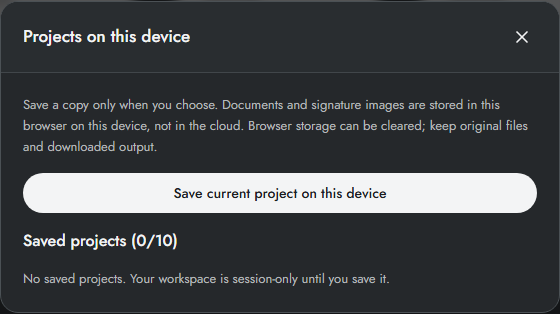
Finish importing and arranging your document. A working session is not saved automatically. Open Projects when you want to retain it.
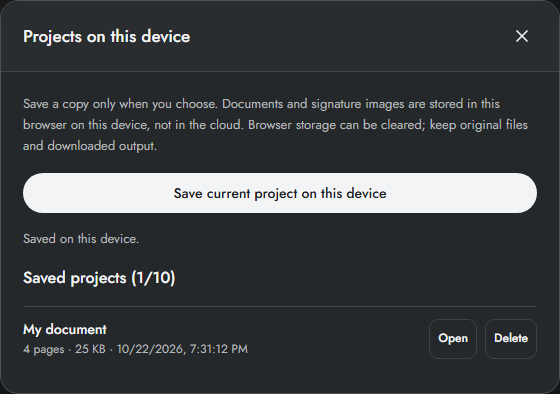
Choose Save on this device. The project stores source files, page arrangement, content layers and image settings in this browser profile. Wait for the saved confirmation.
Later, open Projects and choose Open beside the saved item. Confirm replacement if another workspace is currently open. Inspect the restored pages and create a fresh output preview.
To remove a saved copy, choose Delete and confirm. Export an ordinary PDF separately for sharing or long-term backup. Saving again updates the loaded project; it does not create cloud sync.
Save, open and update deliberately
Set a useful Document name in Preview & export before saving. Projects stores source files, current page instances, rotations, content layers and image-import settings. After Open, further Save updates the loaded project rather than creating a new saved item.
Reopening replaces the active workspace after confirmation. Unsaved edits to another workspace are not merged. Export previews are regenerated, not restored as a cached download, and Undo history starts fresh.
A practical backup routine
Save the project, create a final PDF preview and download the result to a known folder. Keep original inputs separately. Delete removes only the saved browser copy after confirmation; it does not delete a downloaded PDF from your computer.
Limits and checks
At most 10 projects can be saved. Available browser quota also applies. Clearing site data, private browsing, changing browser profiles or device loss can remove access. There is no account, cloud backup or cross-device project transfer in this release.
Before sharing, compare the page count, first and last pages, and any added content with your intended result. If a job fails, keep the workspace open and correct the reported cause before retrying. See the troubleshooting guide for file, pixel and browser-storage limits.
Frequently asked questions
Can I open the project on another device?
Not automatically. There is no project sync or portable project archive in this release. Share exported PDFs and keep source files.
What happens when 10 projects are saved?
Delete an old saved copy before creating another. Browser quota can be reached earlier; download outputs before clearing any site data.
Continue your workflow
- Create your first PDF with PDF Studio — Learn the workspace, import a sample, inspect pages and download your first PDF.
- Use PDF Studio on mobile and offline — Find mobile controls, cache the app and understand what is saved locally.
- PDF Studio errors, supported files and privacy — Resolve rejected files, invalid ranges, output limits, storage errors and cancellation.