
Reorder, rotate, duplicate and delete PDF pages
Control page selection, exact positions, blank pages and undo without changing source files.
Before you start
Keep your original inputs. This walkthrough uses the current PDF Studio beta and its English controls. Start with the built-in sample if you want to practise without personal files. Supported input is ordinary static PDF, JPEG and PNG; processing occurs in your browser.
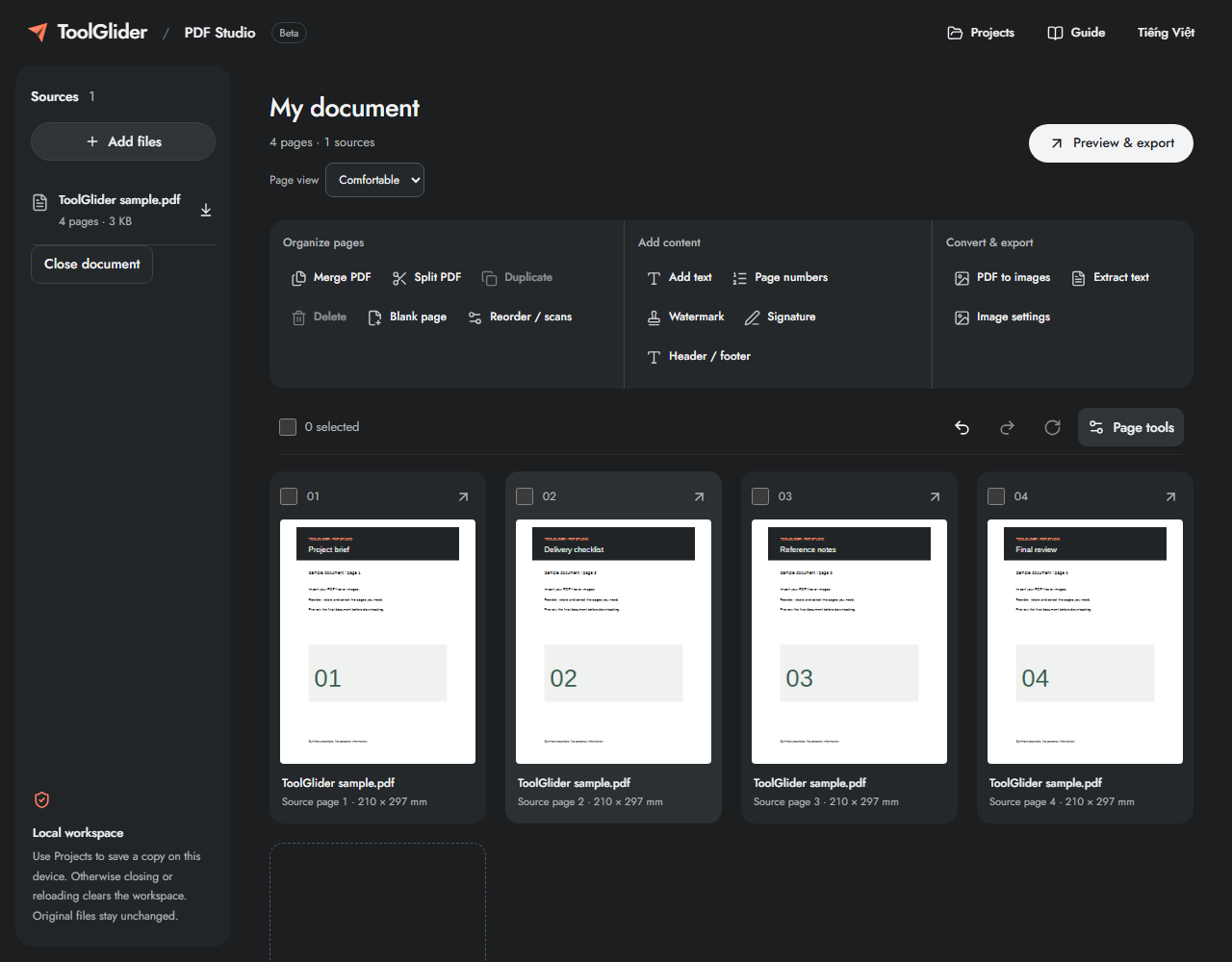
Quick access: After importing pages, the document toolbar provides Duplicate, Delete, Blank page or Reorder / scans. On mobile, choose Pages, Add content or Convert & export to reveal the relevant group. The detailed Page tools route below remains available.
Step-by-step instructions
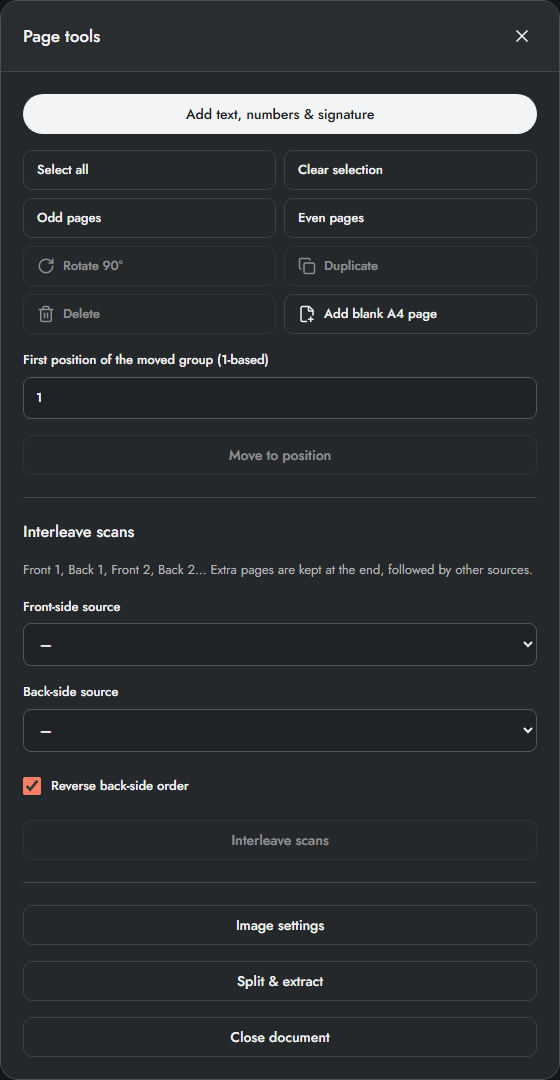
Import a document and select page cards using their checkboxes. Shift-click extends a selection on desktop. Open Page tools for Select all, Clear selection, Odd pages or Even pages.
Rotate 90° turns selected pages clockwise. Duplicate creates extra page instances. Delete removes the selected instances from this workspace; original files remain available under Sources.
For exact ordering, enter First position of the moved group (1-based) and choose Move to position. You can also drag a page card on desktop. Use Add blank A4 page for a separator.
Use Undo or Redo after a mistake; Ctrl/Cmd+Z also undoes changes outside editable inputs. Create a final PDF preview and inspect the order before downloading.
Selection and movement are separate
Click a checkbox to toggle one page. Shift-click selects a span from the previous selected position. Odd/Even refer to current workspace positions, not printed page numbers inside the document. Clear selection keeps all pages and only clears the checkboxes.
Move to position uses the final first position of the selected group after it is removed from its old positions. If a six-page document has pages 2 and 4 selected, moving them to position 1 produces 2, 4, 1, 3, 5, 6.
Know what Undo can restore
Undo/Redo keeps up to 40 page-history changes in this session, including added content layers. It is not a versioned backup of saved projects. Opening a saved project starts a new page-history session. After deleting a page accidentally, Undo before closing or reloading.
Limits and checks
Page numbers in selections and export ranges always follow current workspace order. A duplicate counts toward the 200-page limit. A blank A4 is a new source and counts toward source limits.
Before sharing, compare the page count, first and last pages, and any added content with your intended result. If a job fails, keep the workspace open and correct the reported cause before retrying. See the troubleshooting guide for file, pixel and browser-storage limits.
Frequently asked questions
Can I rotate only one page?
Yes. Clear selection, select that page and Rotate 90°. Each click adds one clockwise quarter-turn.
Is deleting a page permanent?
It removes the instance from the working output. The source file is unchanged; use Undo or reimport the source if needed.
Continue your workflow
- Merge PDF files and arrange pages online — Combine static PDF documents, inspect page order and download one verified PDF.
- Interleave odd and even PDF scans — Reassemble two scan batches with a controlled source order and optional reversal.
- Add positioned text, headers and footers to PDF pages — Place new text with millimetre coordinates, templates and page-specific scope.