
Add a text or image watermark to a PDF
Place a translucent watermark with controlled size, angle and page scope.
Before you start
Keep your original inputs. This walkthrough uses the current PDF Studio beta and its English controls. Start with the built-in sample if you want to practise without personal files. Supported input is ordinary static PDF, JPEG and PNG; processing occurs in your browser.
Quick access: After importing pages, the document toolbar provides Watermark. On mobile, choose Pages, Add content or Convert & export to reveal the relevant group. The detailed Page tools route below remains available.
Step-by-step instructions
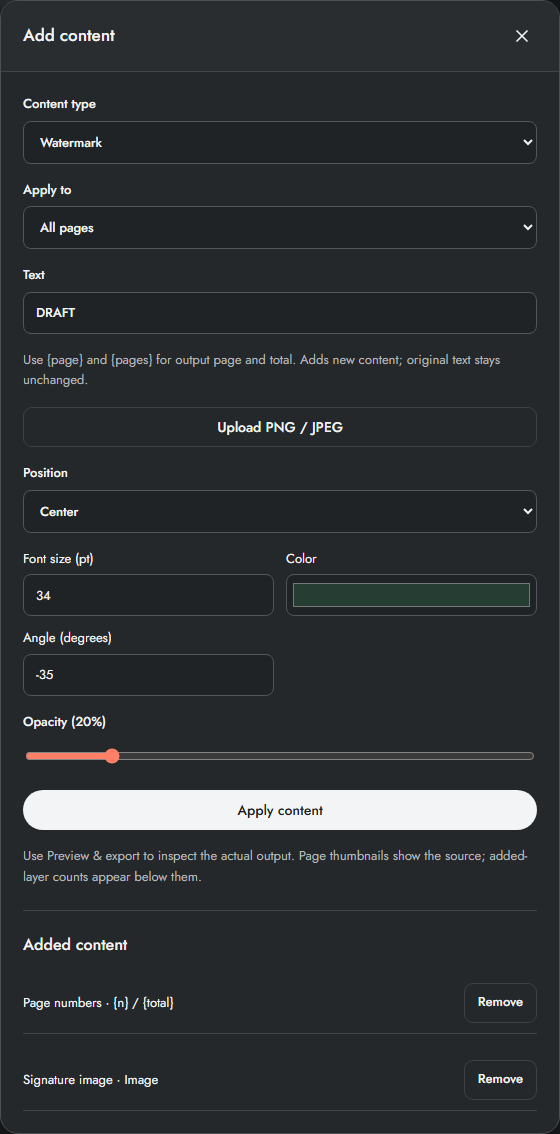
Open Page tools → Add text, numbers & signature and choose Watermark. Select the pages that should carry it.
Enter a short watermark such as DRAFT. Adjust font size, colour, angle and opacity. For an image watermark, upload a PNG or JPG stamp image; using text again switches back to a text watermark.
Choose a position preset or enter the placement box in millimetres. Leave enough space for the full rotated text. Use a lower opacity so the original page stays readable.
Apply content and inspect the actual exported preview. If the text cannot fit, reduce the size or angle or enlarge the placement box. Reapply Watermark to replace it on the same pages, or remove its layer in the content list.
Text versus image watermark
Text watermarks offer font, colour, angle and opacity. The default is a large translucent diagonal DRAFT. An uploaded image uses its own colours and is contained within the placement box. Image angle is not offered; prepare an already rotated image if needed.
Use a transparent PNG logo when you do not want a white background. Entering text again clears the image choice. For image placement use Custom and set the exact stamp size; a full-page preset can make a small logo unexpectedly large.
Example: readable draft pages
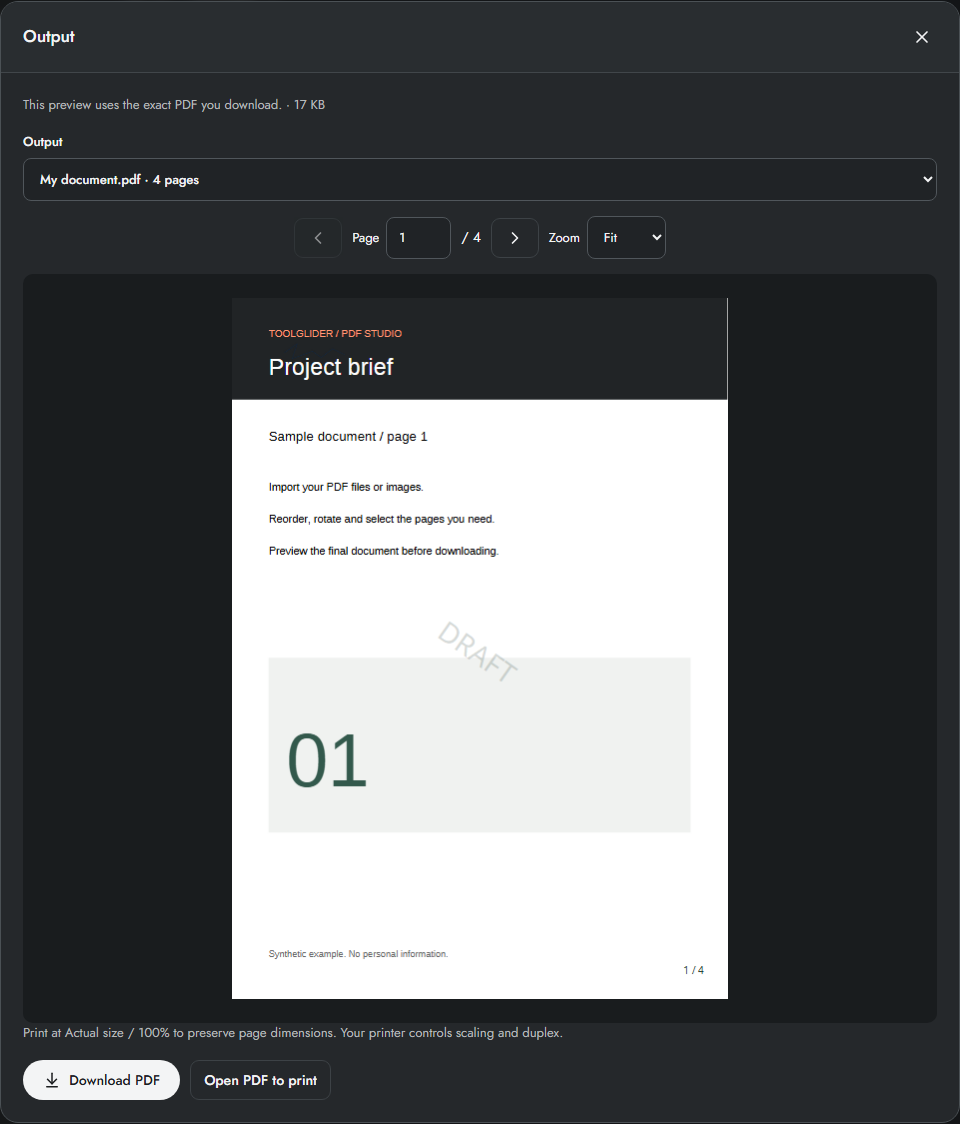
Choose Watermark, All pages, DRAFT, Center, 34 pt, angle -35° and opacity 20%. Inspect both a dense text page and a mostly blank page. Reduce opacity further if the watermark competes with small text; do not assume the same value suits every document.
Limits and checks
An image stamp is contained inside its placement box without stretching. Uploaded stamps are limited to 2 MB and 4 megapixels; unique stamp data totals at most 10 MB. A watermark is visible content and does not prevent copying or prove document authenticity.
Before sharing, compare the page count, first and last pages, and any added content with your intended result. If a job fails, keep the workspace open and correct the reported cause before retrying. See the troubleshooting guide for file, pixel and browser-storage limits.
Frequently asked questions
Does a watermark secure a document?
It adds visible content. It is not access control, encryption, redaction or a digital signature.
How do I replace it?
Apply Watermark again to the same scope, or remove its layer. Applying only to a subset replaces it only on that subset.
Continue your workflow
- Add positioned text, headers and footers to PDF pages — Place new text with millimetre coordinates, templates and page-specific scope.
- Place a drawn or uploaded signature image on a PDF — Draw locally or upload a transparent signature, then check its exact placement.
- Preview, download and print the final PDF — Inspect exact output bytes, choose a split result, zoom and print at the intended size.