
PDF Studio errors, supported files and privacy
Resolve rejected files, invalid ranges, output limits, storage errors and cancellation.
Before you start
Keep your original inputs. This walkthrough uses the current PDF Studio beta and its English controls. Start with the built-in sample if you want to practise without personal files. Supported input is ordinary static PDF, JPEG and PNG; processing occurs in your browser.
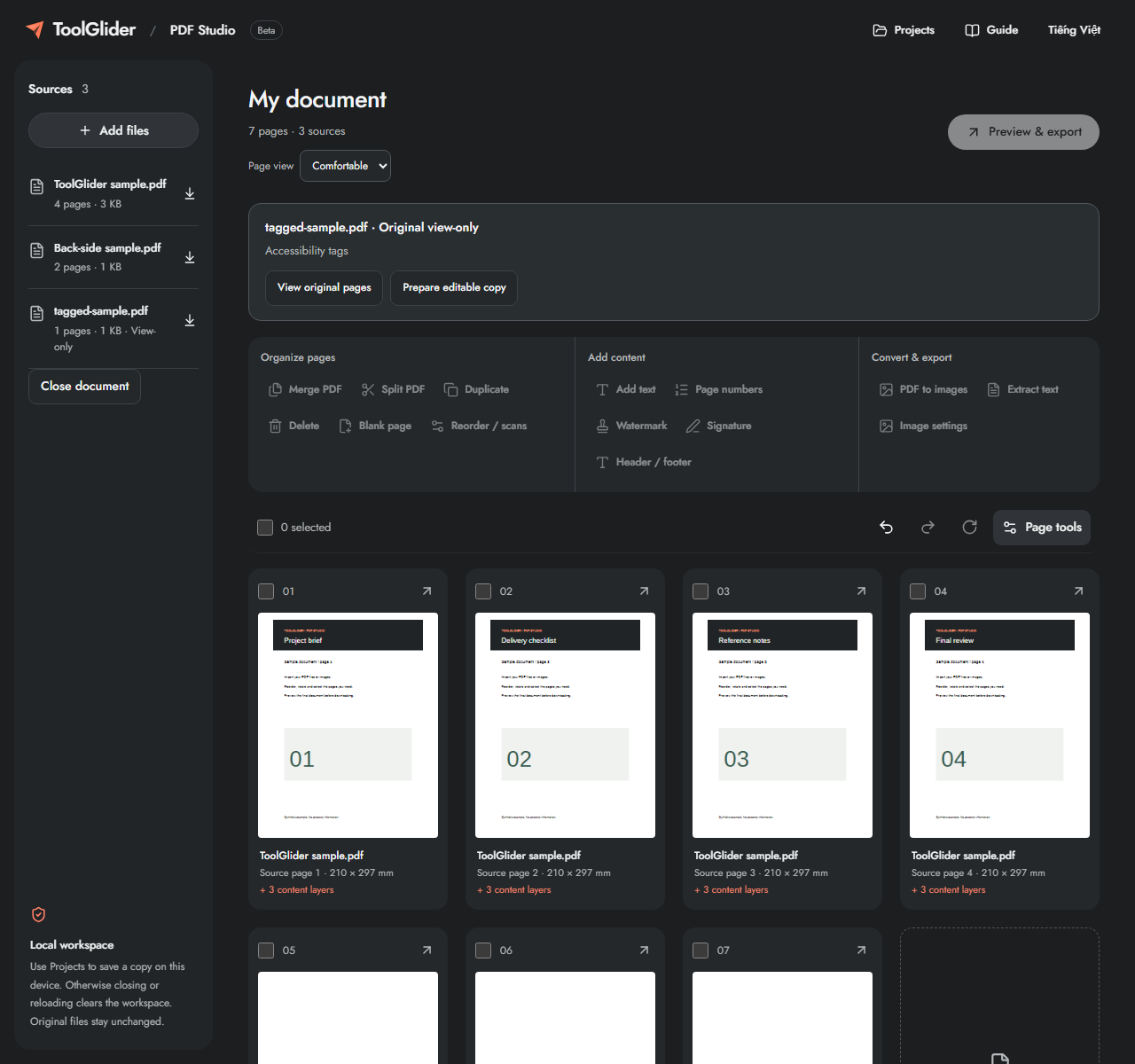
The document toolbar has three groups: Organize pages, Add content and Convert & export. On mobile, tap a group to reveal its controls. Only the compact selection row stays visible when scrolling; the full toolbar scrolls with the document.
Step-by-step instructions
Read the error beside the rejected file. A valid file in the same import batch can still be accepted. Keep working sources and correct only the failed input instead of closing the workspace.
Forms, annotations, bookmarks and tags now open in original view-only mode. Use Prepare editable copy and acknowledge the listed losses when a copy is supported. Signed files stay view-only; encrypted inputs are not unlocked.
For page-range errors, compare against current workspace order and remove repetitions. For image-output limits, lower DPI or select fewer pages. For storage errors, download output and inspect browser site-storage permissions.
Use Cancel to stop a running task; previously imported files remain. If checking output fails, no download is offered. Keep originals, retry a small supported sample and save or export work before reloading.
Match the error to the remedy
File budget: each source ≤25 MB, retained original plus normalized data ≤75 MB, at most 20 sources and 200 instances. Input image ≤16 MP. Image export ≤16 MP/page, 120 MP total and 75 MB. A stamp ≤2 MB and 4 MP, with 10 MB unique stamp data and 24 layers/page.
Text does not fit: shorten text, reduce size/angle or enlarge its area. Unsupported glyph: remove the missing character. No text layer: use a text-based PDF; adding an image cannot provide OCR. Storage unavailable/quota: check permissions or delete an unnecessary saved copy after downloading a backup.
Privacy and safe recovery
Imported content stays in the browser’s processing path. A saved project persists in this origin’s browser storage only when explicitly saved. A shared device/profile can expose saved files to another user of that profile; delete your saved copy when appropriate. Download original retrieves the input, not an edited result.
Do not report a private PDF to a public issue tracker. A useful bug report includes language, device/browser, task, exact error and a harmless synthetic example. This release has no compression button, OCR, PDF-to-Word, password editing, permanent redaction or certificate-based signing.
Why an ordinary-looking PDF can be rejected
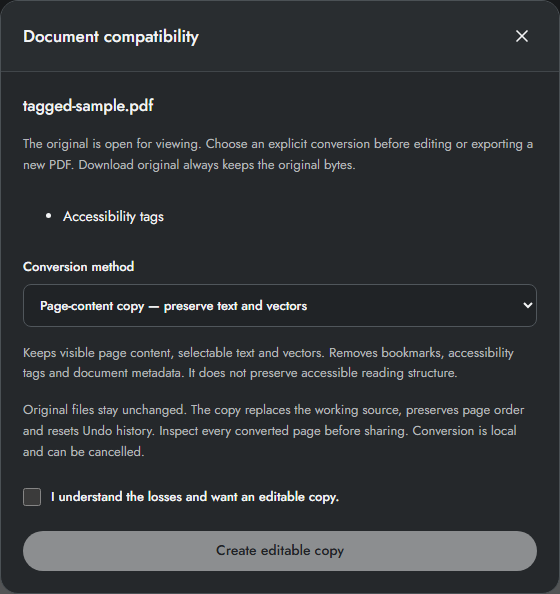
A PDF exported by an office application can contain StructTreeRoot or MarkInfo even when it has no visible form fields. These are tagging/accessibility structures, not proof of file damage. The document now opens in original view-only mode. Prepare editable copy explains how to keep page text and vectors while removing unsupported tags/bookmarks, or create an image-based visual copy with explicit consent.
Create an editable copy, step by step
Import the PDF and inspect its original pages. Choose Prepare editable copy in the compatibility notice. For tags/bookmarks only, Page-content copy preserves selectable text and vectors but removes document structure and bookmarks. For forms, annotations and other supported complex cases, Visual copy renders saved page appearances into images at 72, 100 or 150 DPI.
Read the losses, tick the acknowledgement and choose Create editable copy. Conversion replaces the working source, resets Undo history and keeps original bytes available through Download original. Inspect every resulting page before adding content or exporting. Cancel leaves the original view-only source in place. Encrypted files are not unlocked; signed/permission-controlled PDFs remain view-only.
Limits and checks
The static-file gate is a compatibility boundary, not a claim that arbitrary PDFs are sanitized. File contents are processed on the device. Loading the site still requests public application assets; saved projects remain in the current browser profile.
Before sharing, compare the page count, first and last pages, and any added content with your intended result. If a job fails, keep the workspace open and correct the reported cause before retrying. See the troubleshooting guide for file, pixel and browser-storage limits.
Frequently asked questions
Can I bypass a rejected PDF?
There is no silent bypass. Open the original for viewing, then use Prepare editable copy and accept the listed losses if a conversion is available. Signed or permission-controlled files stay view-only.
Should I clear browser data to fix an error?
Save/export first. Clearing site data can delete local projects and offline resources; it is not the first troubleshooting step.
Continue your workflow
- Save and reopen a PDF project on this device — Save source files, page order and added layers explicitly in browser storage.
- Use PDF Studio on mobile and offline — Find mobile controls, cache the app and understand what is saved locally.
- Split a PDF or extract selected pages — Export page ranges, separate pages or fixed-size groups with a ZIP manifest.