
Place a drawn or uploaded signature image on a PDF
Draw locally or upload a transparent signature, then check its exact placement.
Before you start
Keep your original inputs. This walkthrough uses the current PDF Studio beta and its English controls. Start with the built-in sample if you want to practise without personal files. Supported input is ordinary static PDF, JPEG and PNG; processing occurs in your browser.
Quick access: After importing pages, the document toolbar provides Signature. On mobile, choose Pages, Add content or Convert & export to reveal the relevant group. The detailed Page tools route below remains available.
Step-by-step instructions
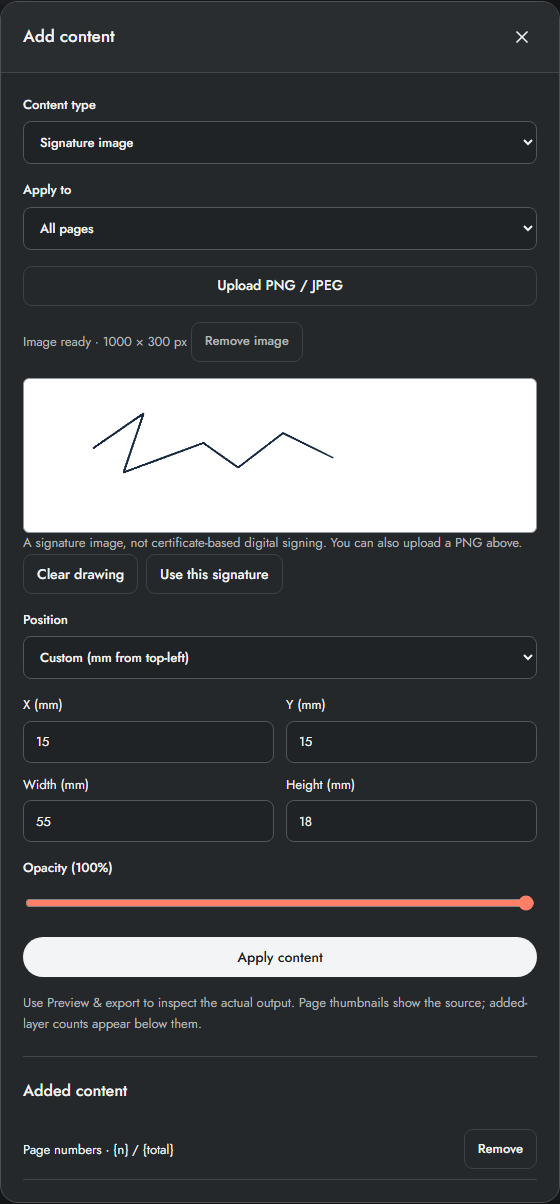
Import a supported unsigned static PDF. Open Page tools → Add text, numbers & signature and select Signature image.
Upload a PNG or JPG signature, or draw in the signature area using a mouse, touch or pen. Clear drawing starts over; Use this signature converts the drawing to a transparent image.
Choose the page scope. Enter X, Y, width and height in millimetres from the visible top-left corner. A transparent PNG avoids a white rectangle covering the document.
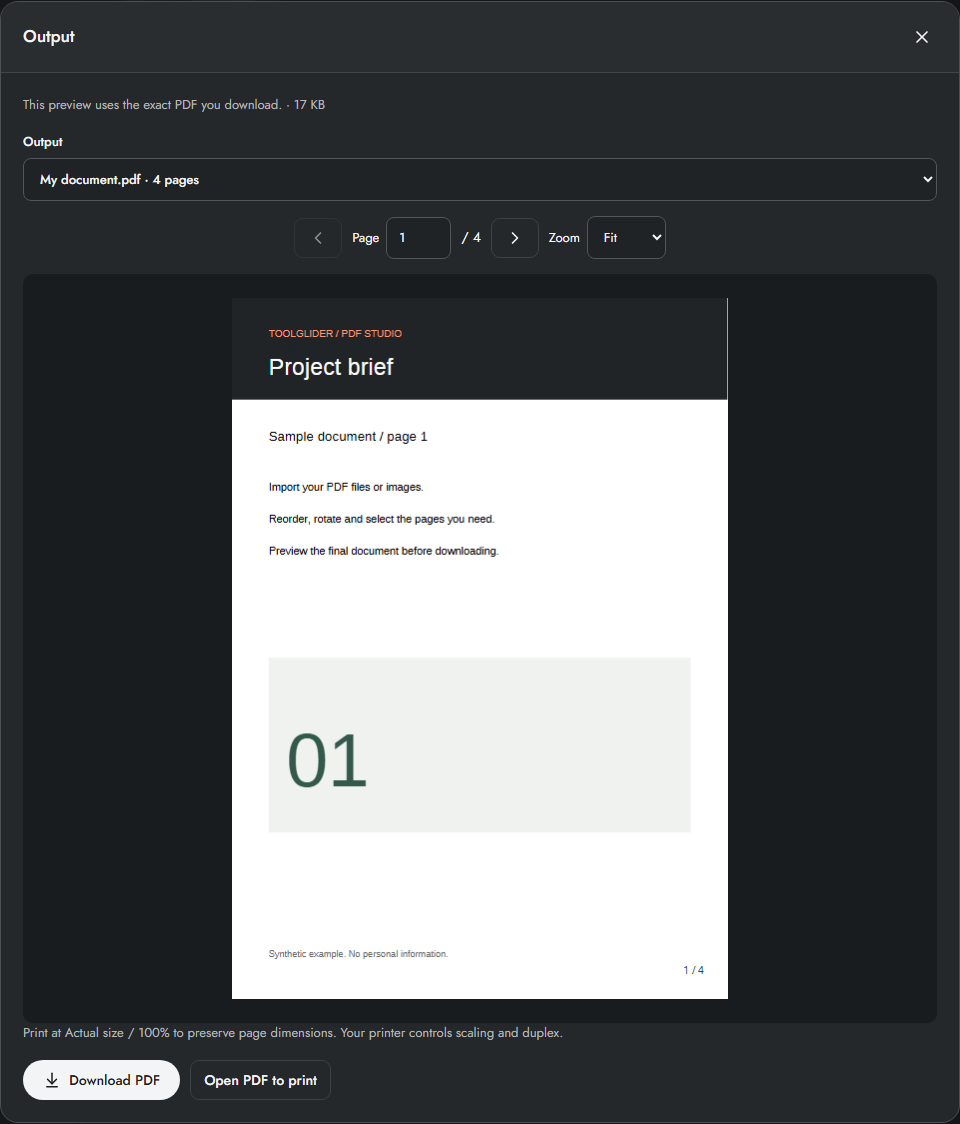
Apply content and create the output preview. Zoom in and check the signature against the intended line, especially on rotated pages. Download the PDF and retain an original copy. Remove the layer or Undo if placement needs correcting.
Prepare a clean signature image
Draw inside the pad and press Use this signature; merely drawing does not select the image for application. Clear drawing clears the pad. Upload stamp image is an alternative for keyboard users and for signatures prepared elsewhere.
The pad is wide. Empty space inside a drawing or uploaded file is part of the image, so a short signature may look smaller than its box. Crop excess space in your image before uploading if precise visible size is important.
Example: place a signature on one page
Choose Page range and enter 4 for the last page of the four-page sample. Set Custom, X=20 mm, Y=240 mm, Width=55 mm, Height=18 mm on an A4 portrait page. Use the output preview to check that the placement is clear of existing text. These values are an example, not a universal signing position.
Limits and checks
This feature adds an image. It does not create a certificate-based digital signature, verify identity or provide a signing audit trail. Signed PDFs can be viewed but stay unavailable for editing. Signature data is kept with a project only when you explicitly save that project on this device.
Before sharing, compare the page count, first and last pages, and any added content with your intended result. If a job fails, keep the workspace open and correct the reported cause before retrying. See the troubleshooting guide for file, pixel and browser-storage limits.
Frequently asked questions
Is this certificate signing?
No. It places a signature image and provides no certificate, identity verification or audit trail.
Will my signature be saved?
It stays with the current session and exported document. Explicitly saving a project also saves its signature layer in this browser.
Continue your workflow
- Add positioned text, headers and footers to PDF pages — Place new text with millimetre coordinates, templates and page-specific scope.
- Save and reopen a PDF project on this device — Save source files, page order and added layers explicitly in browser storage.
- Preview, download and print the final PDF — Inspect exact output bytes, choose a split result, zoom and print at the intended size.