
Extract selectable text from a PDF to TXT
Download text from the final PDF, including new headers and page numbers.
Before you start
Keep your original inputs. This walkthrough uses the current PDF Studio beta and its English controls. Start with the built-in sample if you want to practise without personal files. Supported input is ordinary static PDF, JPEG and PNG; processing occurs in your browser.
Quick access: After importing pages, the document toolbar provides Extract text. On mobile, choose Pages, Add content or Convert & export to reveal the relevant group. The detailed Page tools route below remains available.
Step-by-step instructions
Import a PDF with a real text layer. A photographed or scanned page can look like text while containing only an image.
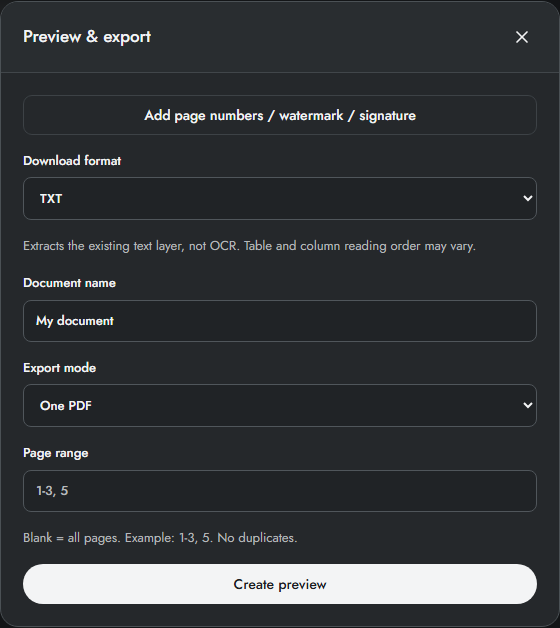
Open Preview & export and choose TXT. Enter the required page range and export mode. Added text layers are included because extraction reads the final PDF.
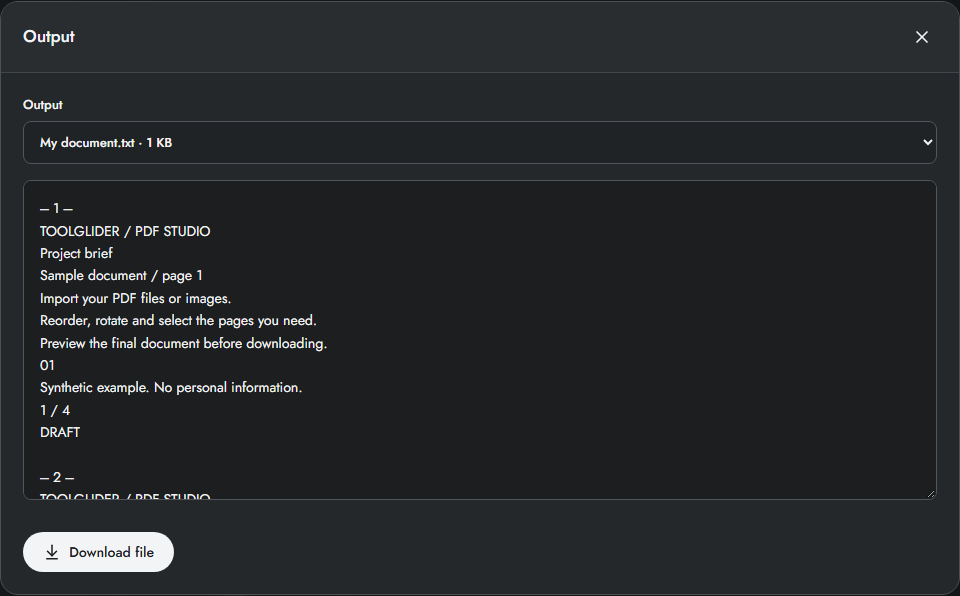
Create preview and read the text field. Page separators help locate the original page. Compare paragraphs, tables, columns and Vietnamese characters with the source.
Download the TXT file, or a ZIP if your split mode produces multiple files. Check the text before using it in another tool; PDF reading order can differ from the visual layout.
What the text file contains
Extraction reads the final PDF text layer, including new text headers, page numbers and text watermarks. It inserts page separators such as --- 1 ---. A signature image or image watermark adds no text. The file uses UTF-8.
Reading order comes from PDF text objects rather than a document layout model. Two columns, rotated labels, ligatures or tables may appear in a different sequence. Check the TXT against the PDF before copying it into a report or spreadsheet.
Example: verify added Vietnamese text
Add a header Báo cáo tháng · {page}/{pages}, export TXT and inspect the text field. The Vietnamese phrase should be readable. A scanned page with a newly added page number can export only that number; it does not mean the scanned body has been recognized.
Limits and checks
This is text extraction, not OCR. An output with no extractable text produces a clear error. TXT does not preserve fonts, page layout, tables as spreadsheets or images. Complex layouts may need manual cleanup.
Before sharing, compare the page count, first and last pages, and any added content with your intended result. If a job fails, keep the workspace open and correct the reported cause before retrying. See the troubleshooting guide for file, pixel and browser-storage limits.
Frequently asked questions
Can it read handwriting or scanned images?
No. OCR is not included. Use this tool only for existing PDF text layers.
Why is the layout missing?
TXT is plain text. It cannot retain fonts, images, page design or spreadsheet cells.
Continue your workflow
- Convert PDF pages to PNG or JPG at a chosen DPI — Export rendered pages, including added content, as images with verified pixel dimensions.
- Convert JPG and PNG images to PDF — Set page size, margins and fit before combining photographs or scans into a PDF.
- PDF Studio errors, supported files and privacy — Resolve rejected files, invalid ranges, output limits, storage errors and cancellation.