
Convert JPG and PNG images to PDF
Set page size, margins and fit before combining photographs or scans into a PDF.
Before you start
Keep your original inputs. This walkthrough uses the current PDF Studio beta and its English controls. Start with the built-in sample if you want to practise without personal files. Supported input is ordinary static PDF, JPEG and PNG; processing occurs in your browser.
Quick access: After importing pages, the document toolbar provides Image settings. On mobile, choose Pages, Add content or Convert & export to reveal the relevant group. The detailed Page tools route below remains available.
Step-by-step instructions
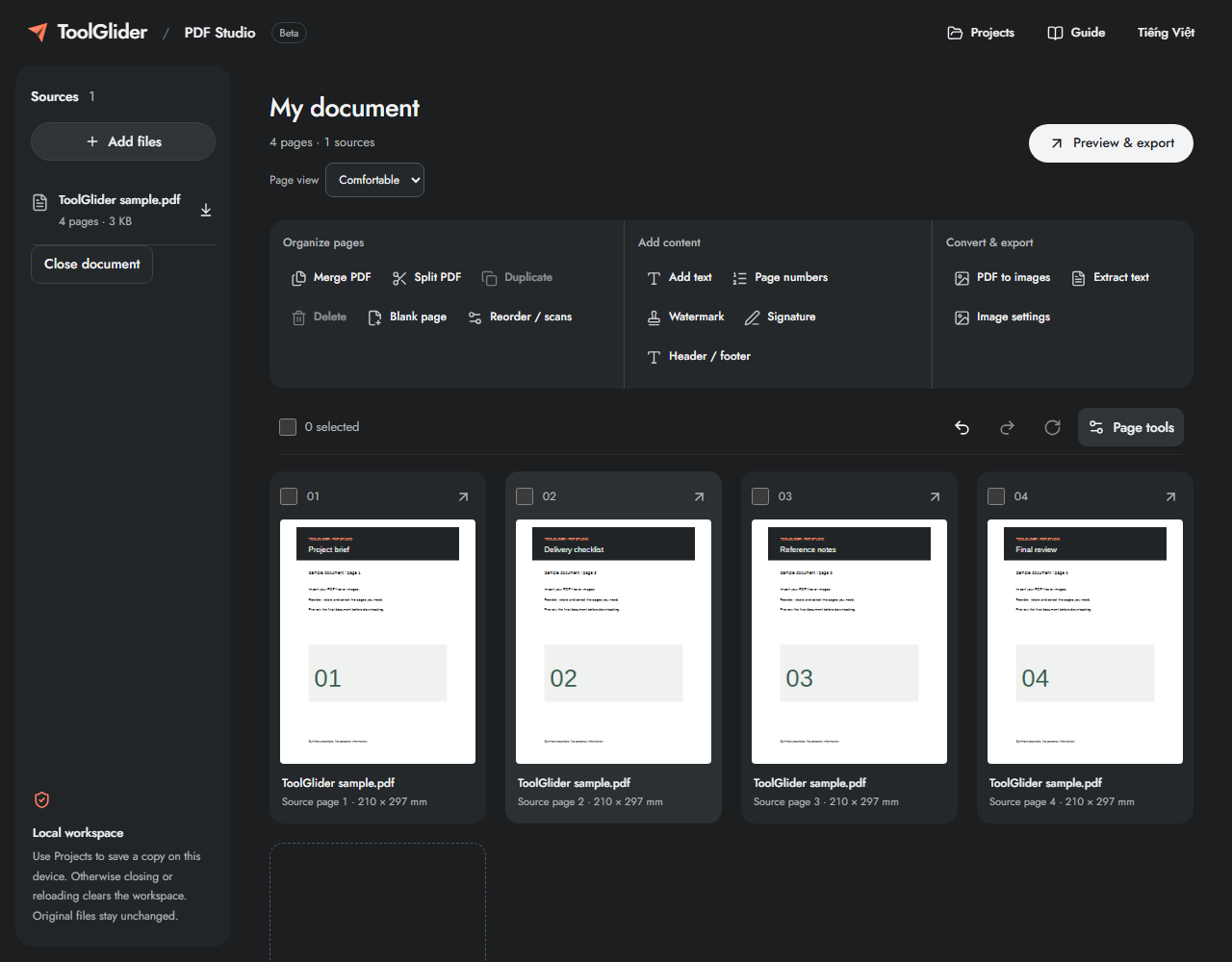
Use Add files to select JPG or PNG images. Each accepted image becomes a page. Select images in the intended order, then confirm that order in the workspace.
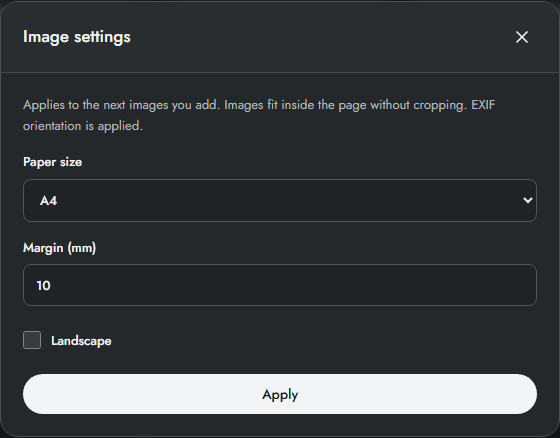
Open Image settings before importing when you need a different paper size, orientation or margins. Images always fit without cropping. These settings apply to newly imported images; they do not resize existing PDF pages.
Inspect each thumbnail, especially portrait photographs. Rotate or move pages when needed. Add a PDF source if you want to combine image pages with existing document pages.
Open Preview & export, create the final PDF preview and inspect image cropping and margins. Download PDF after checking the result.
Paper size, orientation and margins
A4 and US Letter use fixed paper dimensions. Image size (96 DPI) derives physical dimensions from image pixels at 96 DPI; it does not read a scanner DPI setting. Landscape swaps the page orientation. Margin accepts 0–50 mm provided the image area still fits.
Images are contained inside the available area without cropping and keep their proportions. EXIF orientation is applied when normalizing JPEGs. If a photograph looks too small on A4, check its aspect ratio and margin rather than expecting the app to stretch it.
Example: two receipts on separate pages
Choose A4, portrait and 10 mm margin, then import two receipt photos. Each image becomes its own page; this is not a multi-image collage. If you change settings afterwards, remove those page instances and reimport the images to apply the new settings.
Limits and checks
An image can be at most 16 megapixels and 25 MB. The workspace retains original and normalized files within a 75 MB session budget. Image-only pages contain no searchable text; OCR is not included.
Before sharing, compare the page count, first and last pages, and any added content with your intended result. If a job fails, keep the workspace open and correct the reported cause before retrying. See the troubleshooting guide for file, pixel and browser-storage limits.
Frequently asked questions
Does this make a scan searchable?
No. The image remains an image. Text extraction needs an existing text layer; OCR is not available.
Why does a file below 25 MB fail?
Pixel limits and the retained-data session budget also apply. A compressed image can exceed 16 megapixels even when its file size is small.
Continue your workflow
- Merge PDF files and arrange pages online — Combine static PDF documents, inspect page order and download one verified PDF.
- Convert PDF pages to PNG or JPG at a chosen DPI — Export rendered pages, including added content, as images with verified pixel dimensions.
- Extract selectable text from a PDF to TXT — Download text from the final PDF, including new headers and page numbers.