
Add page numbers, headers and footers to a PDF
Use templates, start numbers and cover-page skipping with millimetre placement.
Before you start
Keep your original inputs. This walkthrough uses the current PDF Studio beta and its English controls. Start with the built-in sample if you want to practise without personal files. Supported input is ordinary static PDF, JPEG and PNG; processing occurs in your browser.
Quick access: After importing pages, the document toolbar provides Page numbers. On mobile, choose Pages, Add content or Convert & export to reveal the relevant group. The detailed Page tools route below remains available.
Step-by-step instructions
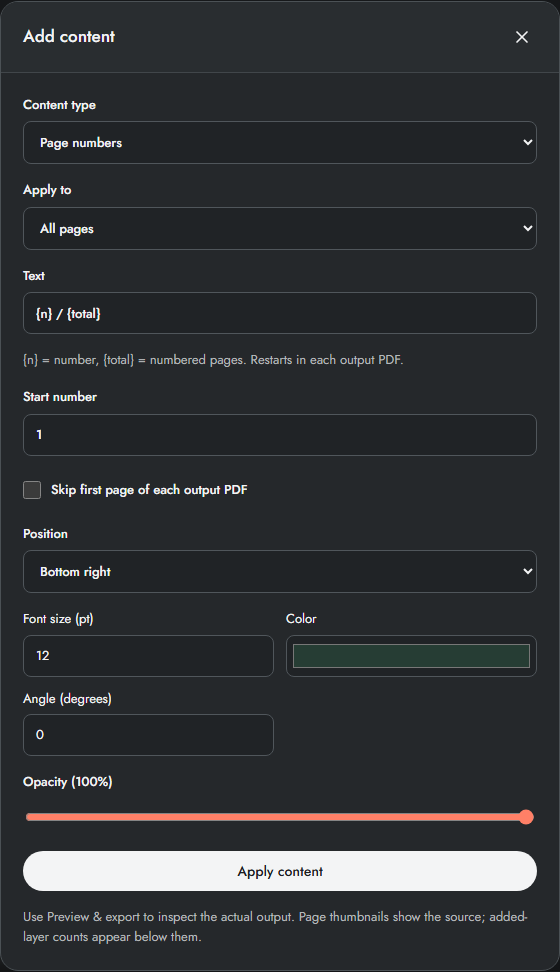
Import the document, then open Page tools → Add text, numbers & signature. Choose Page numbers, Header or Footer in Content type.
Choose All pages, Selected pages or Page range. For numbering, use {n} for the number and {total} for the numbered-page count. Set the start number and optionally skip the first page of each output PDF.
Choose a position preset or Custom coordinates. X and Y are millimetres from the visible top-left corner; width and height define the placement box. Set font size, colour and opacity.
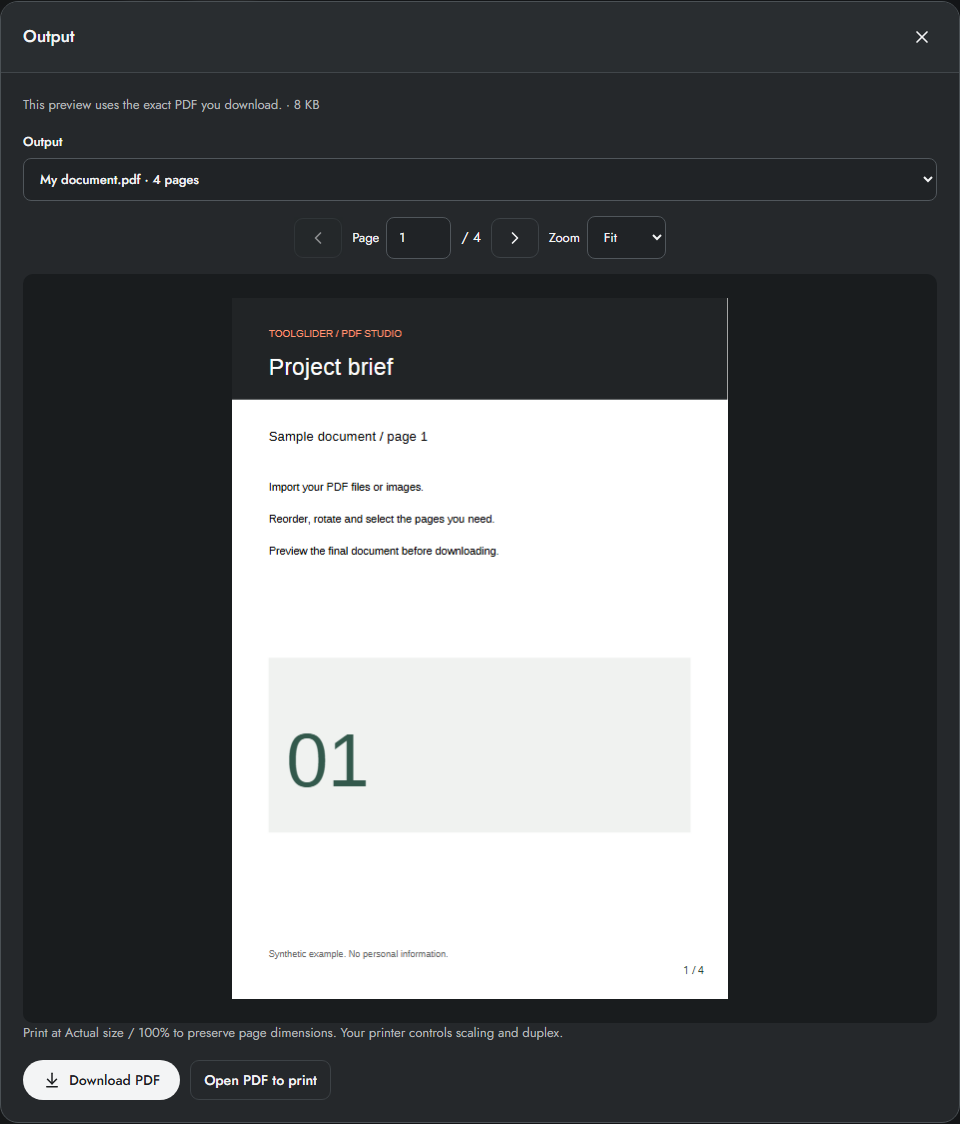
Apply content, then Create preview. Thumbnails remain source previews; the output preview shows the actual added content. Inspect cover skipping, the last number and every differently sized or rotated page before downloading.
Number templates and scope
{n} is the sequential number beginning at Start number. {total} counts the target pages numbered in that output. All pages, Selected pages and Page range determine where the numbering layer is added. These are different from the export range, which determines which pages go into the file.
Skip first page of each output PDF refers to the first exported page, not automatically source page 1. When splitting, every file gets its own cover skip and numbering restart. Apply numbering after organizing to make the intended page scope easier to check.
Example: cover plus three body pages
On the four-page sample, choose All pages, text Page {n} of {total}, Start number 1 and skip the first page. The cover stays unnumbered; following pages display Page 1 of 3 through Page 3 of 3. A start number of 5 produces 5, 6 and 7 while total remains 3.
Limits and checks
Numbering restarts in every output PDF. Headers and footers can use {page} and {pages} for output page position and count. Reapplying the same role replaces that role on the chosen pages. Vietnamese characters are supported; unsupported glyphs produce an error.
Before sharing, compare the page count, first and last pages, and any added content with your intended result. If a job fails, keep the workspace open and correct the reported cause before retrying. See the troubleshooting guide for file, pixel and browser-storage limits.
Frequently asked questions
Why can I not see numbers on thumbnails?
Thumbnails show the source. The layer count confirms an addition; Create preview shows the final numbered PDF.
Can I overwrite an existing printed page number?
The feature adds new text. It does not erase old numbers; choose a clear area so the two do not overlap.
Continue your workflow
- Add positioned text, headers and footers to PDF pages — Place new text with millimetre coordinates, templates and page-specific scope.
- Split a PDF or extract selected pages — Export page ranges, separate pages or fixed-size groups with a ZIP manifest.
- Preview, download and print the final PDF — Inspect exact output bytes, choose a split result, zoom and print at the intended size.