
Interleave odd and even PDF scans
Reassemble two scan batches with a controlled source order and optional reversal.
Before you start
Keep your original inputs. This walkthrough uses the current PDF Studio beta and its English controls. Start with the built-in sample if you want to practise without personal files. Supported input is ordinary static PDF, JPEG and PNG; processing occurs in your browser.
Quick access: After importing pages, the document toolbar provides Reorder / scans. On mobile, choose Pages, Add content or Convert & export to reveal the relevant group. The detailed Page tools route below remains available.
Step-by-step instructions
Import the two static PDF scan batches. Identify which source contains odd/front pages and which contains even/back pages.
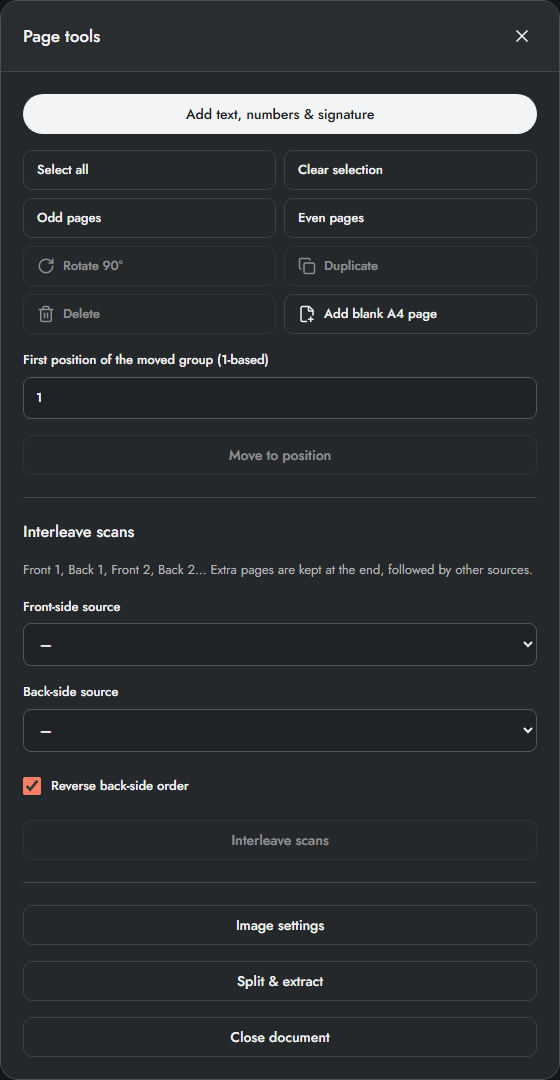
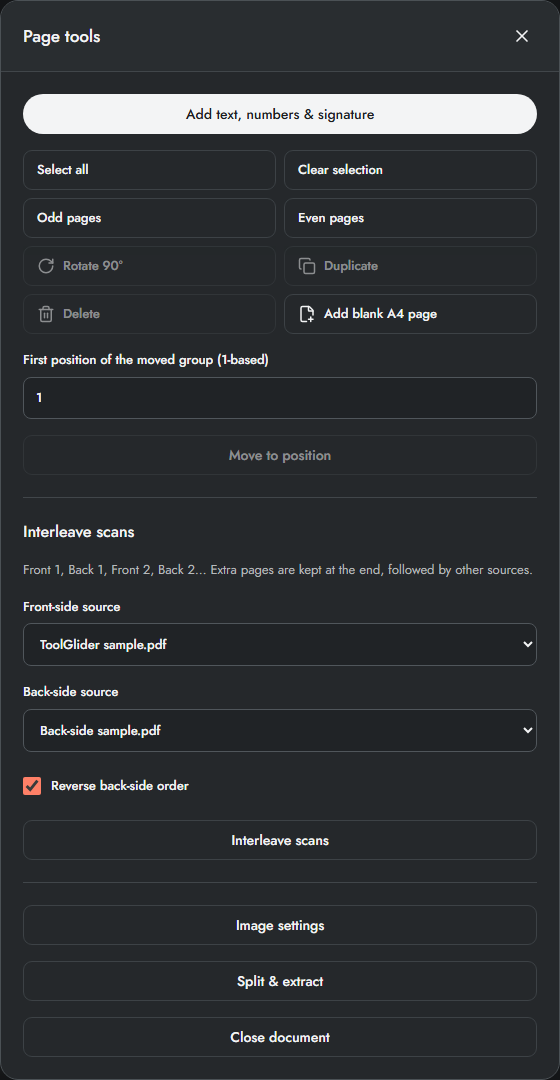
Open Page tools and the interleave controls. Select the first and second source in the intended alternating order. Enable reversal for the second batch only if your scanner produced it backwards.
Apply interleave, then read the page cards. Check the first pair, a middle pair and the final pair. Undo and change the settings if the sequence is wrong.
Create a merged PDF preview and inspect the actual pages before downloading. If the source counts differ, check the remaining end pages carefully.
Check scanner feed direction first
Scan front sides into one PDF and back sides into another. The first source alternates before the second: Front 1, Back 1, Front 2, Back 2. Reverse back-side order reverses the second sequence before alternating; it does not rotate pages.
The operation uses currently retained instances of the chosen sources. If you previously duplicated or moved their pages, check their sequence first. Pages left over from the longer source remain at the end of the interleaved pair, followed by pages from other sources.
Example: restore six scanned pages
If the front PDF represents 1, 3, 5 and the back PDF represents 6, 4, 2, select the front source first, back source second and enable Reverse back-side order. Expect 1, 2, 3, 4, 5, 6. Inspect visible content rather than trusting filenames alone.
Limits and checks
Interleave uses page order, not image recognition. It cannot identify a missing scan or determine which side is the front. Keep the two original batches and verify your scanner’s feed direction with a short sample first.
Before sharing, compare the page count, first and last pages, and any added content with your intended result. If a job fails, keep the workspace open and correct the reported cause before retrying. See the troubleshooting guide for file, pixel and browser-storage limits.
Frequently asked questions
Can both selectors use the same source?
No. Choose two different sources that still contain pages.
Will it fix upside-down backs?
Not by reversing order. Select those pages and use Rotate 90° twice for a half-turn, then verify the output.
Continue your workflow
- Reorder, rotate, duplicate and delete PDF pages — Control page selection, exact positions, blank pages and undo without changing source files.
- Merge PDF files and arrange pages online — Combine static PDF documents, inspect page order and download one verified PDF.
- Preview, download and print the final PDF — Inspect exact output bytes, choose a split result, zoom and print at the intended size.