
Convert PDF pages to PNG or JPG at a chosen DPI
Export rendered pages, including added content, as images with verified pixel dimensions.
Before you start
Keep your original inputs. This walkthrough uses the current PDF Studio beta and its English controls. Start with the built-in sample if you want to practise without personal files. Supported input is ordinary static PDF, JPEG and PNG; processing occurs in your browser.
Quick access: After importing pages, the document toolbar provides PDF to images. On mobile, choose Pages, Add content or Convert & export to reveal the relevant group. The detailed Page tools route below remains available.
Step-by-step instructions
Import and arrange pages. Add any page numbers, watermark or signature before exporting so the image includes the final content.
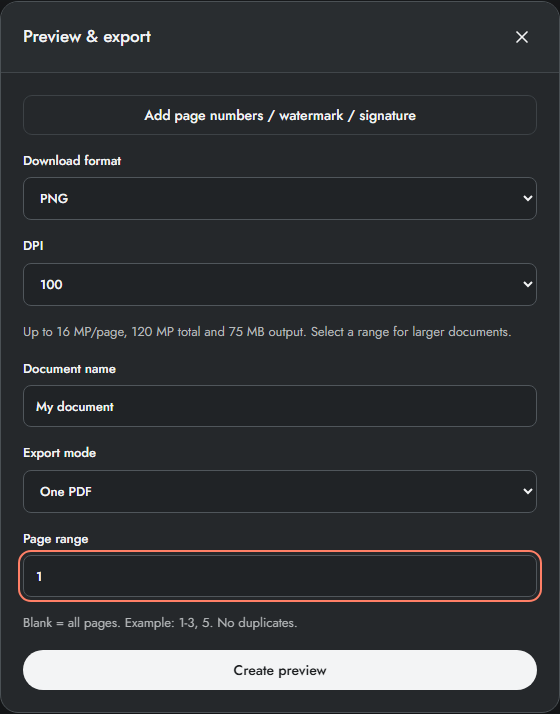
Open Preview & export and choose PNG or JPG in Download format. Select DPI: 72, 100, 150, 200 or 300. PNG is useful for sharp text; JPG usually suits photographs.
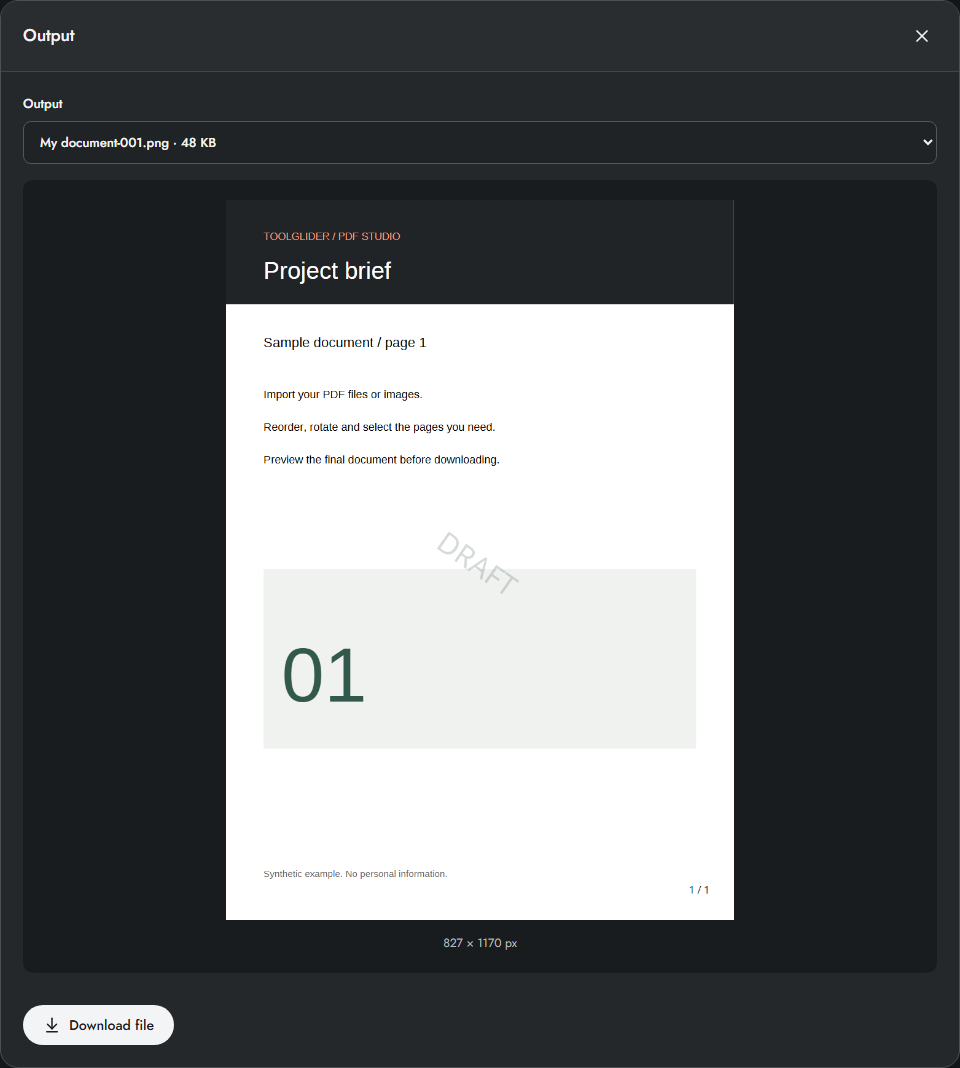
Enter a page range for a large document. Create preview and inspect the resulting image and its pixel dimensions. Higher DPI increases both pixel count and memory use.
Download one file or ZIP + manifest for several pages. The manifest records output names and image dimensions. Check that the page count matches the selected range before sharing the result.
Choose a resolution for the task
DPI controls raster pixels per physical inch of the PDF page. A4 at 100 DPI is about 827 × 1170 pixels; at 300 DPI it is about 2481 × 3508, depending on exact page dimensions and rounding. Zooming the preview does not change export DPI.
Use 100–150 DPI for quick review or sharing and a higher value only when you need detail. PNG preserves crisp edges without JPEG compression; JPG uses a lossy image encoding. Both render on white and lose selectable text as an image.
Example: export only the first two pages
Select PNG, DPI 100, One PDF and range 1-2, then Create preview. There should be two image files with 001 and 002 suffixes. Download ZIP + manifest and compare the recorded pixel dimensions against the preview. Reduce the range rather than repeatedly attempting an oversized batch.
Limits and checks
Export is limited to 16 megapixels per page, 120 megapixels total and 75 MB of output. Lower DPI or export a smaller range if a limit is reached. The white page background is rendered into the image. PNG/JPG exports do not preserve searchable PDF text.
Before sharing, compare the page count, first and last pages, and any added content with your intended result. If a job fails, keep the workspace open and correct the reported cause before retrying. See the troubleshooting guide for file, pixel and browser-storage limits.
Frequently asked questions
Are embedded pictures extracted directly?
No. This renders each complete page, including text and overlays, into a new image.
Why does 300 DPI fail on a large page?
A large physical page can exceed 16 MP at that DPI. Lower the DPI; splitting into more files alone does not reduce pixels per page.
Continue your workflow
- Convert JPG and PNG images to PDF — Set page size, margins and fit before combining photographs or scans into a PDF.
- Extract selectable text from a PDF to TXT — Download text from the final PDF, including new headers and page numbers.
- Split a PDF or extract selected pages — Export page ranges, separate pages or fixed-size groups with a ZIP manifest.