
Compress PDF locally: compare quality and file size
Reduce PDF size with Preserve quality or Balanced, compare pages and download the verified result.
Before you start
Keep your original inputs. This walkthrough uses the current PDF Studio beta and its English controls. Start with the built-in sample if you want to practise without personal files. Supported input is ordinary static PDF, JPEG and PNG; processing occurs in your browser.
The document toolbar has three groups: Organize pages, Add content and Convert & export. On mobile, tap a group to reveal its controls. Only the compact selection row stays visible when scrolling; the full toolbar scrolls with the document.
Step-by-step instructions
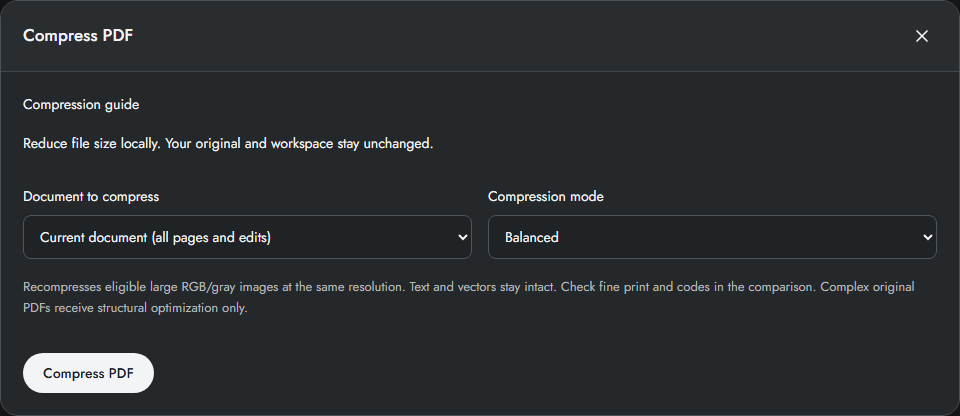
Import a PDF. Choose Convert & export → Compress PDF, or open Compress PDF inside Preview & export.
Choose Current document for all edits, or select an Original source file. Choose Preserve quality first; use Balanced when image recompression is acceptable.
Click Compress PDF. Wait for Preparing, Optimizing and Verifying. Cancel stops the job without replacing your workspace.
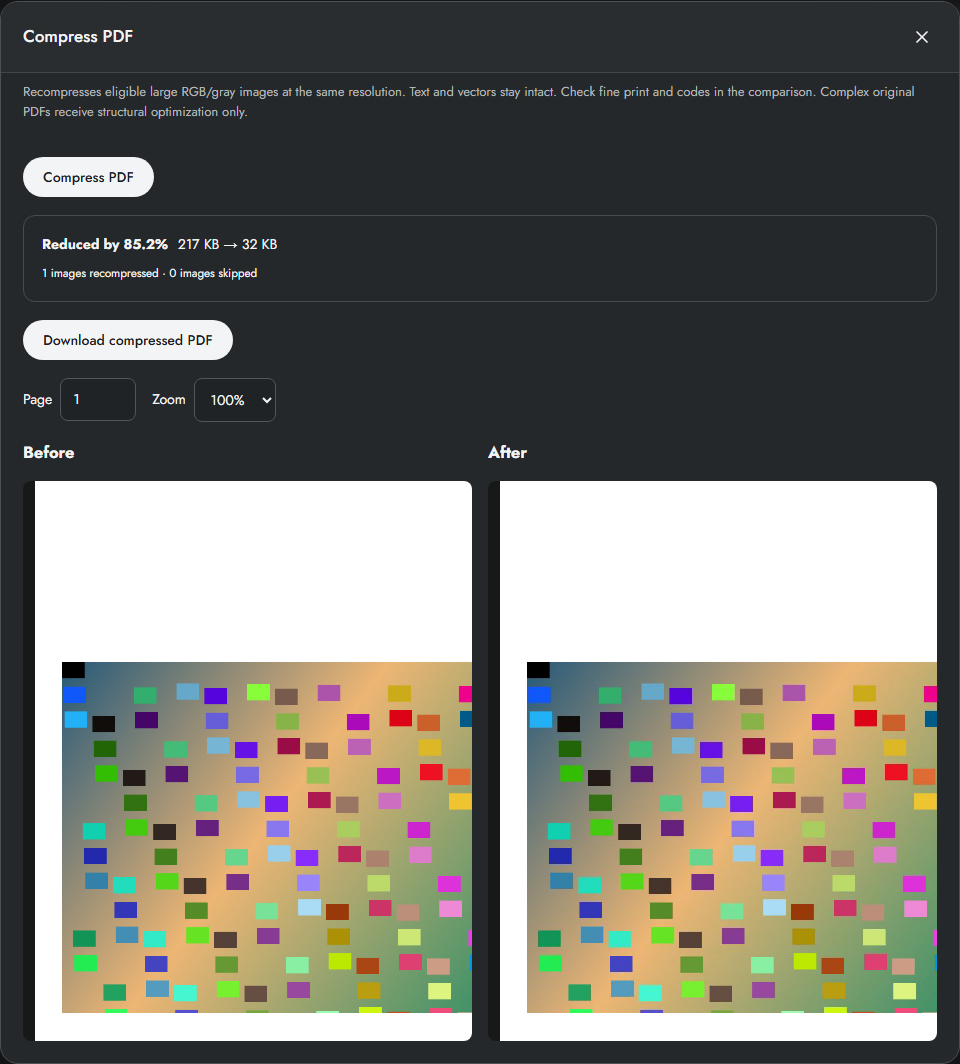
Review the actual saving and inspect Before/After at 100% or 200%. Download compressed PDF, or download the unchanged input if no smaller result is available.
Choose the right input
Current document includes all workspace pages, their order, rotation and added content. Its before size is the freshly exported PDF. Original compresses the selected source bytes directly, including pages you may have removed from the workspace. Neither option overwrites a file or replaces the workspace.
Preserve quality or Balanced
Preserve quality reorganizes PDF objects and recompresses eligible streams without intentionally changing images. Balanced additionally recompresses eligible large RGB/gray images as JPEG at their existing dimensions. It does not downsample pages, flatten selectable text, perform OCR or guarantee a target size. Masks, unsupported color spaces, small images and complex original documents are excluded from image recompression.
Read the result and compare details
The result reports actual byte sizes and percentage saved. When optimization produces no smaller valid file, the input is retained. Select a page and 100% or 200% zoom; desktop panes scroll together and mobile switches Before/After. Inspect small text, photos, signatures and QR/barcodes before downloading. Automated checks compare page geometry and extracted text; they do not certify every visual detail or archival conformance.
Limits and checks
The initial release has a 100 MiB compression input limit. Image recompression is selective and lossy; it preserves pixel dimensions. No target-size guarantee, batch compression or aggressive mode is offered. Signed, permission-controlled and identified archival originals are retained.
Before sharing, compare the page count, first and last pages, and any added content with your intended result. If a job fails, keep the workspace open and correct the reported cause before retrying. See the troubleshooting guide for file, pixel and browser-storage limits.
Frequently asked questions
Why did the PDF not get smaller?
It may already use efficient object streams and compressed images. Preserve quality has little to remove in such a file. Balanced can help photo-heavy PDFs, but skips images it cannot safely recompress. The original input is returned if there is no gain.
Are files uploaded?
Compression runs in a local browser worker. It downloads the optional engine on first use, not your documents. After the engine is cached and the app is ready offline, compression can run without a connection.
Can I compress a signed or PDF/A original?
The original is retained for signed, permission-controlled and identified archival PDFs. Rewriting can invalidate a signature or archival guarantees. Use Download original to keep exactly the input bytes.
Continue your workflow
- Merge PDF files and arrange pages online — Combine static PDF documents, inspect page order and download one verified PDF.
- Preview, download and print the final PDF — Inspect exact output bytes, choose a split result, zoom and print at the intended size.
- Use PDF Studio on mobile and offline — Find mobile controls, cache the app and understand what is saved locally.